
For your taxes, but also for internal evaluations, various documents are available for download. You can download these exports at any time under Cash Register › Closings › Monthly Overview.
Loading Exports
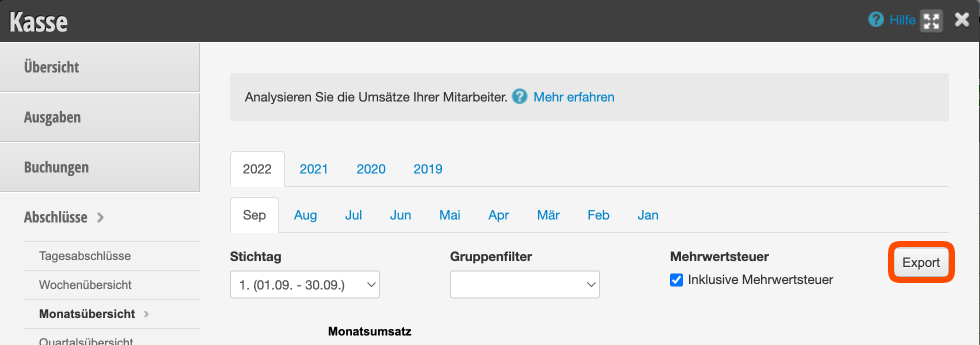
To load an export, first select the desired time period for which the export should apply. You can select the desired year and corresponding month in the tab bar or specify the desired time period in the date fields. Then click the "Export" button and select the export you want to load.
- DATEV Export (CSV)
This export creates a spreadsheet file in CSV format that can be imported by accounting programs (for your tax office). Important information about the DATEV export can be found here. - Cash Register (HTML)
Here you receive an overview table in HTML format of the cash register as required by some tax offices. - Simple Daily Overview (HTML)
This overview provides you with the entries of individual days of the desired time period in a simple HTML view. - Detail PDF Report
Summary of all daily closings for the selected period with a final revenue overview. - Employee Detail PDF
Revenue of all employees, broken down by categories as a basis for commission calculations and employee meetings. - Short PDF
Summary of all income and expenses for a day or month without listing individual entries. - Product Report
Track inventory movements for a time period. - Booking Overview (PDF)
Clear listing of the entries for the selected time period. This is useful if you want to manually transfer the data to another accounting software. - Export by Employee (HTML)
Creates an overview of sales for the selected time period. Broken down by services and product sales. - Export by Payment Method (HTML)
Creates an overview of sales for the selected time period. Broken down by payment type (cash, card payment, etc.). - Export by Tax Rate (XLS)
Creates an overview of sales, broken down by tax rate, for the selected time period. - Sales Overview (XLS)
Creates an overview of sales, broken down by services and products, for the selected time period.