
belbo
  • Overview
    • Getting to know Belbo
    • Location Settings
    • Switch to Belbo
    • Calendar View & Navigation
    • Recurring Appointments & Courses
    • Appointment Entry & Management
    • Logins & Permissions
    • Multiple Locations & Head Office
    • Manage Employees
    • Absences & Holidays
    • General
    • Working Hours
    • Time Tracking
    • Data Protection (GDPR)
    • Customer Communication (Email, SMS)
    • Customer Management & Records
    • Bonus & Loyalty Programs
    • Campaigns (Newsletter & SMS)
    • Marketing Consents (GDPR)
    • Tracking & Analytics
    • Overview
    • Services & Prices
    • Products
    • Service Packages & Subscriptions
    • Vouchers
    • Purchasing & Suppliers
    • Stock & Inventory
    • Scanning & Sales
    • Materials & Costs
    • Design & Texts
    • Setup & Settings
    • Integration (Website, Google, Instagram, Facebook)
    • Online payment
    • Accounting & Exports
    • Cash Register Settings & Hardware
    • Checkout process
    • Daily Closing & Reports
    • TSE & Cash Register Anti-Tampering Ordinance
    • Export Overview
    • Employee Utilization
    • Revenue & Reports
    • Belbo Satellite
    • Printer
    • EC Terminal & Card Payment
    • Troubleshooting Hardware
    • Scanner & POS Devices
    • General Settings
    • API & Integrations
    • Notifications & Emails
    • Contracts & Legal
Skip to content

Reminder Time

Set the timing for email and SMS reminders.

You can access this area via Settings > Appointment Confirmations & Reminders

Normally, a reminder is sent via SMS or email 24 hours before the appointment. However, you can adjust the reminder time yourself.
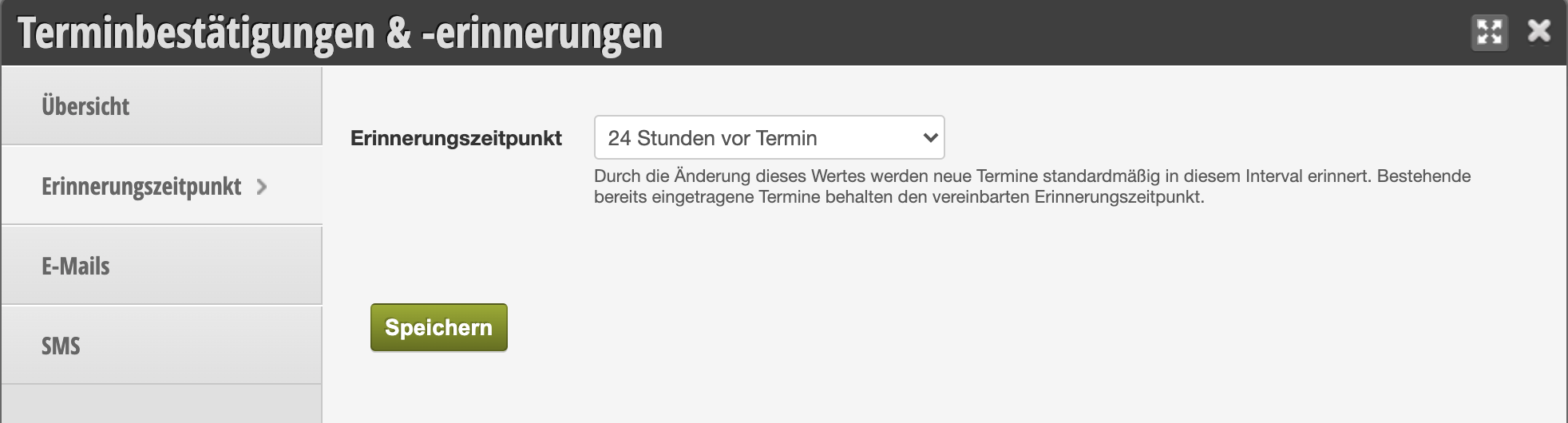
Changing this value will cause new appointments to be reminded by default at this interval. Existing appointments that have already been entered will retain the reminder time that was set before the change.

Recommendations for reminder period

If you have special cancellation rules, you can adjust this time. Sometimes customers only realize through the reminder that they cannot attend the appointment. If you only allow cancellations within a certain time period (e.g. up to 24 hours before an appointment), it makes sense to set a larger reminder period, e.g. with 48 hours notice.

Attention: If you send reminder SMS, please pay attention to an appropriate reminder period so that the customer does not receive the SMS message at night. We recommend 24 or 48 hours, as the reminder time will then correspond to the time of day of the appointment.

Sending time window

Please note that there is also a 24-hour sending time window. This means that if an appointment is created within the set reminder period, an SMS is sent immediately upon appointment creation.

Example: If you have set a reminder time of 48 hours, SMS messages will be sent immediately for appointments within the next 24 - 48 hours.
Categories: Customer Communication (Email, SMS)
Tags: Terminerinnerung
This manual is a service by belbo. Legal notice