If you want to reward customers as soon as they recommend your business to friends, you can use the "Referral Bonus" feature. This feature is only available if you also use the Belbo Cash Register System.
Set Referral Bonus
With this feature, you can grant customers a discount or award bonus points. You can choose whether both the referrer and the referred customer receive a discount or only one of them. You can use an existing discount template for this. If you haven't created the desired discount yet, you must do this first.
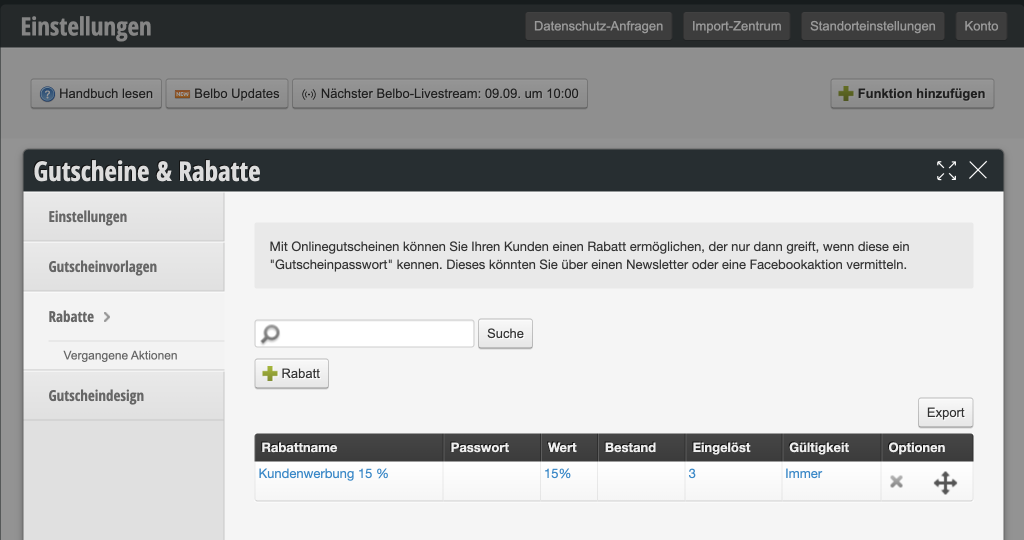
Create Discount
- Go to Settings > Vouchers & Discounts.
- Click on "+ Discount".
- Set the discount you want to offer.
- If you want to offer different discounts for the referrer and the referred customer, you can also set two different discounts.
Assign Discounts
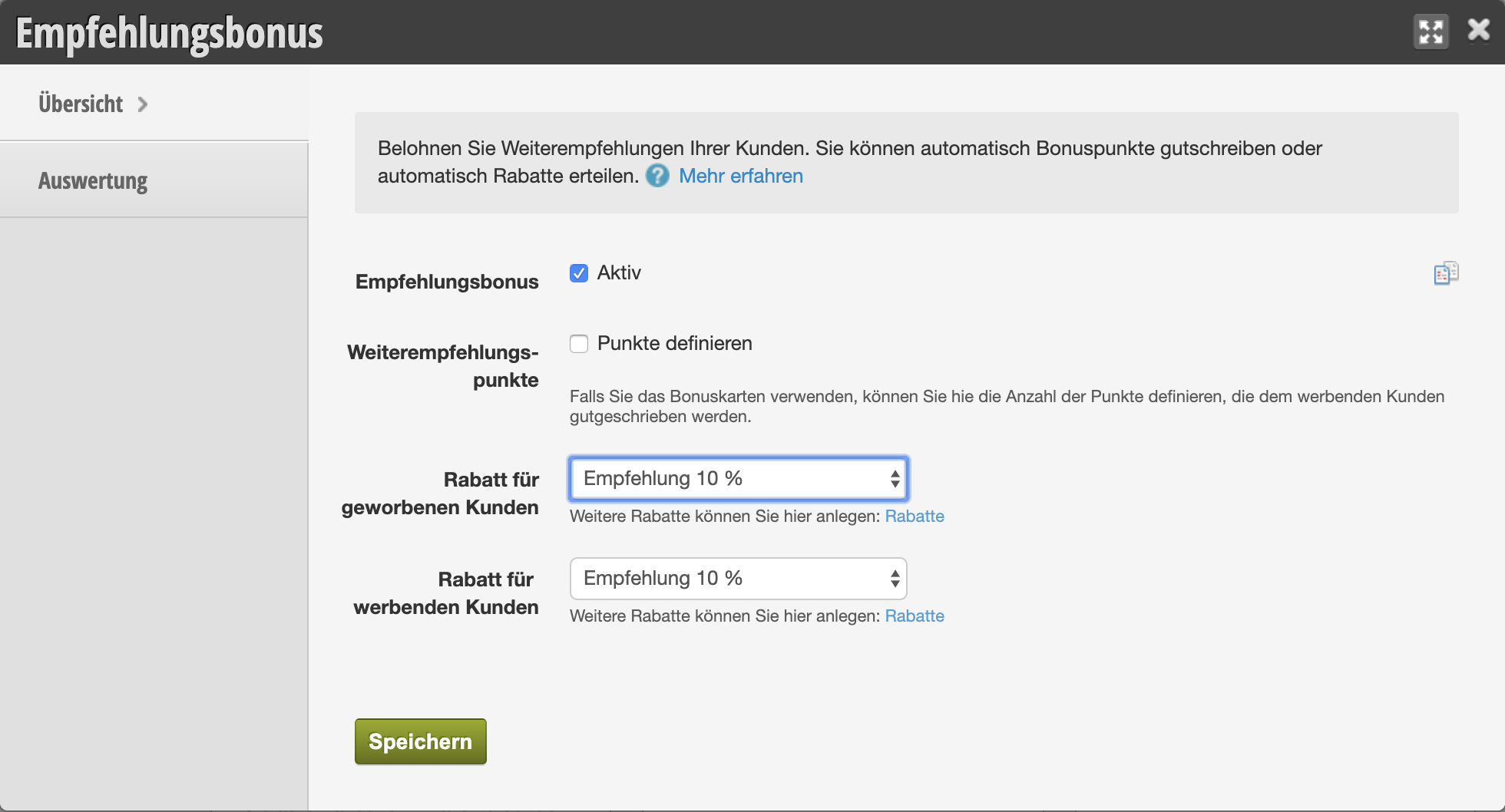
Subsequently, you can determine which discounts should be awarded in case of a referral:
- Go to Settings > Referral Bonus. If this feature is not activated, it can be activated via Settings > Add Feature.
- Use the selection boxes to determine which discounts should be awarded to the referrer and the referred customer.
- If you use loyalty cards, you can also award referral points. However, point allocation is not necessary to use this feature.
Referral in the Checkout Process
Referred Customer
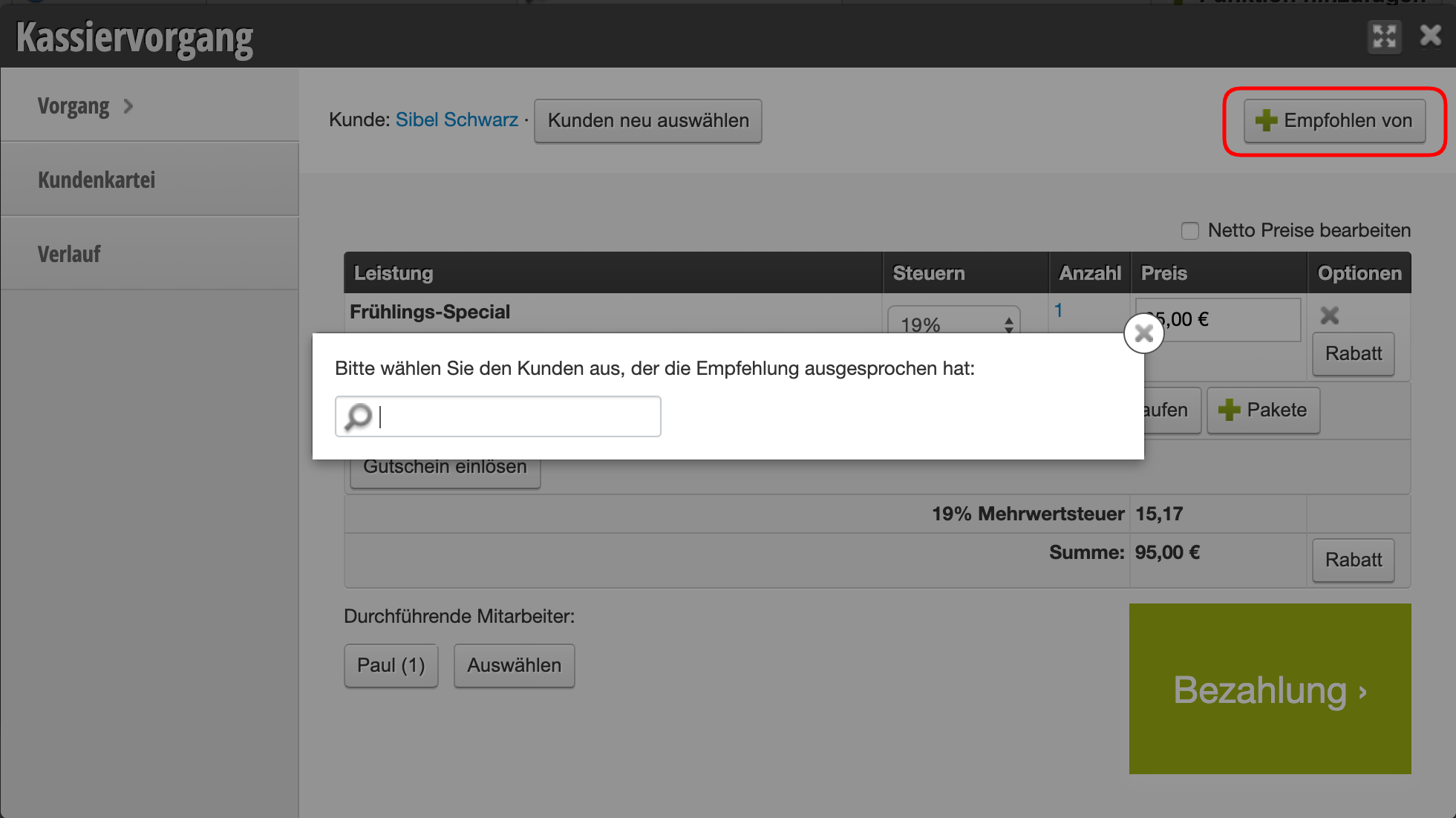
If the referred customer has an appointment with you, the referrer can be entered during the checkout process. This ensures that the referred customer has actually attended an appointment and paid before the referrer receives their bonus.
- Click the "Referred by" button during the referred customer's checkout and enter the name of the referrer.
- If a discount for referred customers is provided, it will be applied and the price of the checkout will be reduced.
- Complete the checkout as usual.
Referring Customer
After a customer has been entered as a referrer in a checkout process, this is stored in the referrer's customer file. 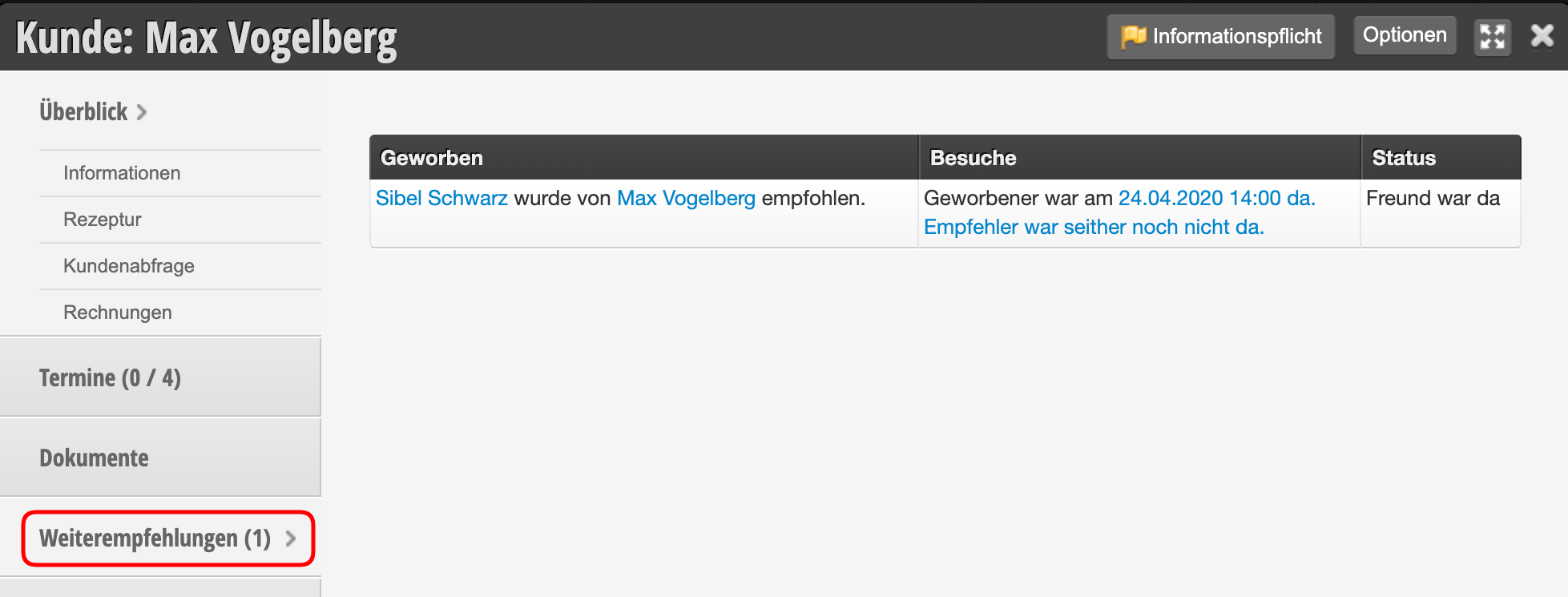 When this customer has an appointment, they will be notified during their checkout that they have successfully referred a friend: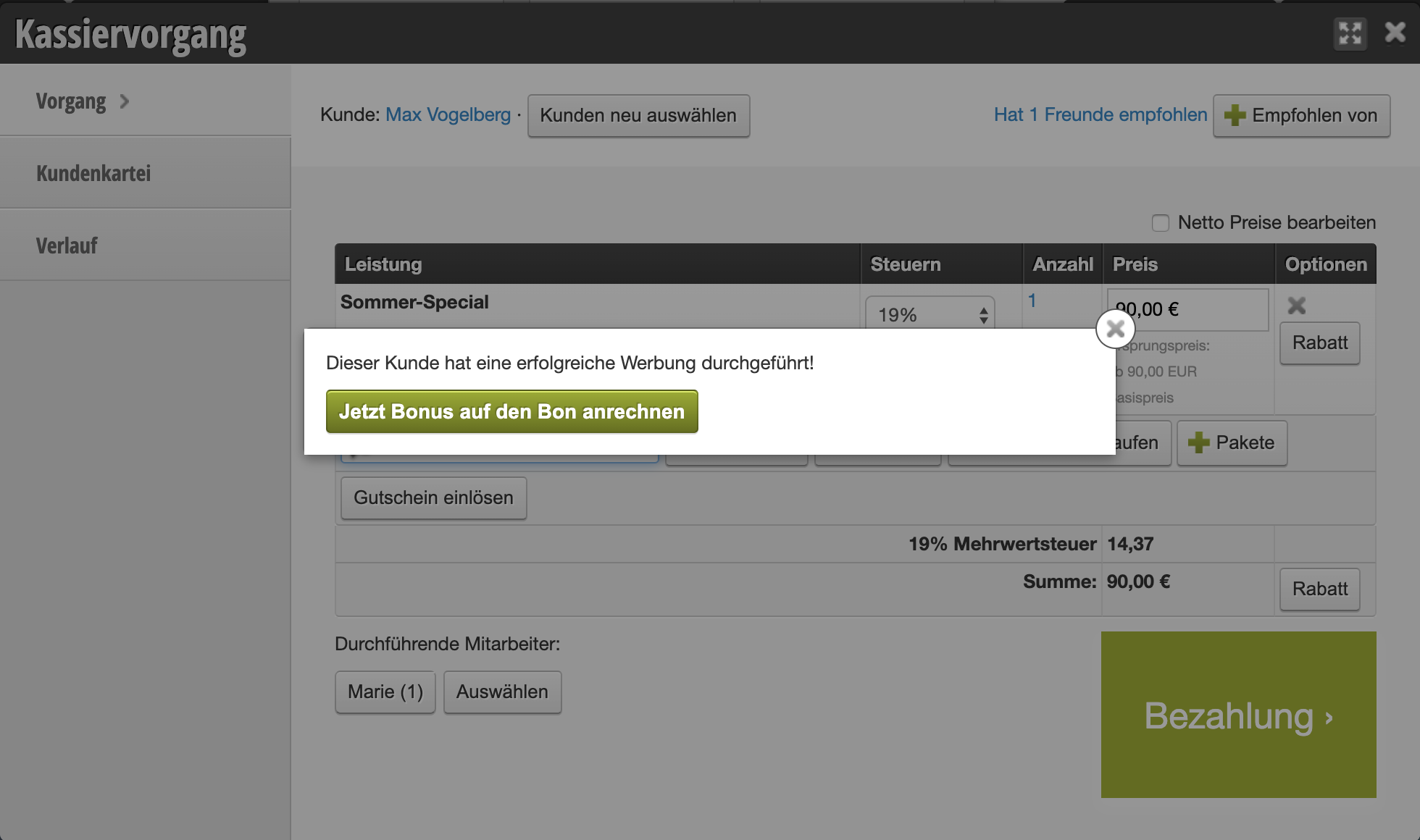
Referral Overview
Under Settings > Referral Bonus you can see how many referrals have already been made: 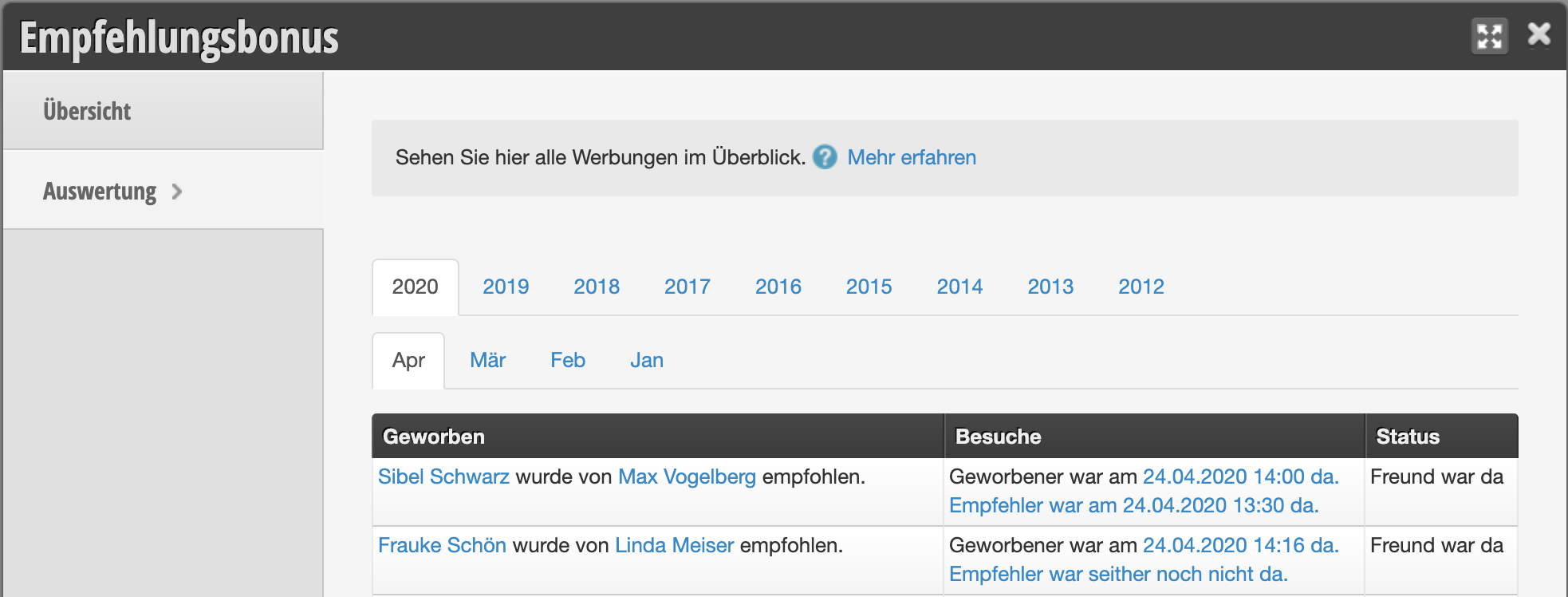
Notification
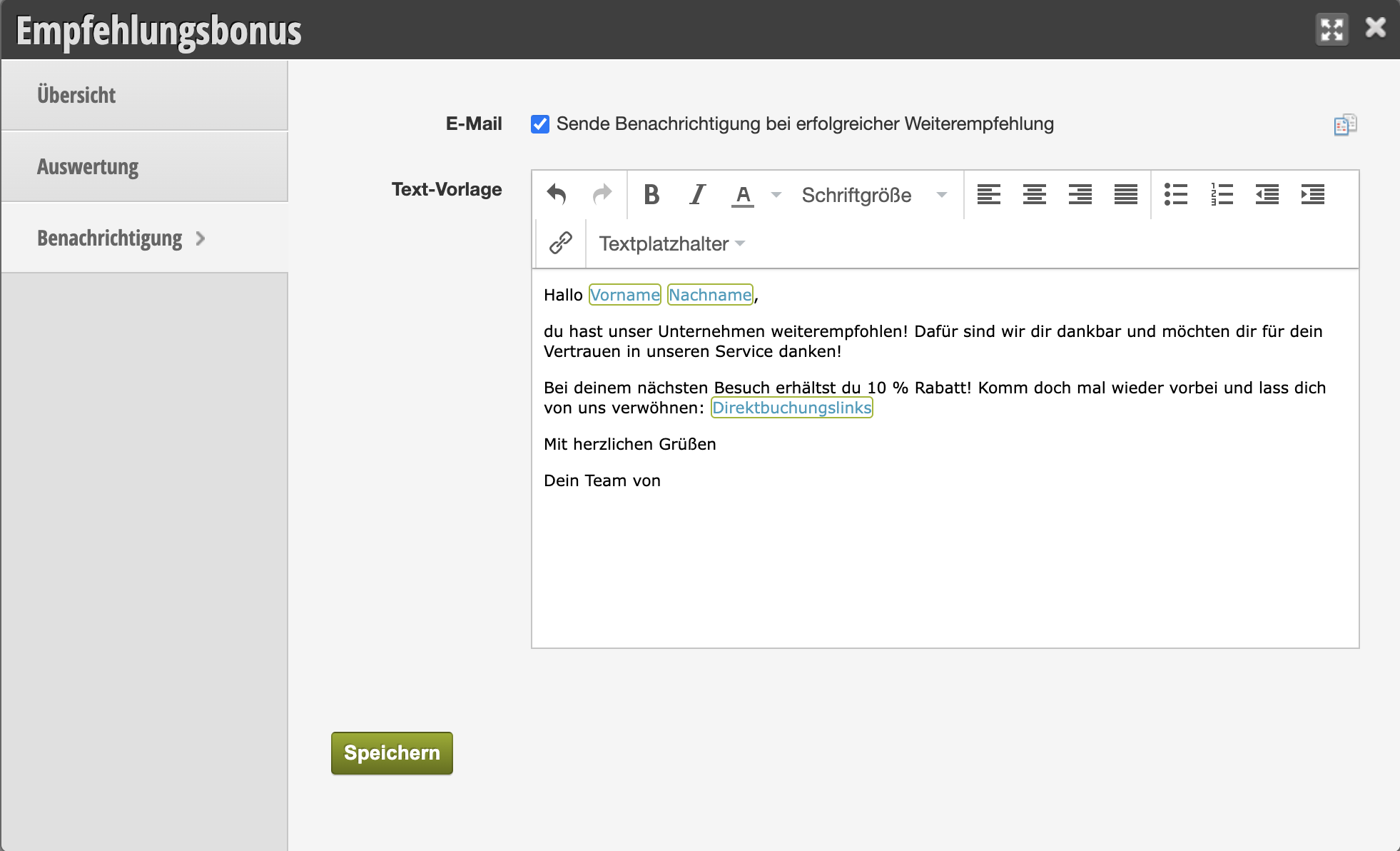
You can send a message to the referring customer as soon as the referred customer visits you. This way you also motivate this person to book an appointment with you again. To personalize this message and simplify appointment booking, several placeholders are available for you in the message.