
This guide describes how to connect a TIM terminal directly to Belbo. TIM (Till Integration Module) is the standard protocol for cash register integration in Switzerland. It was developed by SIX Payment Services and has been continued under the name Worldline since its acquisition by Worldline (2021). Other Swiss payment providers with ep2 terminals also support the TIM protocol.
Requirements
Before setting up the connection, make sure the following points are met. Most of them are configured by your terminal provider during commissioning – if in doubt, ask them.
- You are using Belbo on a computer (Windows or Mac) – TIM is not supported on iPad.
- The Belbo Satellite is installed on the computer and running. (Belbo Satellite instructions)
- The terminal is configured for ECR-integrated mode (cash register integration) – your terminal provider sets this up.
- The terminal has a fixed (static) IP address that is stored both in the router and with your terminal provider.
- The computer and terminal are in the same WLAN or LAN network.
- The terminal is reachable via ping from the computer – you can check this in Belbo under Settings → Card Terminal → Communication Test.
- If the terminal does not have its own printer: The printer is also integrated via Belbo Satellite.
Set up connection in Belbo
- Enable the Card Payment feature in Belbo under Settings → Add Feature.
- Select "TIM/SIX" as the protocol.
- Enter the IP address of your terminal. You can obtain this from your terminal provider or from the router.
- Enter the port of your terminal. This is provided by your terminal provider.
- Click Save.
- Switch to the Mapping section and select the payment methods that should be transmitted to the terminal – typically EC and VISA.
- Have your terminal provider activate the ECR mode on the terminal if not already done.
Test connection
Check the connection in two steps – first the communication test, then a real test payment.
Step 1: Run communication test
Open Settings → Card Terminal in Belbo and switch to the Communication Test tab. Belbo will now check whether the Belbo Satellite is reachable and whether the terminal responds at the stored IP address and port.
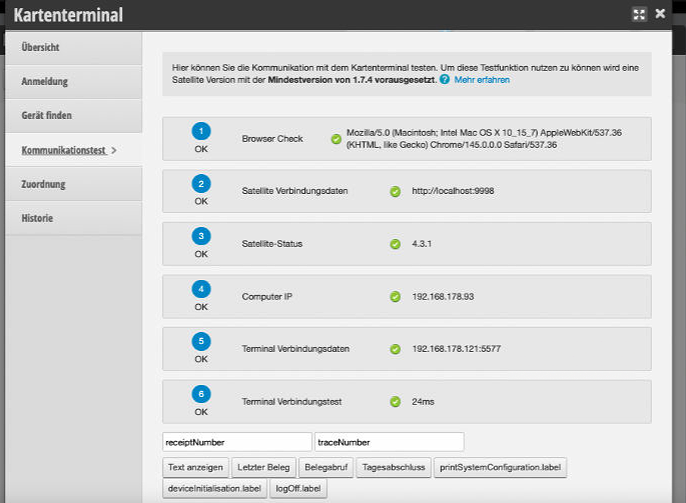
If the test is green, the connection is set up correctly. You can optionally click on "Show text" – if "BELBO" appears on the terminal's display, communication is fully confirmed.
Step 2: Run test payment
Only after the communication test was successful, perform a checkout process and select one of the assigned payment methods. The amount is automatically transmitted to the terminal.
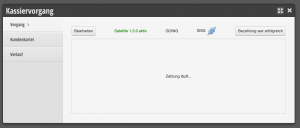
If the amount appears on the terminal, the integration has been completed successfully.