
You can set it up so that certain employees cannot be booked online by new customers. This relieves popular employees among regular customers and gives, for example, new team members the opportunity to receive more appointments.
Requirements for the new customer lock
- You only allow online booking with login.
- Your customers must log in before they are shown the available employees and free appointment times.
- There is only one initial status.
- Regular customers have a different status than the initial status.
1. Check online booking mode:
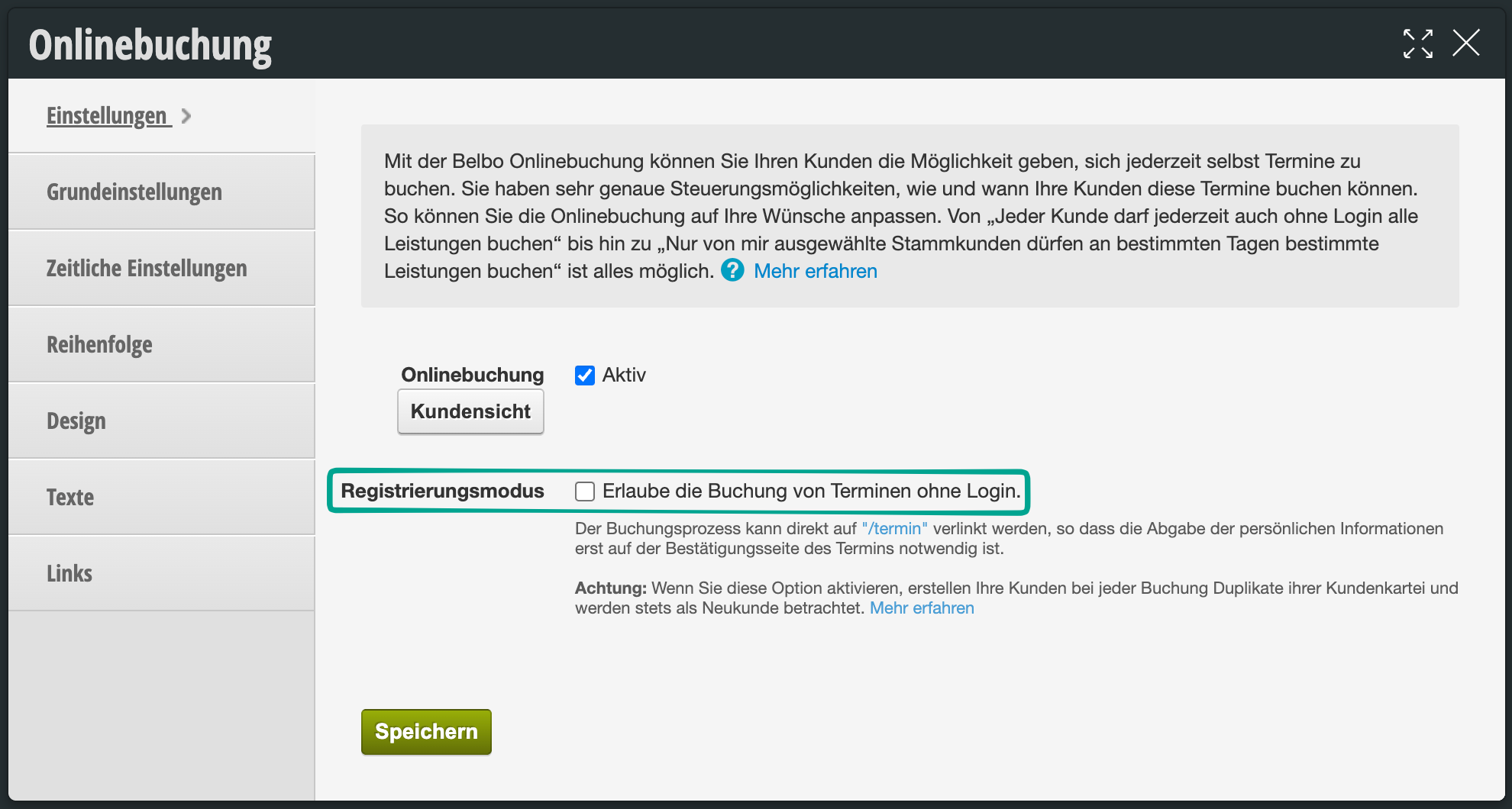
Under Settings > Online Booking, the option "Registration mode / Allow booking appointments without login" must be disabled:
2. Check registration mode
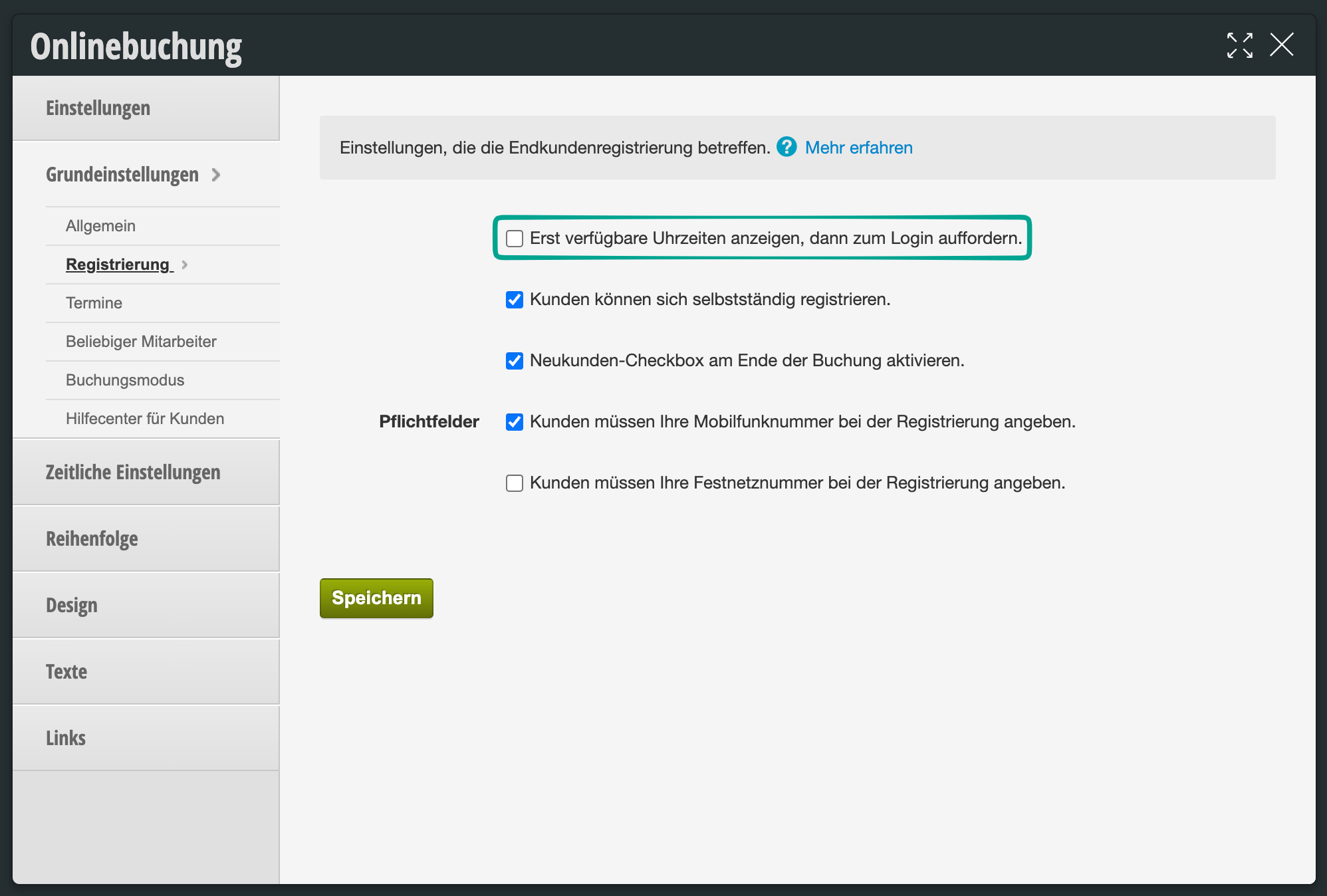
Under Settings > Online Booking > Basic Settings > Registration, the option "Also show available times, then request login" must be disabled:
3. Check initial status
Under Settings > Customer Settings > Customer Status there is only one status that has the "Initial Status" attribute. New customers automatically receive this status. All customers with this status will no longer be able to book the team member locked for new customers.
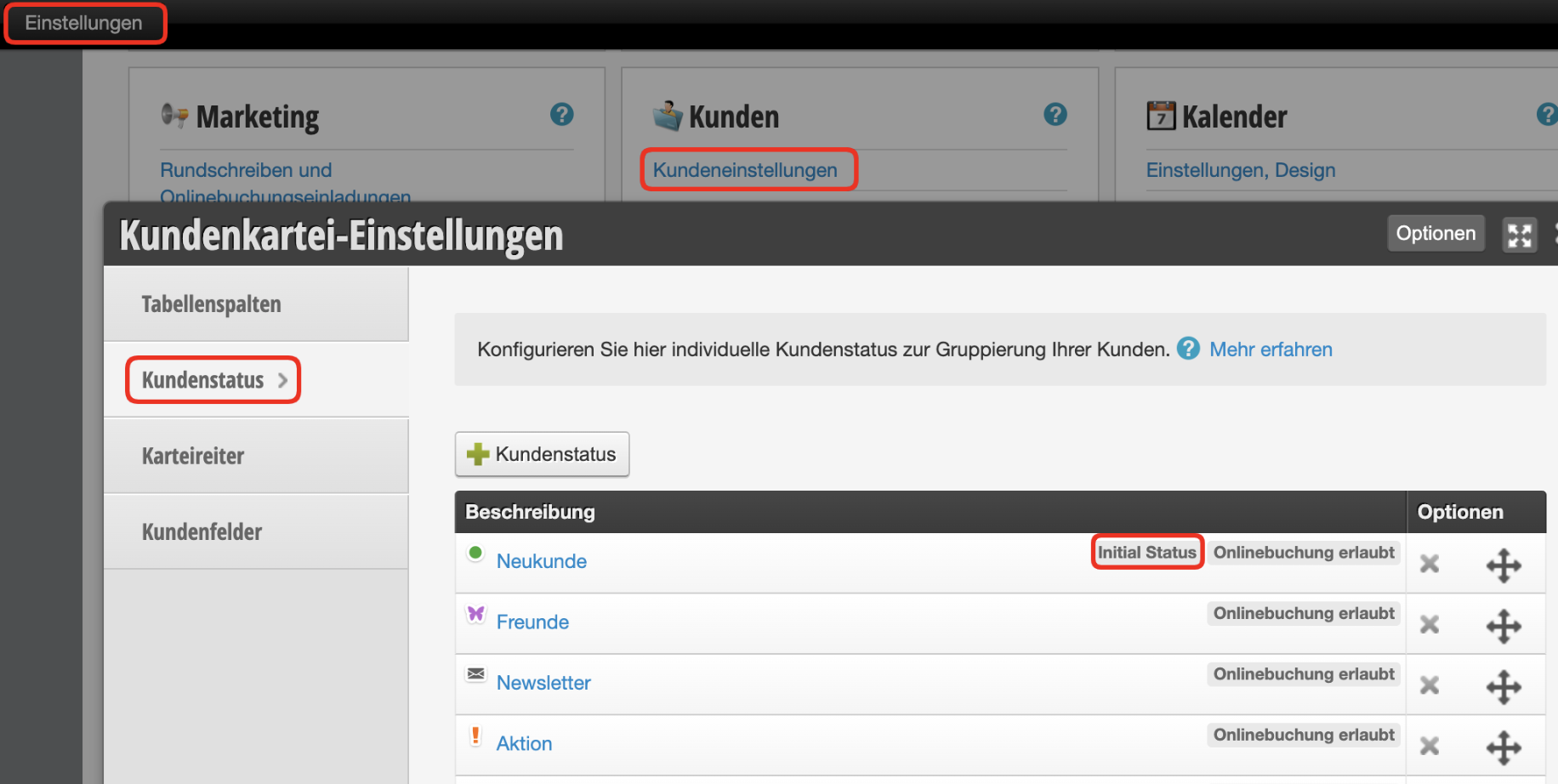
If there are multiple statuses or none with this attribute, you can correct this by clicking on the status and enabling the option "New customers automatically receive this status" only in the desired new customer status.
4. Check regular customers
To ensure that regular customers can continue to book the team member locked for new customers, please check your customer files. All customers who have the customer status marked with "Initial Status" will no longer be able to book the person locked for new customers!
Set up lock for a team member
To prevent new customers from booking online with a specific team member, go to Settings > Employees, open the employee profile, and enable the option "Block booking from new customers" in the "Online Booking" tab.
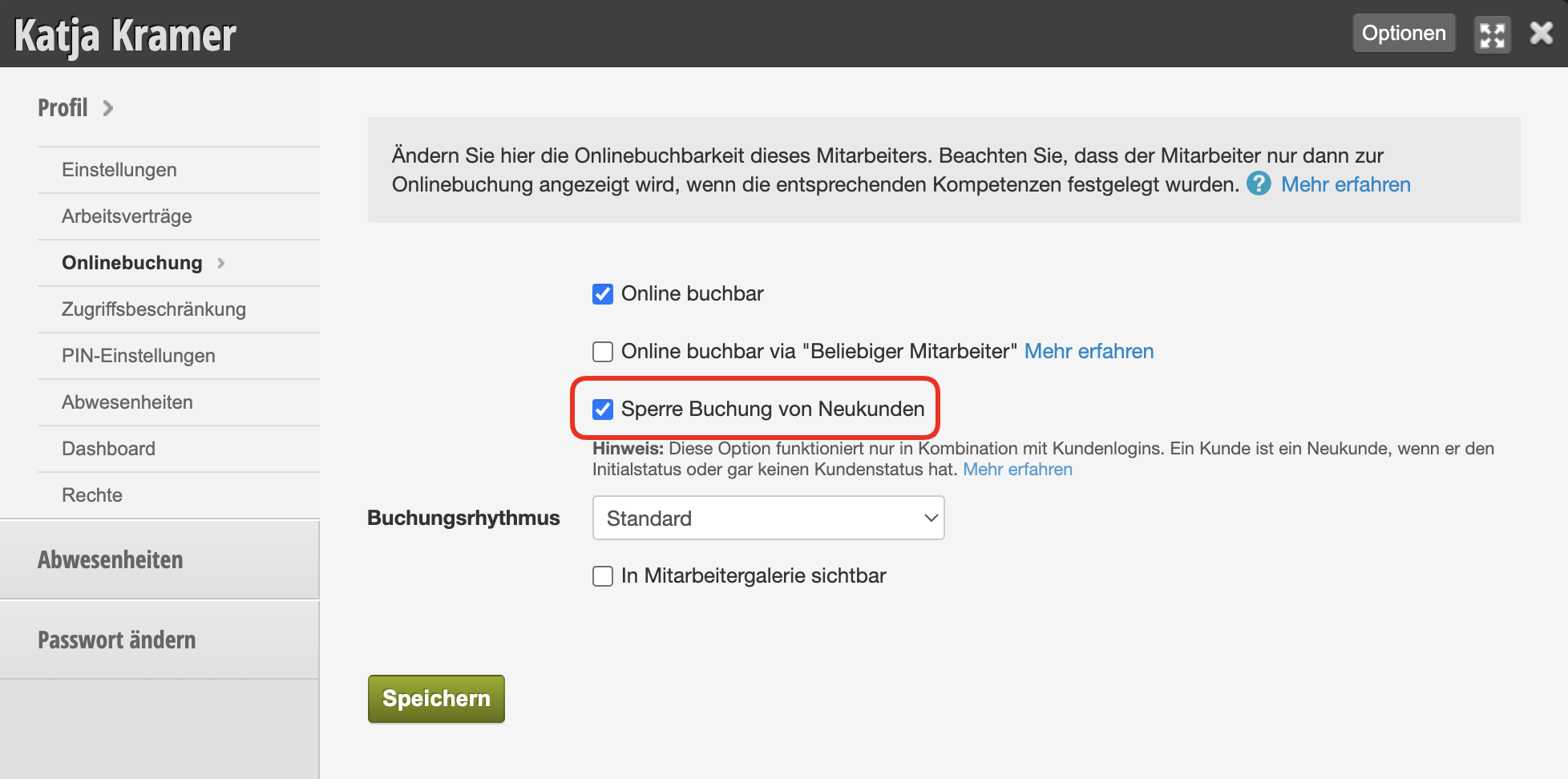
From now on, only customers who have a customer status without the "Initial Status" attribute can book with this person.
Further notes
Communicate lock transparently
Especially if you work alone and want to block bookings from new customers, we recommend informing visitors on the booking page that no appointments are currently available for new customers. This way you communicate transparently why certain people cannot find any free appointments. More on this topic: Online booking: Texts
Define exceptions
If there are individual services that should still be bookable by new customers despite the new customer lock, you can set this up in the service. To do this, open the desired service and enable the option "Ignore employee new customer lock for this service" in the "Online Booking" tab.
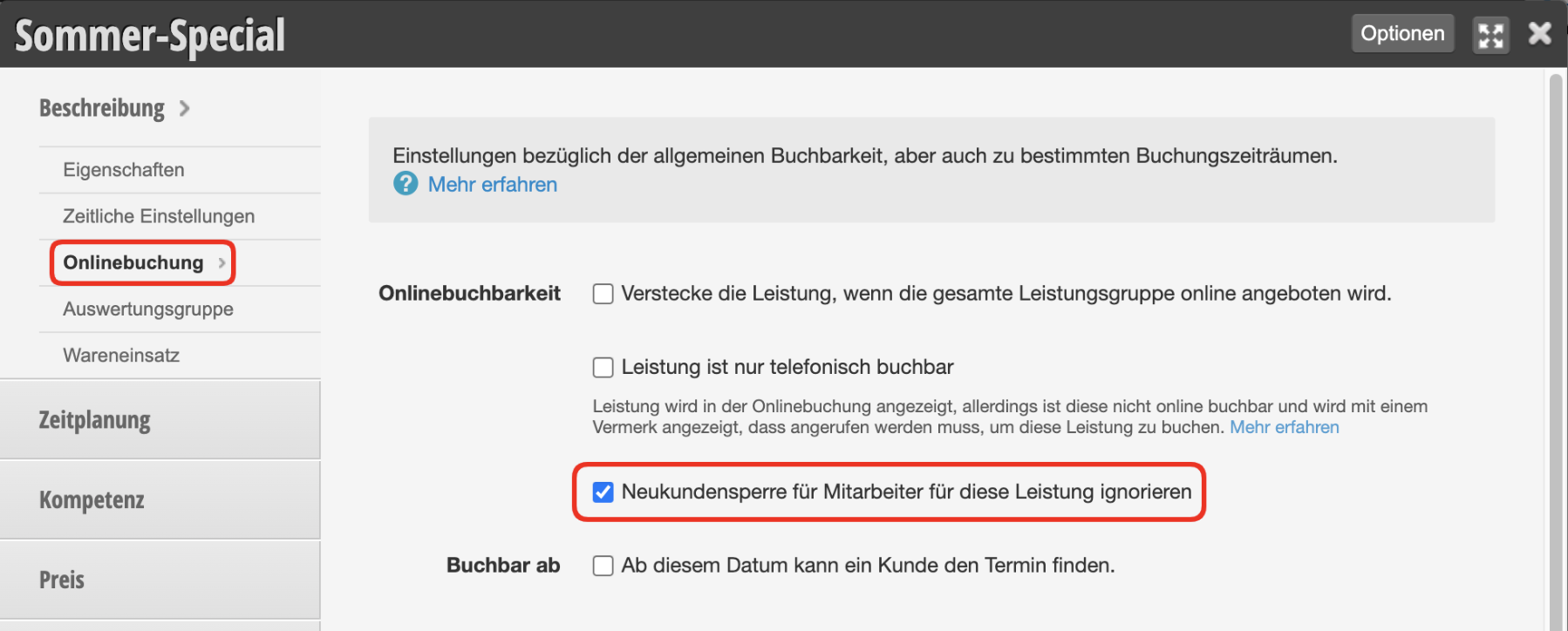
This makes sense if, for example, the manager generally does not want to be available for new customers, but can still provide certain consulting services for them.
Troubleshooting
If regular customers complain that they cannot select a certain person in the booking, please go through the requirements listed above.