
You can design the structure of your receipts yourself.
Define Receipt Structure
If you would like to define the structure of your cash register receipts yourself, numerous placeholders are available to you with which you can specify the order and alignment of the desired elements. Basically, there is a receipt design in belbo, so you don't have to use the receipt structure. If you decide to customize your receipt, all fields must be defined in this form. As soon as you save an entry, the default receipt structure in belbo will be overwritten. Until you have finished configuring it, your receipts may be incomplete or unable to print. 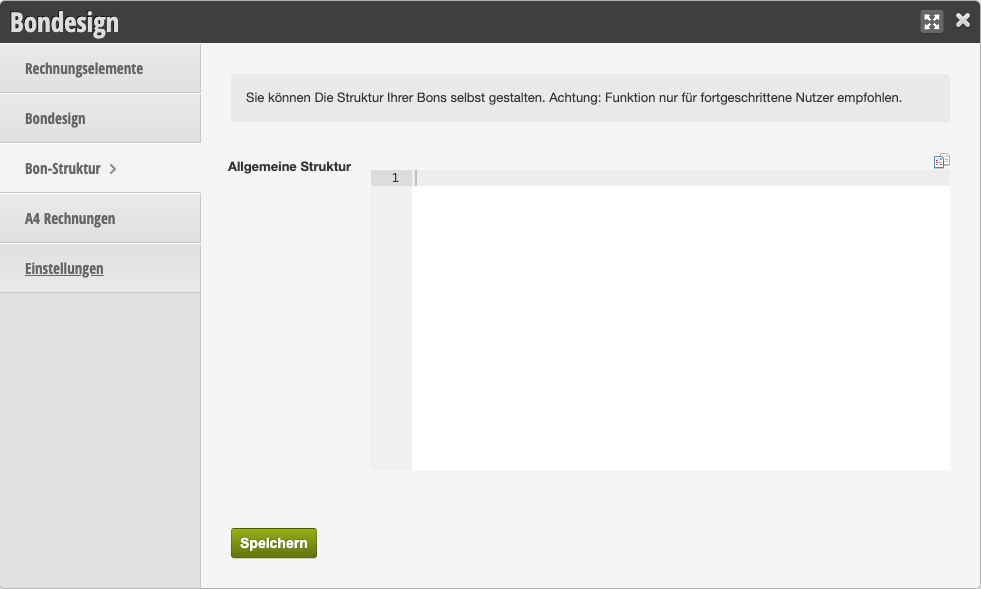
Text Placeholders
- %STANDORTNAME% The name of your business (for branches, the respective location name)
- %INHABER% The owner of your business
- %STRASSE% The street and house number entered in the location settings
- %PLZ% The postal code entered in the location settings
- %ORT% The city entered in the location settings
- %TELEFON% The phone number entered in the location settings
- %USTID% The VAT ID entered in the cash register settings
- %KUNDENNAME% The name of the customer whose appointment was registered
- %POSITION% The services that were registered
- %POSITIONPREIS% The respective price of the individual service
- %TAXRATE% The amount of VAT for this service
- %RABATTGRUND% The reason for which a discount was granted if applicable
- %RABATTWERT% The value of the discount given if applicable
- %RECHNUNGSBETRAG% The total amount of the invoice
- %BEZAHLT% The money provided by the customer
- %RUECKGELD% The change given to the customer
- %ZAHLUNGSART% The method of payment
- %TAXPERCENT%
- %NETTO% The net price
- %ONLYTAX% The VAT included
- %BRUTTO% The gross price
- %RECHNUNGSNUMMER% The invoice number
- %DATUM% The date
- %UHRZEIT% The time
- %MITARBEITER% The employee who processed it
- %ABSCHLUSS% Closing text of the receipt
- [mr] before a placeholder: Text is right-aligned.
- [m] before a placeholder: Text is centered.
- *
- |
- [bild] Automatically inserts the image you uploaded under Settings > Cash Register System > Receipt Design > Invoice Fields.
- [barcode=X] Replace X here with the correct barcode (e.g. 1234567890) to create a scannable barcode
- [qrcode=https://myURL.de] Replace https://myURL.de here with your own web address to direct users to a page of your choice.
[bild]
[m]%STANDORTNAME%
[m]%INHABER%
[m]%STRASSE%
[m]%PLZ% %ORT%
[m]%TELEFON%
[m]%USTID%
Customer: %KUNDENNAME%
Description|[mr]EUR %
*POSITION:
%POSITION%|[mr]%POSITIONPREIS% %TAXRATE%
**DISCOUNT:
%RABATTGRUND%|[mr]%RABATTWERT% %TAXRATE%
**
*
*TOTAL DISCOUNT:
%RABATTGRUND%|[mr]%RABATTWERT% %TAXRATE%
*
Amount Due|[mr] %RECHNUNGSBETRAG%
[m]Paid|[m]Change|[m]Method
*PAYMENTS:
[m]%BEZAHLT%|[m]%RUECKGELD%|[m]%ZAHLUNGSART%
*
[w=2]|[m]VAT %|[m]Net|[m]VAT|[m]Gross
*TAX:
[w=2]%TAXRATE%|[m]%TAXPERCENT%|[m]%NETTO%|[m]%ONLYTAX%|[m]%BRUTTO%
*
Receipt|[m]Date|[m]Time
%RECHNUNGSNUMMER%|[m]%DATUM%|[m]%UHRZEIT%
Served by: %MITARBEITER%
%ABSCHLUSS%
[bild]
[m]%STANDORTNAME%
[m]%INHABER%
[m]%STRASSE%
[m]%PLZ% %ORT%
[m]%TELEFON%
[m]%USTID%
Customer: %KUNDENNAME%
Description|[mr]EUR %
*POSITION:
%POSITION%|[mr]%POSITIONPREIS% %TAXRATE%
**DISCOUNT:
%RABATTGRUND%|[mr]%RABATTWERT% %TAXRATE%
**
*
*TOTAL DISCOUNT:
%RABATTGRUND%|[mr]%RABATTWERT% %TAXRATE%
*
Amount Due|[mr] %RECHNUNGSBETRAG%
[m]Paid|[m]Change|[m]Method
*PAYMENTS:
[m]%BEZAHLT%|[m]%RUECKGELD%|[m]%ZAHLUNGSART%
*
[w=2]|[m]VAT %|[m]Net|[m]VAT|[m]Gross
*TAX:
[w=2]%TAXRATE%|[m]%TAXPERCENT%|[m]%NETTO%|[m]%ONLYTAX%|[m]%BRUTTO%
*
Previous Points Balance|[m]Today's Points|[r]Current Points Balance
%PUNKTEVORHER%|[m]%PUNKTEHEUTE%|[r]%CURRENTPOINTS%
Receipt|[m]Date|[m]Time
%RECHNUNGSNUMMER%|[m]%DATUM%|[m]%UHRZEIT%
Served by: %MITARBEITER%
%ABSCHLUSS%
[bild]
[m]%STANDORTNAME%
[m]%INHABER%
[m]%STRASSE%
[m]%PLZ% %ORT%
[m]%TELEFON%
[m]%USTID%
Customer: %KUNDENNAME%
Description|[mr]EUR %
*POSITION:
%POSITION%|[mr]%POSITIONPREIS% %TAXRATE%
**SUBPOSITION:
%SUBPOSITION%|[mr]%SUBPOSITIONPREIS% %TAXRATE%
**DISCOUNT:
%RABATTGRUND%|[mr]%RABATTWERT% %TAXRATE%
**
*
*TOTAL DISCOUNT:
%RABATTGRUND%|[mr]%RABATTWERT% %TAXRATE%
*
Amount Due|[mr] %RECHNUNGSBETRAG%
[m]Paid|[m]Change|[m]Method
*PAYMENTS:
[m]%BEZAHLT%|[m]%RUECKGELD%|[m]%ZAHLUNGSART%
*
[w=2]|[m]VAT %|[m]Net|[m]VAT|[m]Gross
*TAX:
[w=2]%TAXRATE%|[m]%TAXPERCENT%|[m]%NETTO%|[m]%ONLYTAX%|[m]%BRUTTO%
*
Receipt|[m]Date|[m]Time
%RECHNUNGSNUMMER%|[m]%DATUM%|[m]%UHRZEIT%
Served by: %MITARBEITER%
%ABSCHLUSS%