belbo
  • Overview
    • Getting to know Belbo
    • Location Settings
    • Switch to Belbo
    • Calendar View & Navigation
    • Recurring Appointments & Courses
    • Appointment Entry & Management
    • Logins & Permissions
    • Multiple Locations & Head Office
    • Manage Employees
    • Absences & Holidays
    • General
    • Working Hours
    • Time Tracking
    • Data Protection (GDPR)
    • Customer Communication (Email, SMS)
    • Customer Management & Records
    • Bonus & Loyalty Programs
    • Campaigns (Newsletter & SMS)
    • Marketing Consents (GDPR)
    • Tracking & Analytics
    • Overview
    • Services & Prices
    • Products
    • Service Packages & Subscriptions
    • Vouchers
    • Purchasing & Suppliers
    • Stock & Inventory
    • Scanning & Sales
    • Cost of goods & expenses
    • Design & Texts
    • Setup & Settings
    • Integration (Website, Google, Instagram, Facebook)
    • Online payment
    • Accounting & Exports
    • Cash Register Settings & Hardware
    • Checkout process
    • Daily Closing & Reports
    • TSE & Cash Register Anti-Tampering Ordinance
    • Export Overview
    • Employee Utilization
    • Revenue & Reports
    • Belbo Satellite
    • Printer
    • EC Terminal & Card Payment
    • Troubleshooting Hardware
    • Scanner & POS Devices
    • General Settings
    • API & Integrations
    • Notifications & Emails
    • Contracts & Legal
Skip to content

Barometer: Frequently Asked Questions

With the Belbo Barometer you can analyze your revenue. Here we have collected some frequently asked questions about the Barometer.

What does "Other Revenue" at the bottom of the Barometer mean?

Under "Other Revenue" all services are listed for which you have not saved your own Barometer assignment. Basically, all your services are sorted here until you make an assignment. If you do not need your own Barometer structure, you don't need to do anything here.

Correct Barometer assignment for other services
However, if you have created a Barometer structure, you can quickly and easily link accidentally forgotten services with your structure.

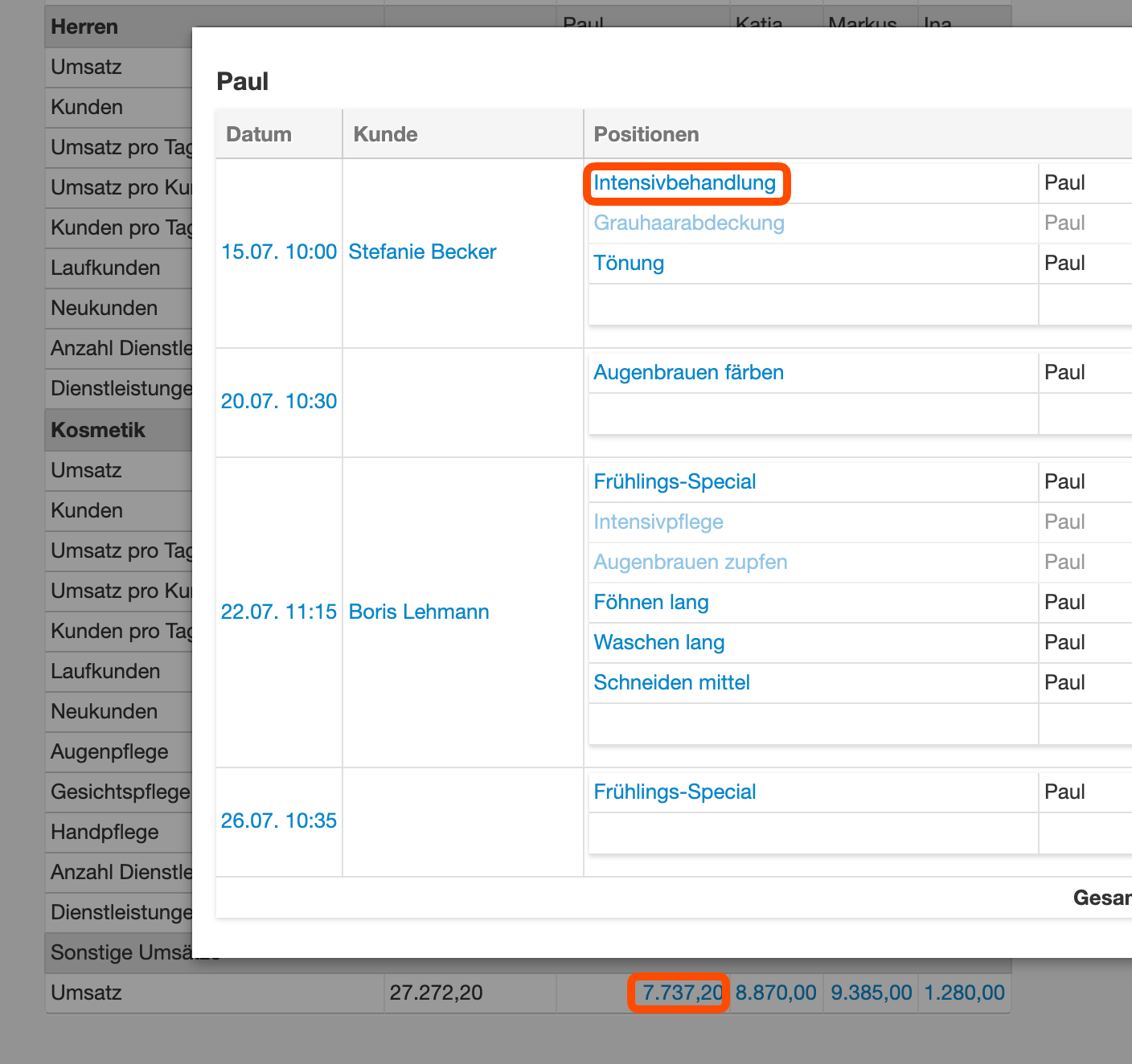
  1. Click on the blue-linked revenue figure under "Other Revenue". A dialog opens showing which of your services currently still fall under "Other Revenue" (the dark-linked services).
  2. Click on the name of a dark-linked service to open it.
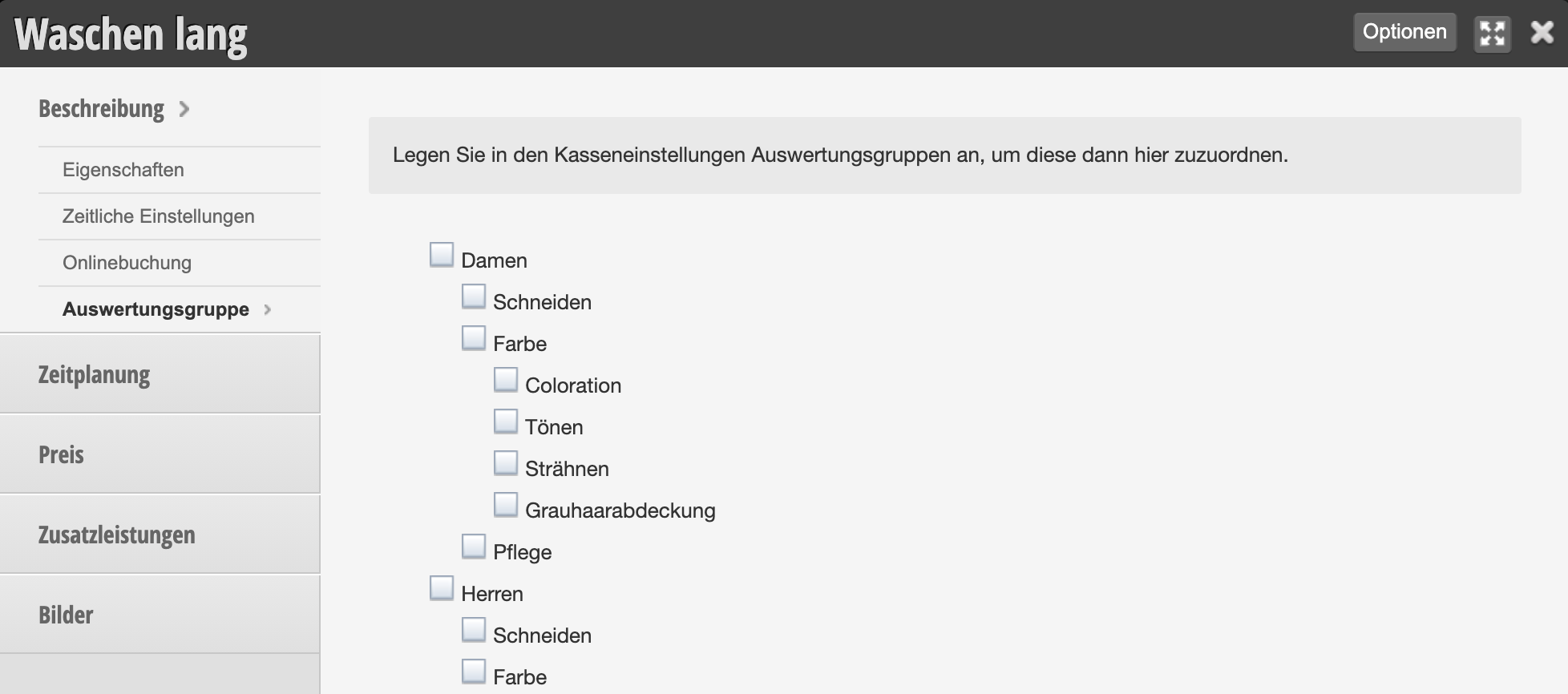
  3. In the "Evaluation Group" tab, you can select the correct assignment(s).
Example of a service without an assignment to its own Barometer groups:

The sum of the individual lines does not equal the displayed total

Reason 1: Multiple Barometer assignments

If you have created your own Barometer groups, it is not unusual for the total shown in the header area of the Barometer to not match the sum of all categories. This is usually because you have services that fall into 2 or more of your categories.

Example:
You have a cosmetic service worth €35.00, to which you have assigned your own Barometer group "Cosmetics." It counts toward women's revenue when the service is booked by a woman, and toward men's revenue when the service is booked by a man. The Barometer is based on the gender specified in the customer record here.

If a woman comes to you, these €35.00 will be shown both under women's revenue and under Cosmetics. In this case, the revenue reads as follows: "€35.00 in women's revenue was generated, of which €35.00 was in the Cosmetics area". These revenues must therefore not be added together.

Create an exact distinction between women and men
If you do not want individual Barometer groups to display both women's and men's services, you must create separate services and Barometer groups accordingly:

  • The service "Women's Facial Care" has its own Barometer group "Women's Cosmetics."
  • The service "Men's Facial Care" has its own Barometer group "Men's Cosmetics."

Reason 2: Gender is not correctly maintained in the customer record

If you try to add up the total revenue for women and men and do not arrive at the number shown under "Total Revenue," it may be that the genders in your customer records are not correctly maintained. In this case, a correct calculation of women's and men's revenue cannot take place.

The revenue figure under "Total" is nevertheless correct!

Reason 3: You sell service packages

Service packages are not marked separately.
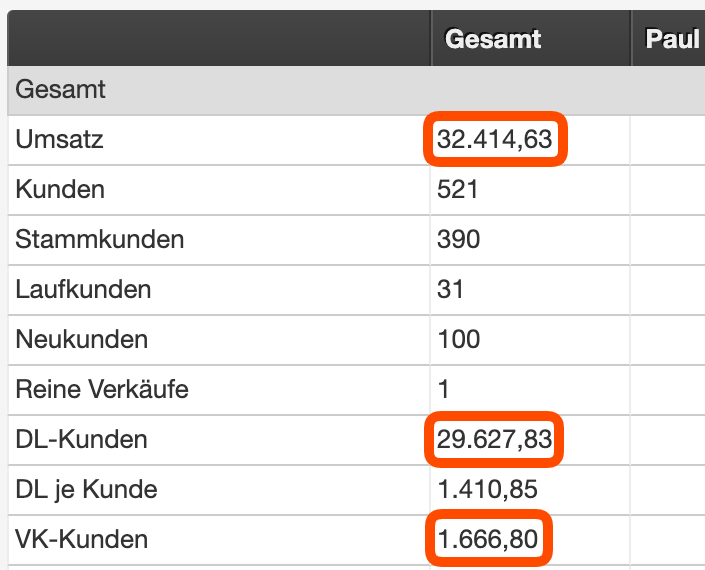
Calculation without packages
A difference between service revenue, sales revenue, and total revenue is in this case explained by the sale of packages, which corresponds exactly to the difference.

Categories: Daily Closing & Reports
This manual is a service by belbo. Legal notice