
With the help of call tracking, you can see incoming calls in your business directly in your Belbo calendar. To use call tracking, you need to go through the following steps.
Prerequisites:
- You are using a desktop computer (Windows or Mac) which is connected to the WLAN of the router through which you also receive phone calls.
- You are using a FritzBox
- Customers call a landline number that also runs through the FritzBox.
- You are using the Google Chrome Browser
Step 1
For the software version, you must first install the Belbo-Satellite.
Step 2
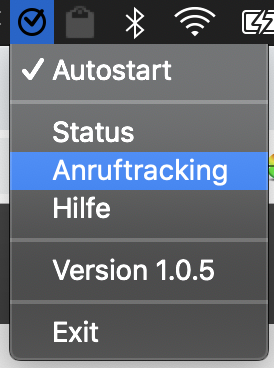
Then click on the Belbo icon in your computer's menu bar and select "Call Tracking".
Step 3
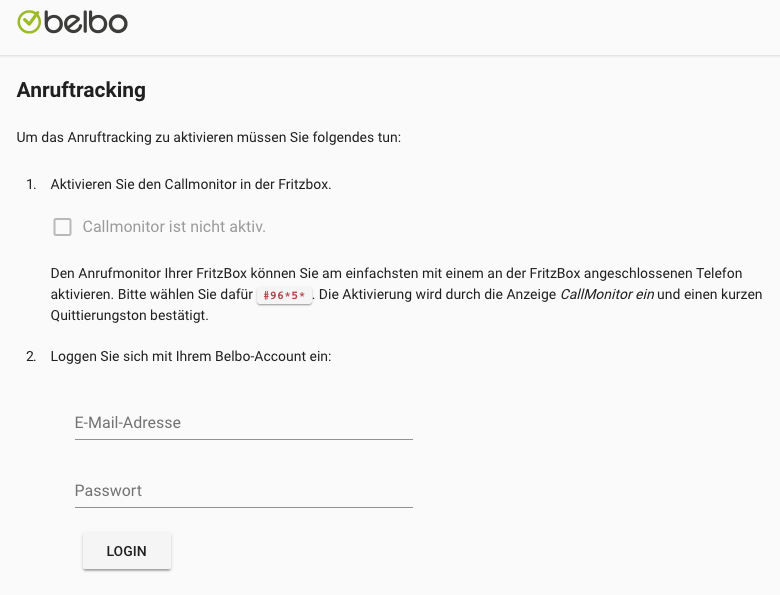
A new page opens in your browser. Now call the phone number indicated in red here from a telephone. "Call monitor on" should appear on the phone's display.
Step 4
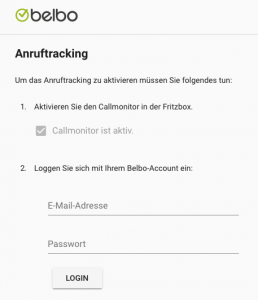
The page should now also show "Call monitor active". Now log in on the login form on the page with your Belbo account. If you have multiple locations in your Belbo calendar, you can select your current location from the list provided.
Step 6
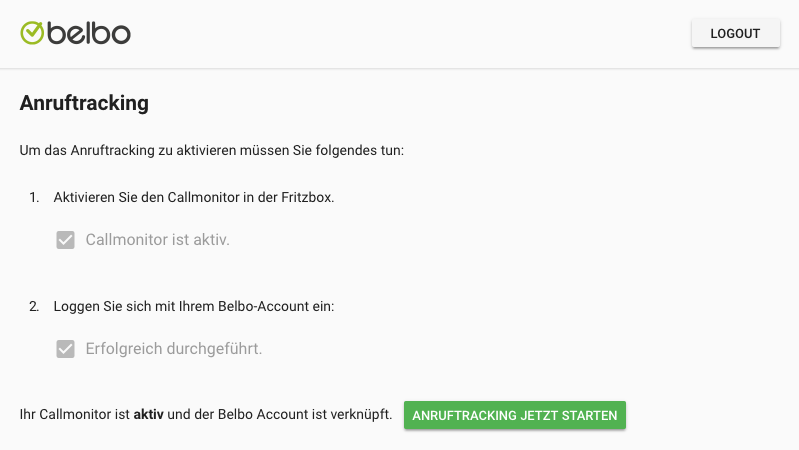
Now click on the "START CALL TRACKING NOW" button.
Completion and Test
You can now close the page.
If not already done, activate the "Call Tracking" module in your calendar under Settings > Add Function and make your desired settings here.
From now on, incoming and outgoing calls should appear directly in your calendar. Test this by opening the Belbo calendar and calling your business number from another device (for example, your mobile phone).
If you have any problems, we recommend restarting your computer first and checking if the display from step 2 is green.
Outdated Antivirus Software
Updating your antivirus software can also trigger a false alarm. Disable your antivirus software and restart your computer to verify whether the problem still exists.