belbo
  • Overview
    • Getting to know Belbo
    • Location Settings
    • Switch to Belbo
    • Calendar View & Navigation
    • Recurring Appointments & Courses
    • Appointment Entry & Management
    • Logins & Permissions
    • Multiple Locations & Head Office
    • Manage Employees
    • Absences & Holidays
    • General
    • Working Hours
    • Time Tracking
    • Data Protection (GDPR)
    • Customer Communication (Email, SMS)
    • Customer Management & Records
    • Bonus & Loyalty Programs
    • Campaigns (Newsletter & SMS)
    • Marketing Consents (GDPR)
    • Tracking & Analytics
    • Overview
    • Services & Prices
    • Products
    • Service Packages & Subscriptions
    • Vouchers
    • Purchasing & Suppliers
    • Inventory & Stock Audit
    • Scanning & Sales
    • Materials & Costs
    • Design & Texts
    • Setup & Settings
    • Integration (Website, Google, Instagram, Facebook)
    • Online payment
    • Accounting & Exports
    • Cash Register Settings & Hardware
    • Checkout process
    • Daily Closing & Reports
    • TSE & Cash Register Anti-Tampering Ordinance
    • Export Overview
    • Employee Utilization
    • Revenue & Reports
    • Belbo Satellite
    • Printer
    • EC Terminal & Card Payment
    • Troubleshooting Hardware
    • Scanner & POS Devices
    • General Settings
    • API & Integrations
    • Notifications & Emails
    • Contracts & Legal
Skip to content

Document Management in the Customer File

With document management, you can add digital documents to your customer records, making them accessible to every employee later on.

You can access this area via Settings > Document Management
If this function is not activated, it can be enabled via "Settings > Add Function".

If you scan paper documents or create PDFs on your computer, you can add them to your customer records using document management. If you would like your customers to fill in documents directly on a tablet, you can use the Customer Survey function.

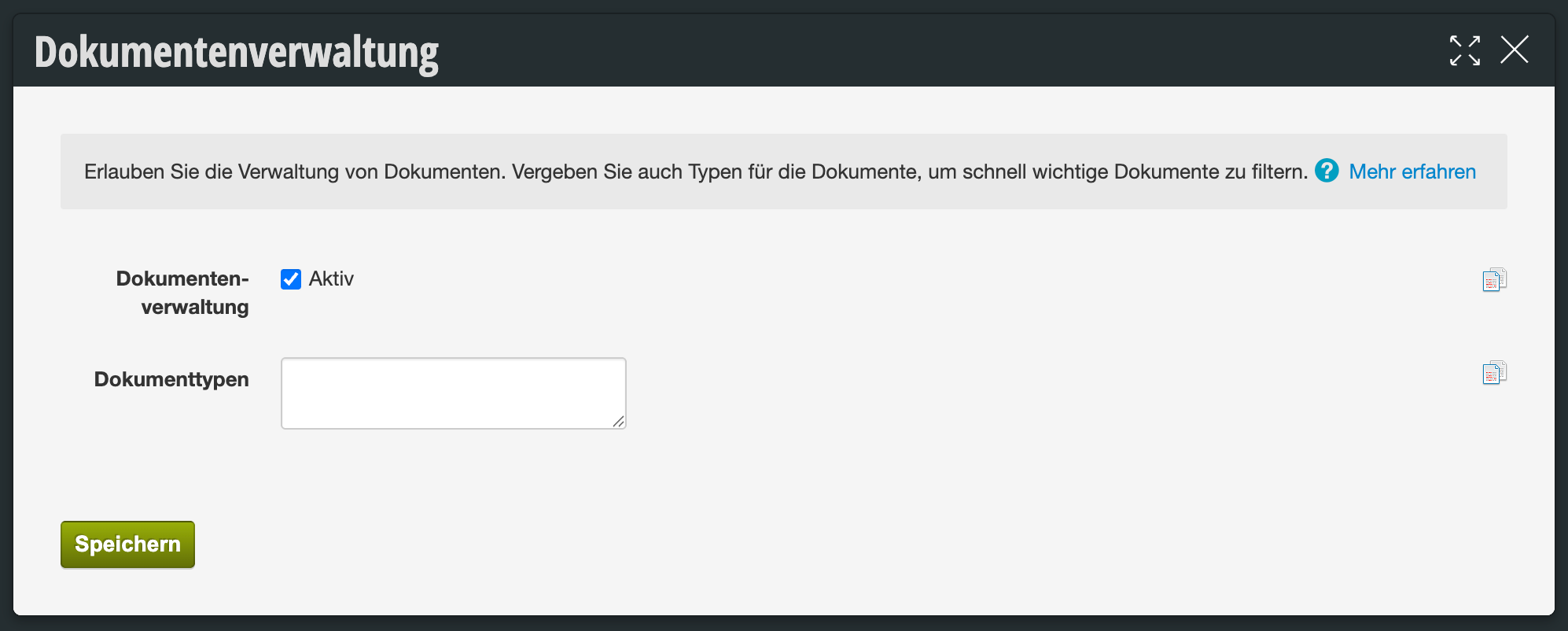
Activate document management and define document types

You can activate document management under "Settings » Add Function" or add the term Document Management in the search field of the Settings page. Then you can define which document types you want to collect:

  1. Enter the document types in the corresponding field of the Documents module. You can find this on your Settings page.
  2. Separate the different document types with a line break. If you only have one document type, you can enter just one type here.
  3. Save your entry.

Documents in the customer record

Once document management is active, you will find a corresponding tab in each customer record. Here you can upload documents for this customer. Before uploading, you can define the document type so that it will be clear later what type of document it is.
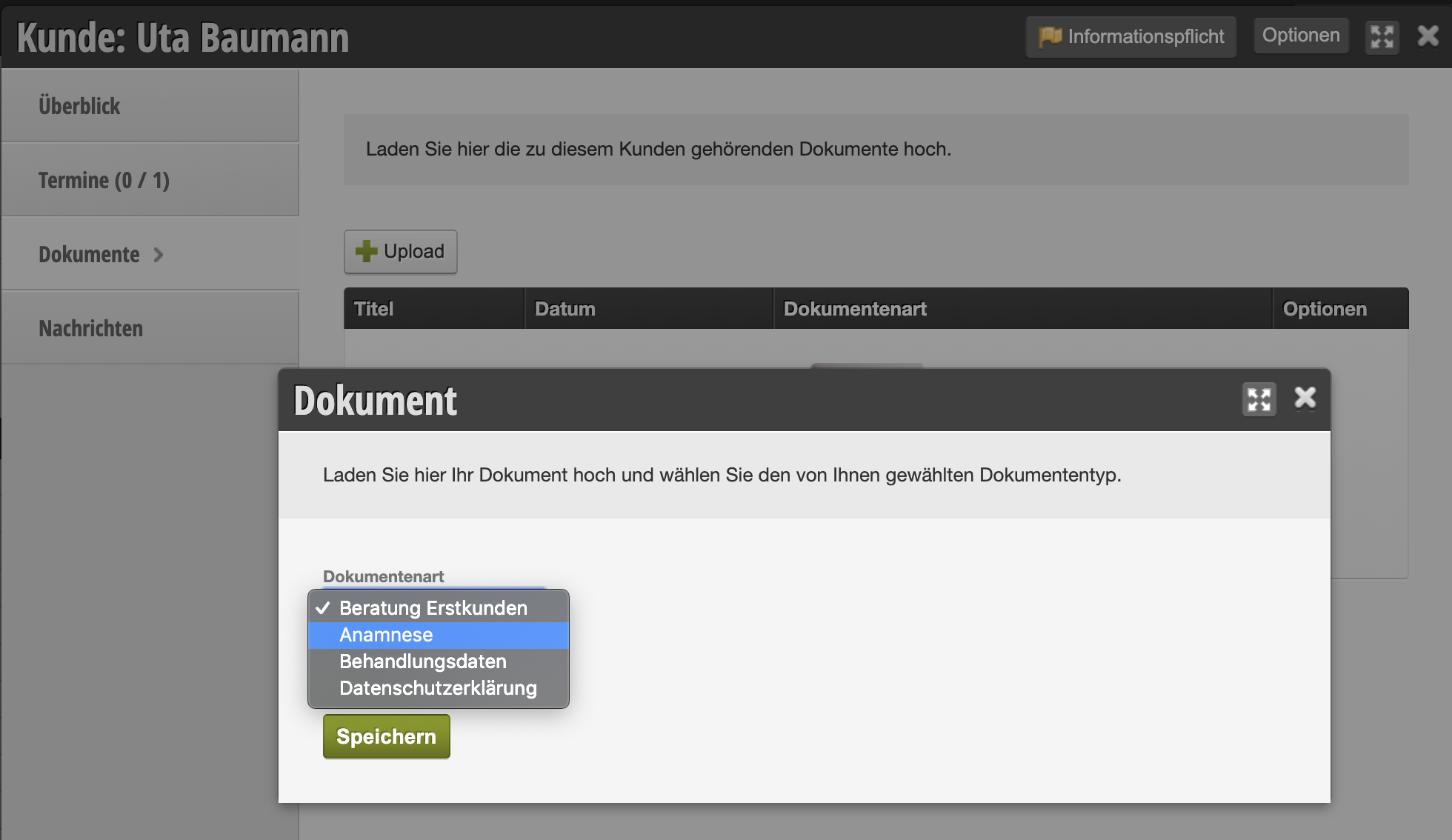
Documents uploaded in this way are stored in the customer record and dated. This allows every employee to access the customer's documents.
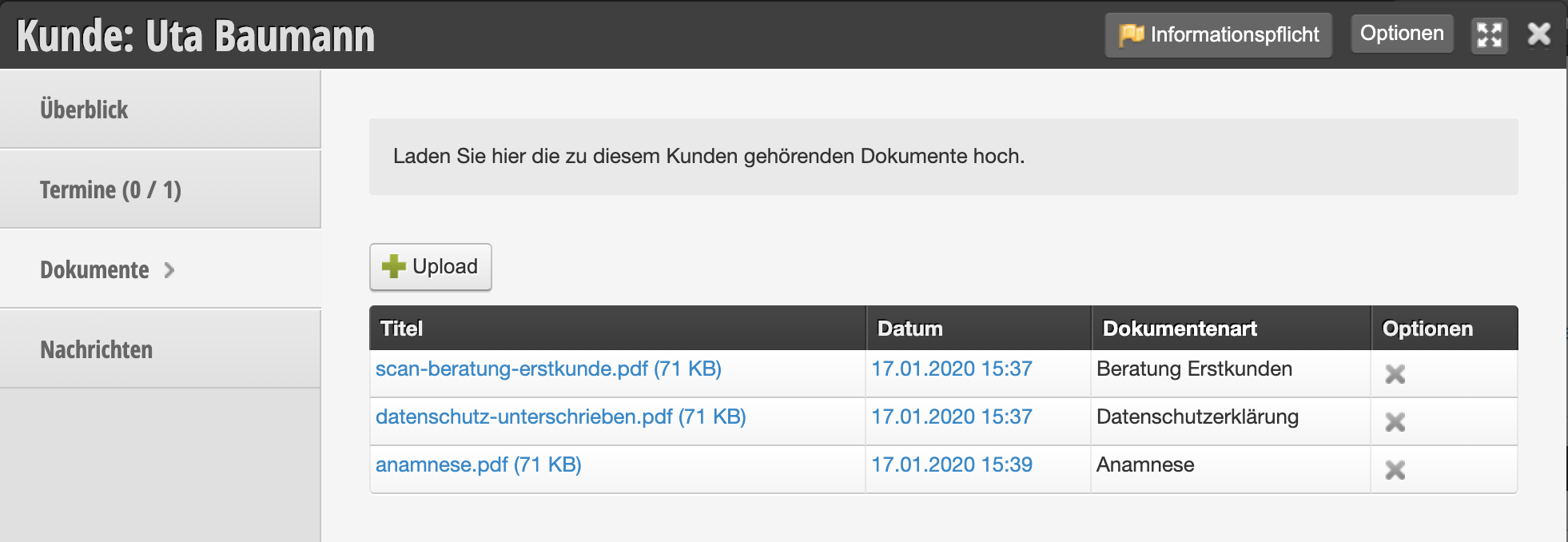
By clicking on the desired document, it can be opened again at any time.

Categories: Customer Management & Records
This manual is a service by belbo. Legal notice