
belbo
  • Overview
    • Getting to know Belbo
    • Location Settings
    • Switch to Belbo
    • Calendar View & Navigation
    • Recurring Appointments & Courses
    • Appointment Entry & Management
    • Logins & Permissions
    • Multiple Locations & Head Office
    • Manage Employees
    • Absences & Holidays
    • General
    • Working Hours
    • Time Tracking
    • Data Protection (GDPR)
    • Customer Communication (Email, SMS)
    • Customer Management & Records
    • Bonus & Loyalty Programs
    • Campaigns (Newsletter & SMS)
    • Marketing Consents (GDPR)
    • Tracking & Analytics
    • Overview
    • Services & Prices
    • Products
    • Service Packages & Subscriptions
    • Vouchers
    • Purchasing & Suppliers
    • Inventory & Stock Audit
    • Scanning & Sales
    • Materials & Costs
    • Design & Texts
    • Setup & Settings
    • Integration (Website, Google, Instagram, Facebook)
    • Online payment
    • Accounting & Exports
    • Cash Register Settings & Hardware
    • Checkout process
    • Daily Closing & Reports
    • TSE & Cash Register Anti-Tampering Ordinance
    • Export Overview
    • Employee Utilization
    • Revenue & Reports
    • Belbo Satellite
    • Printer
    • EC Terminal & Card Payment
    • Troubleshooting Hardware
    • Scanner & POS Devices
    • General Settings
    • API & Integrations
    • Notifications & Emails
    • Contracts & Legal
Skip to content

Internal Messaging System

Your employees can send each other messages within the Belbo calendar.
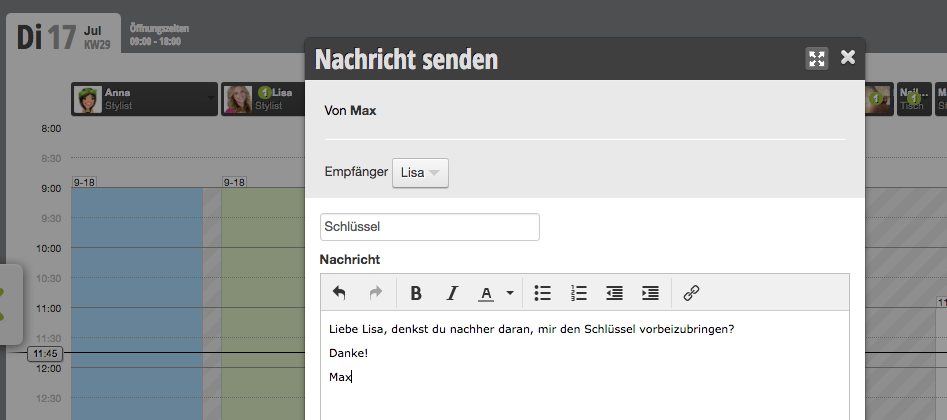
You can access this area via Settings > Internal Messaging System
If this function is not activated, it can be activated via "Settings > Add Function".

Prerequisites for internal messages

To use the messaging function, all your employees must have their own PIN.
You can find out how to set up the employee PIN here.

Sending and receiving messages

After activating the function, you can send messages to your colleagues in the calendar.

Send messages
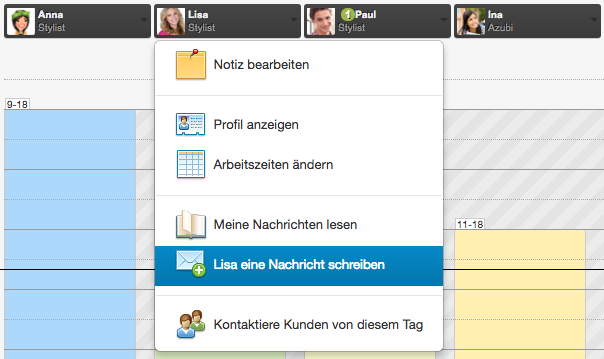
Click on the person in the calendar to whom you want to send a message. Select "Write a message to Name" in the menu that opens. Then enter your own PIN and compose the message.

Read messages
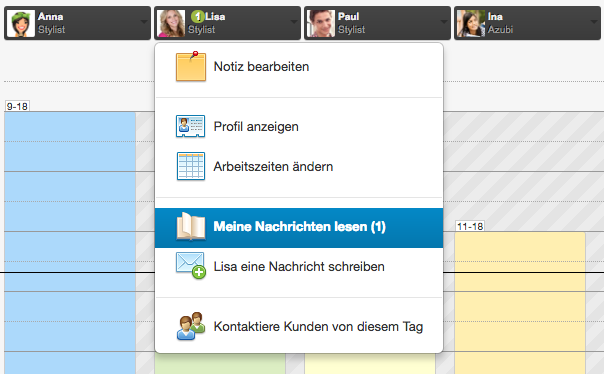
Once you have received a message from a colleague, you can see this by the green symbol next to your name. Click on yourself and select "read my messages" in the menu that opens.

Waiting list entries in the messaging system

Even if customers put themselves on the waiting list online, the employees selected by the customer are notified via internal message.

Categories: Customer Communication (Email, SMS)
Tags: Interne Nachrichten
This manual is a service by belbo. Legal notice