
belbo
  • Overview
    • Getting to know Belbo
    • Location Settings
    • Switch to Belbo
    • Calendar View & Navigation
    • Recurring Appointments & Courses
    • Appointment Entry & Management
    • Logins & Permissions
    • Multiple Locations & Head Office
    • Manage Employees
    • Absences & Holidays
    • General
    • Working Hours
    • Time Tracking
    • Data Protection (GDPR)
    • Customer Communication (Email, SMS)
    • Customer Management & Records
    • Bonus & Loyalty Programs
    • Campaigns (Newsletter & SMS)
    • Marketing Consents (GDPR)
    • Tracking & Analytics
    • Overview
    • Services & Prices
    • Products
    • Service Packages & Subscriptions
    • Vouchers
    • Purchasing & Suppliers
    • Stock & Inventory
    • Scanning & Sales
    • Materials & Costs
    • Design & Texts
    • Setup & Settings
    • Integration (Website, Google, Instagram, Facebook)
    • Online payment
    • Accounting & Exports
    • Cash Register Settings & Hardware
    • Checkout process
    • Daily Closing & Reports
    • TSE & Cash Register Anti-Tampering Ordinance
    • Export Overview
    • Employee Utilization
    • Revenue & Reports
    • Belbo Satellite
    • Printer
    • EC Terminal & Card Payment
    • Troubleshooting Hardware
    • Scanner & POS Devices
    • General Settings
    • API & Integrations
    • Notifications & Emails
    • Contracts & Legal
Skip to content

Pricing and Services: Service Groups

Service groups are used to categorize your services. If you offer many different services, it makes sense to organize them into service groups to maintain an overview.
Learn more about product groups here.

Create service groups
To create a new service group, scroll to the end of your service list and click the "Create new service group" button.

Then enter the name of the category and optionally assign a color.
Important: If you want the category to be displayed when creating appointments or during checkout, activate "Offer for manual appointment entry and online booking".
If you use the cash register, you can assign accounting accounts.
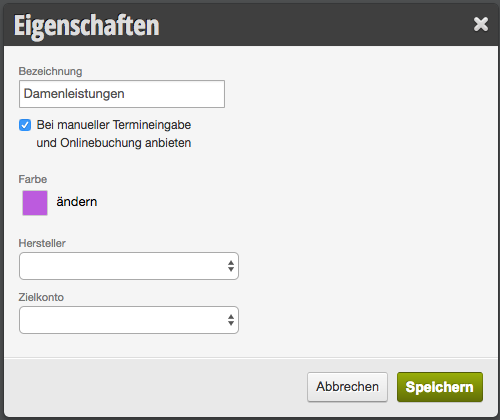
Then click "Save".

Edit service groups
To edit a service group, click on the name of the group. You can now rename it, change its color, or modify settings.

Delete service group
To delete a group, click on the name of the service group and select "Options > Delete group" in the top right.
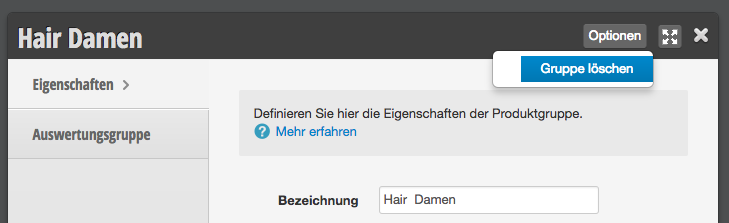
If you also offered the deleted group for online booking, please also edit the questionnaire and remove the category from online booking. Although it will no longer be bookable immediately after deletion, it will still be displayed to your customers online until you remove it.

Duplicate service group
Duplicating groups makes sense when dealing with similar services. For example, when subdividing services for short and long hair. Hover your mouse over the service group to be copied. Some icons will appear next to the group name. Click the "duplicate sheet" icon.

A new group named "Group name (Copy)" will appear.

Move service group
To move a service group, first hover your mouse over the service group to be moved. Some icons will appear next to the group name. Click the green cross symbol and hold the mouse button down while dragging the entire service category to the desired location.

If you have many service groups, it may be easier to first zoom out the screen to move the group to the correct location.
To do this, press Ctrl - (Control key and Minus key) multiple times on your PC or Cmd - on your Mac.
To undo this zoom after editing, click Ctrl 0 (Control key and Zero key) on your PC or Cmd 0 on your Mac.

All settings for your services can be found in this overview
Categories: Services & Prices
Tags: Leistungskategorie
This manual is a service by belbo. Legal notice
