If you are using the cash register system on a Mac in combination with the Epson receipt printer and separate cash drawer, you can check here how to troubleshoot any problems.
Wiring of cash register devices
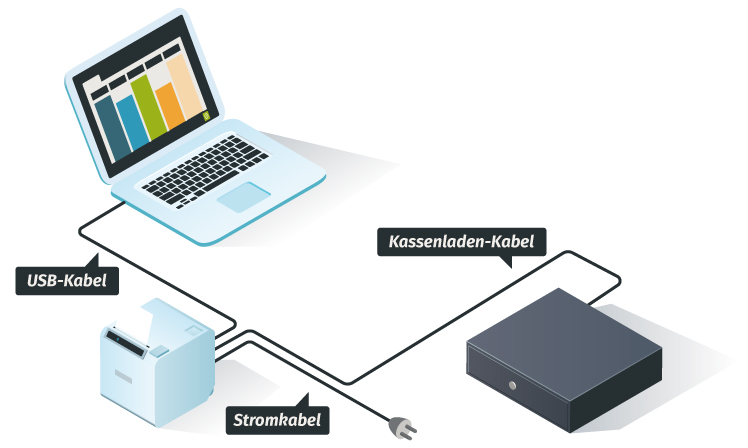
Requirements Checklist
Only a single light should be on at the Epson device (not blinking)
- If yes: Everything is fine here
- If no light is on: Is the device plugged in?
- If a light is blinking: Is the receipt tray closed properly? Is the paper out or loaded correctly?
Is there a connection between PC and Epson printer cash register via USB cable?
- On the Mac, check under System Settings > Printers & Scanners to see if the printer is recognized.
- Click on the magnifying glass (usually at the top right of your Mac) and type "Printers & Scanners". Click on "Printers & Scanners" to see a list of all installed devices on your computer.
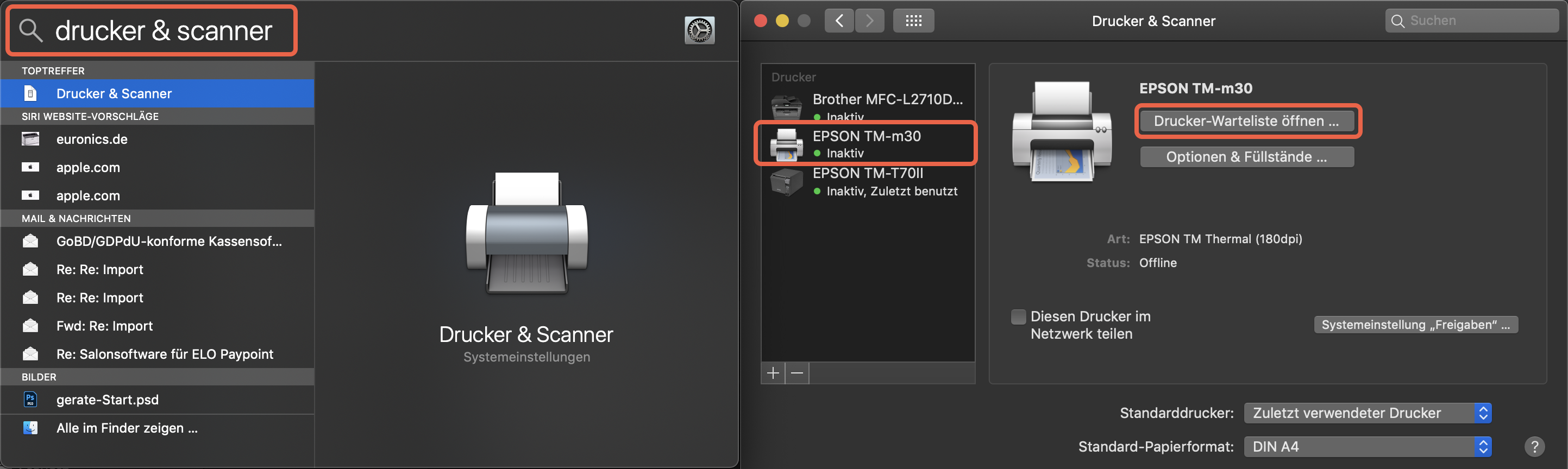 If your printer does not appear here, it must be reinstalled. Belbo can only access the printer once it is listed here and a test print is possible!
Is there a stable internet connection?
- Test: Please open a website that has not been opened for a long time.
- If the page does not load (or loads very slowly): Check your internet connection.
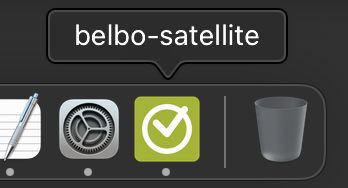
Is the Belbo Satellite turned on?
- If not: Restart Satellite
Are you using the Google Chrome Browser?
- Please do not use Firefox, Safari or similar.
- Check that you are using Belbo with the Google Chrome Browser!

Possible problems and their solutions:
Error message during checkout: "Printer not reachable"
- Go through the above checklist again.
Umlauts or images are not printed correctly
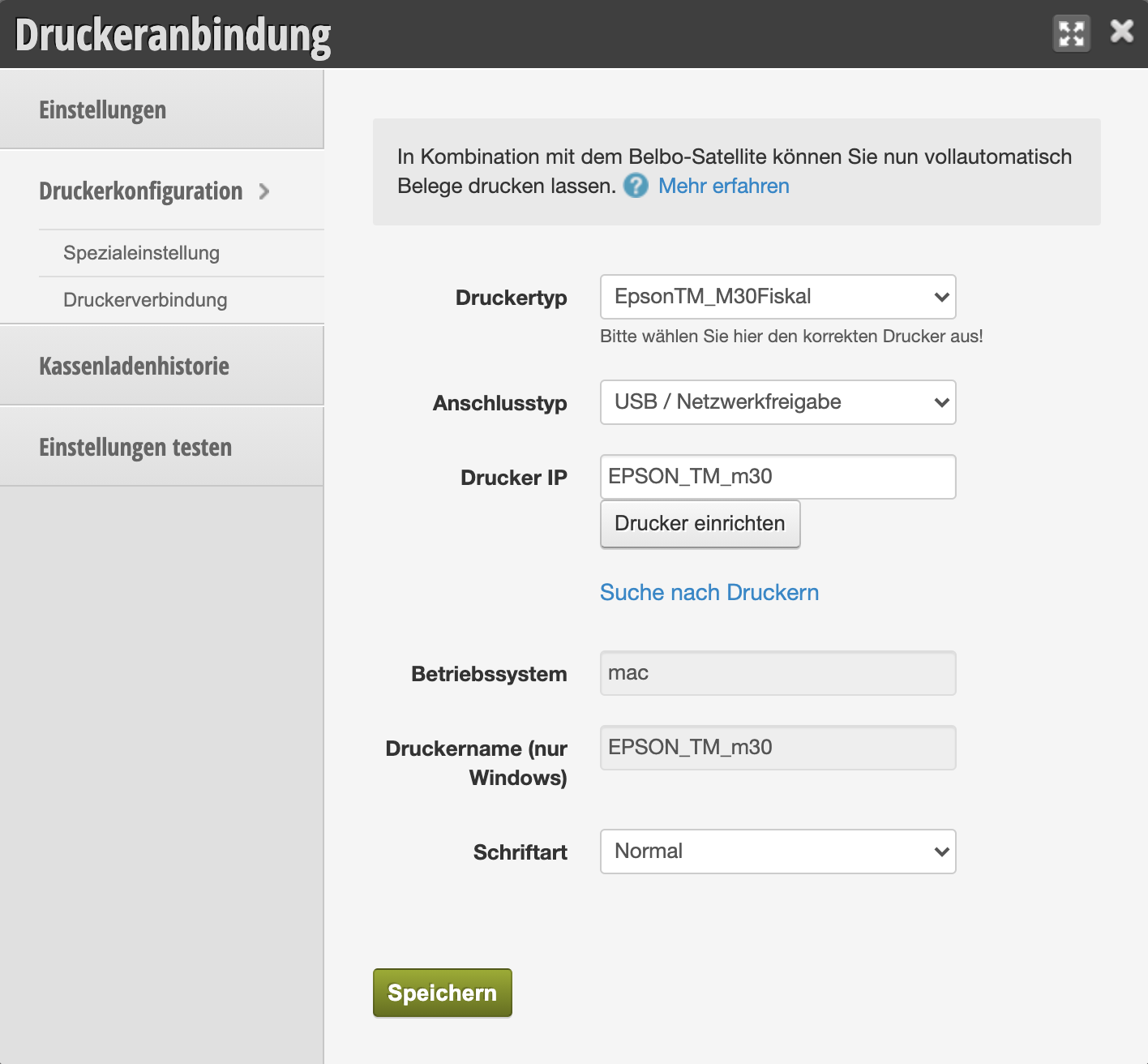
- Log in to the Office and open or activate the "Printer connection" module under Settings
- Check the "Printer type" module (if something other than your Epson model is selected, correct it)
Receipt is not cut off
- Log in to the Office and open or activate the "Printer connection" module under Settings
- Check the "Printer type" module (if something other than your Epson model is selected, correct it)
Cash drawer does not open automatically when printing
- Log in to the Office and open or activate the "Printer connection" module under Settings
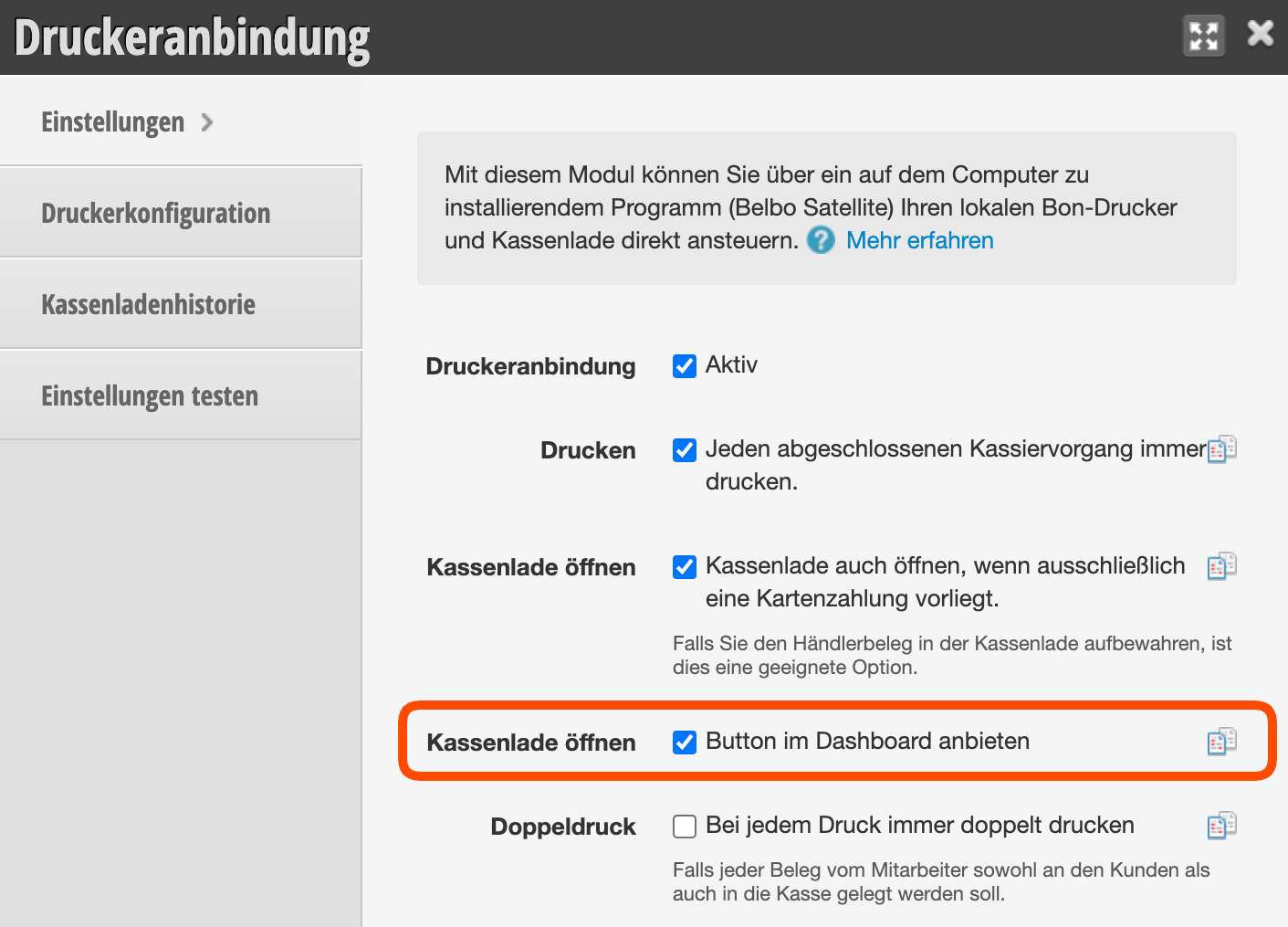
- Verify that all settings are correct (see image).
- Go through the above checklist.
The "Open cash drawer" button does not exist in the checkout process
- Log in to the Office, open the "Printer connection" module under Settings and enable the checkbox "Offer open cash drawer button on the dashboard".