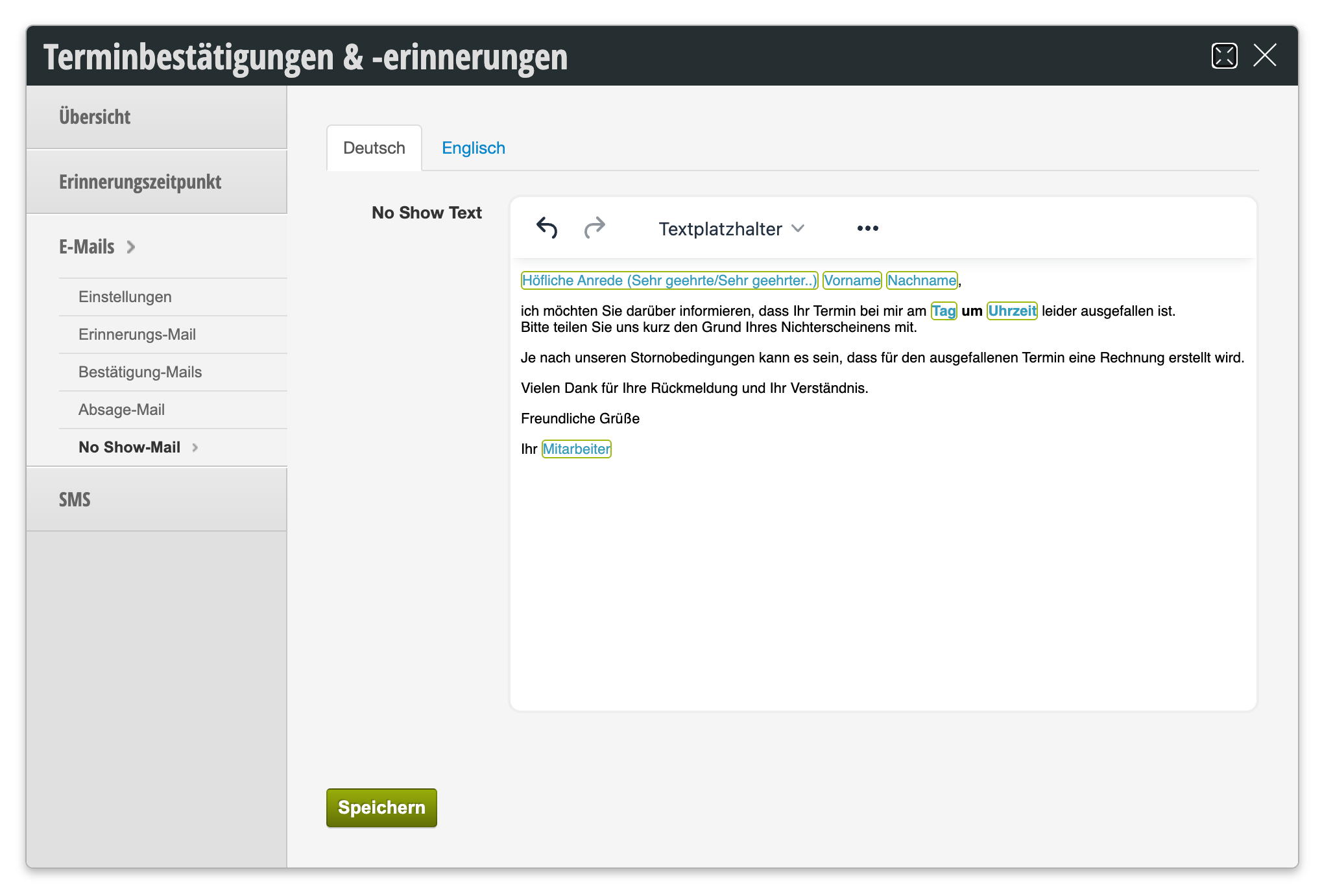
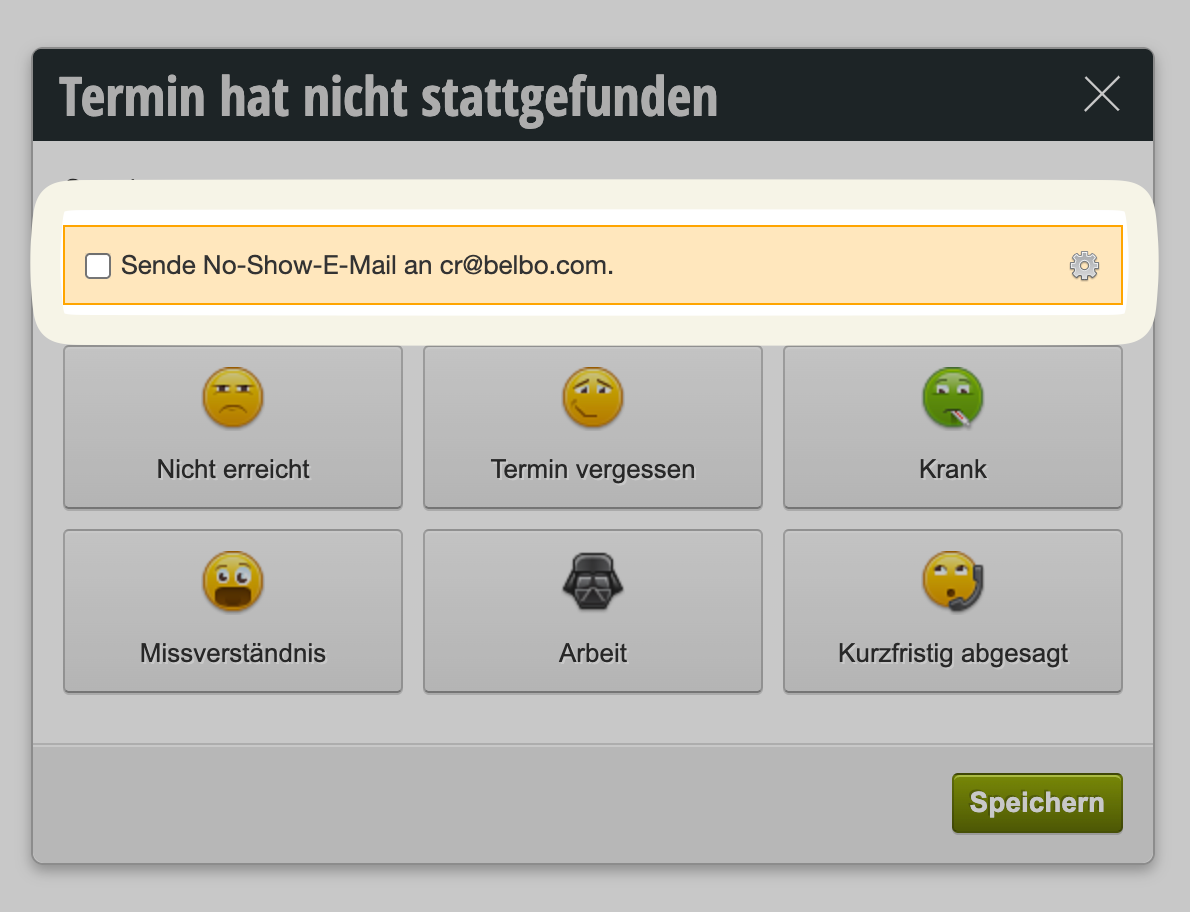
When an appointment is marked as "no show", you can send the customer an email with just one click using your own template.
You can access this area via Settings > Appointment Confirmations & Reminders > Emails > No Show Email.
For example, inform them that an invoice may follow or ask them to get in touch to explain why they didn't show up.
This makes it easier for your staff to contact the customer to request any cancellation fees without sending an invoice directly.
The email template can be edited in the Settings > Appointment Confirmations and Reminders section:
AI TIP
Let your AI assistant write the text for your no-show email. Copy the prompt below and answer the short follow-up questions. The placeholders for salutation, appointment, and the link to online booking are already built in, so you can insert the text directly into Belbo.
Check the text in the email preview after saving. This way you can immediately see if the salutation and appointment details are displayed correctly.
Write me a text for the email that my customers receive when they don't show up for a booked appointment. I use the salon software Belbo, which automatically inserts the salutation, salon name, and appointment details. Belbo sets the subject line itself, so I only need the email text.
Ask me briefly before writing:
1. whether I use informal (du) or formal (Sie) address with my customers,
2. whether I write as an individual (I) or on behalf of a team (we),
3. whether I charge a cancellation fee for missed appointments and, if so, how much it is and how it is paid,
4. how to reach me, e.g. by phone.
Use only these Belbo placeholders for salutation, salon name, and appointment details, written exactly as shown with percent signs and in capital letters:
Salutation:
%LIEBEANREDEOHNENAME% becomes "Dear" (informal). Then %VORNAME% follows. This is the appropriate salutation for the informal form: %LIEBEANREDEOHNENAME% %VORNAME%,
%SEHRGEEHRTEANREDE% becomes "Dear Ms. Surname" or "Dear Mr. Surname". This is the appropriate salutation for the formal form: %SEHRGEEHRTEANREDE%,
%LIEBEANREDE% becomes "Dear Ms. First Name Surname" or "Dear Mr. First Name Surname", a more personal salutation for the formal form.
%VORNAME% becomes the first name, %NACHNAME% becomes the surname.
Salon and appointment:
%ACCOUNT% becomes the name of my salon, e.g. "Good Hair Day".
%WOCHENTAG% becomes the day of the week, e.g. "Saturday".
%TAG% becomes the date with year, e.g. "03.10.2026".
%UHRZEIT% becomes the time without "o'clock", e.g. "09:30". Always write "o'clock" after it.
%LEISTUNGEN% becomes the booked services.
%ALLEMITARBEITER% becomes the names of the staff, e.g. "Ramona K.".
%LOCATION_BOOKING_LINK% becomes a link with the text "Book appointment" that leads to my online booking.
Rules:
- Never write out words like "Dear" or "Dear" yourself, always use the appropriate placeholder. Belbo inserts the correct form depending on the customer.
- After %SEHRGEEHRTEANREDE% and %LIEBEANREDE%, no additional name follows, it's already included there.
- Write in a friendly tone without blame. There can be many reasons why someone didn't show up. Explicitly invite them to get in touch if it's a misunderstanding.
- Summarize the missed appointment in a block with labeled lines, exactly like this:
Appointment: %WOCHENTAG%, %TAG% at %UHRZEIT% o'clock
Service: %LEISTUNGEN%
With: %ALLEMITARBEITER%
- Only mention a cancellation fee if I've mentioned it. Then state it factually with amount and payment method, without threatening.
- Put %LOCATION_BOOKING_LINK% on its own line, right after a short, friendly sentence that invites rebooking, e.g. "You can easily book a new appointment here:".
- Don't invent any other placeholders, rules, or offers that I haven't mentioned.
- Sign with %ACCOUNT%, e.g. "Your team at %ACCOUNT%" or just "%ACCOUNT%".
- Don't write a subject line.
Provide only the email text as plain text without formatting, so I can insert it directly into Belbo. Write me two versions: one short and one somewhat more detailed.
If a template is stored and the customer has an email address, it can be sent: