
belbo
  • Overview
    • Getting to know Belbo
    • Location Settings
    • Switch to Belbo
    • Calendar View & Navigation
    • Recurring Appointments & Courses
    • Appointment Entry & Management
    • Logins & Permissions
    • Multiple Locations & Head Office
    • Manage Employees
    • Absences & Holidays
    • General
    • Working Hours
    • Time Tracking
    • Data Protection (GDPR)
    • Customer Communication (Email, SMS)
    • Customer Management & Records
    • Bonus & Loyalty Programs
    • Campaigns (Newsletter & SMS)
    • Marketing Consents (GDPR)
    • Tracking & Analytics
    • Overview
    • Services & Prices
    • Products
    • Service Packages & Subscriptions
    • Vouchers
    • Purchasing & Suppliers
    • Stock & Inventory
    • Scanning & Sales
    • Cost of goods & expenses
    • Design & Texts
    • Setup & Settings
    • Integration (Website, Google, Instagram, Facebook)
    • Online payment
    • Accounting & Exports
    • Cash Register Settings & Hardware
    • Checkout process
    • Daily Closing & Reports
    • TSE & Cash Register Anti-Tampering Ordinance
    • Export Overview
    • Employee Utilization
    • Revenue & Reports
    • Belbo Satellite
    • Printer
    • EC Terminal & Card Payment
    • Troubleshooting Hardware
    • Scanner & POS Devices
    • General Settings
    • API & Integrations
    • Notifications & Emails
    • Contracts & Legal
Skip to content

Appointment Status

With the appointment status, you can document whether an appointment took place or was canceled. This helps you document customer reliability.

Using appointment status

To use the appointment status, click on an appointment in the calendar to view the appointment details.
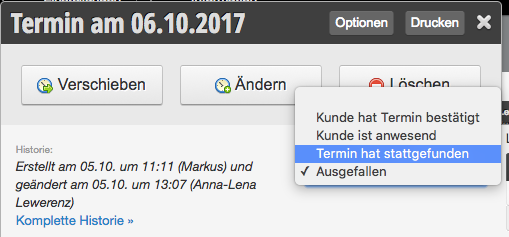
Appointment status variants:

No status
Appointments entered in the calendar do not have an automatic status. You can mark appointments automatically as perceived in the calendar settings, so you cover the most common case without having to set this for each appointment.

Customer has confirmed appointment
If you want customers to confirm their appointments, you can use the status Customer has confirmed appointment to mark the confirmation by the customer.

Customer is present
You can mark that a customer is present.

Application example:
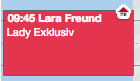
If you have a large retail store where not all employees can see which customers are already in the reception area, reception staff can use the customer status for present customers. This way, colleagues in another part of the business can see it in the calendar.

Example of appointment with customer present:
Appointment took place
You can mark an appointment as having taken place to document customer reliability. You can mark appointments automatically as perceived in the calendar settings, so you cover the most common case without having to set this for each appointment.

Canceled
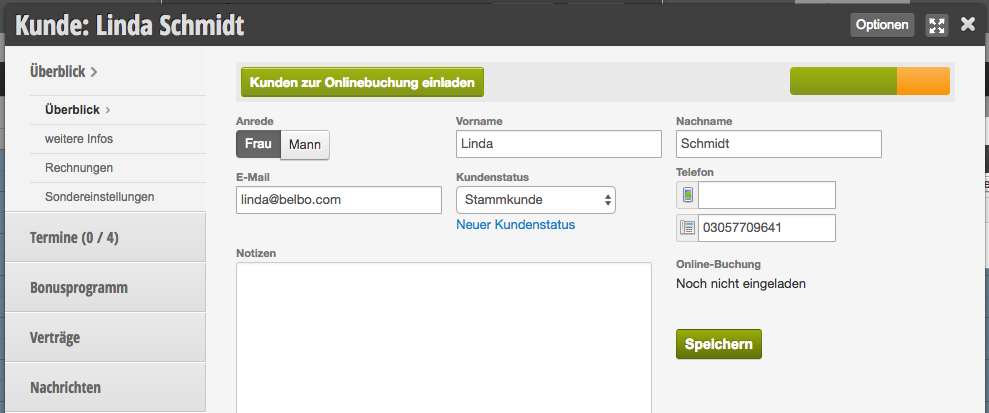
You can mark an appointment as having taken place to document customer reliability. If an appointment is canceled, you can mark the appointment accordingly. This results in an orange coloring of the customer's reliability indicator.

When you mark an appointment as canceled, you don't need to delete it. This time is available again for other customers in the online booking.

Example of customer file with some missed appointments:
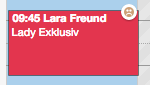
Example of canceled appointment in calendar:

You can find an overview of all appointment details here.
Categories: Appointment Entry & Management
Tags: Ausgefallen, Kunde anwesend, Termin ausgefallen, Terminstatus
This manual is a service by belbo. Legal notice