When target/actual planning is activated, you can enter the target hours per day in the schedule. This is the number that appears below an employee's working time (9h, 0h, 7h). These are automatically compared with the actual working times that result from the time entries. This way, overtime or minus hours are calculated, with breaks deducted.
Target/actual hours matching
This example of a schedule is flawless because the target hours and actual hours match: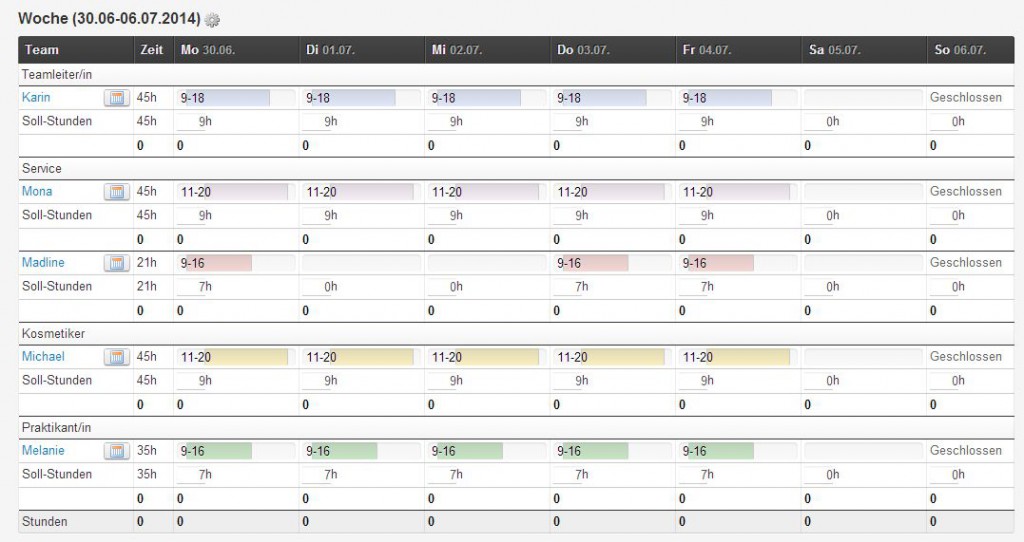
Balancing target/actual hours
In this example, intern Melanie leaves an hour early on Tuesday. Since she was present for only 6 hours instead of the 7h target hours, a -1 appears instead of 0. On Thursday, she makes up this hour and is present for 8h instead of 7h. This one hour of overtime is noted with the red 1: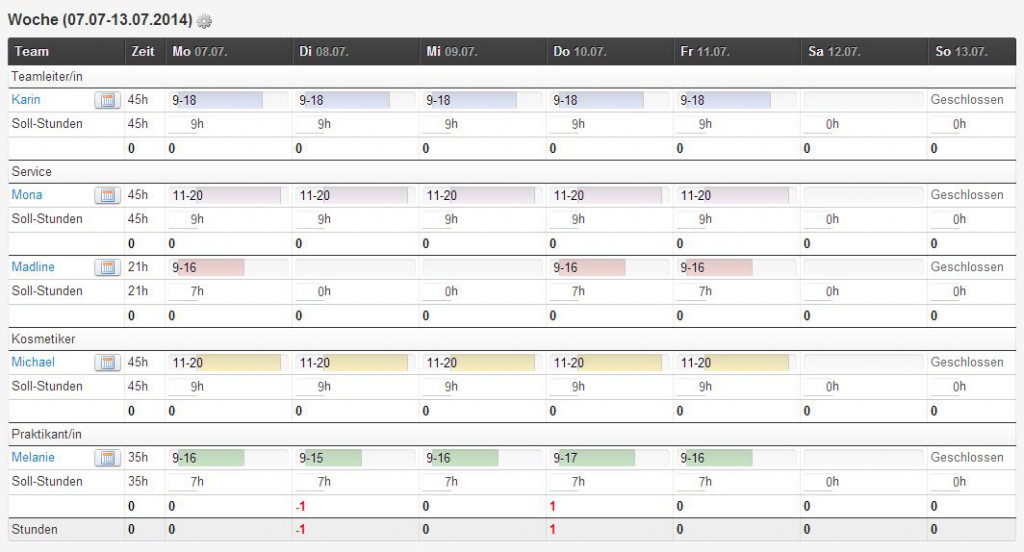
In the following example, employee Madline has accumulated overtime on various days in the past month and is taking what is called a minus day: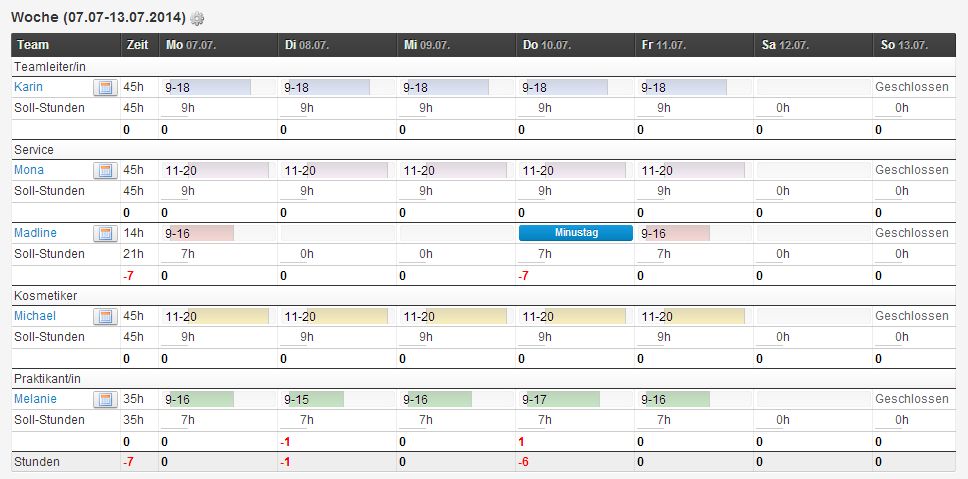
Sick leave
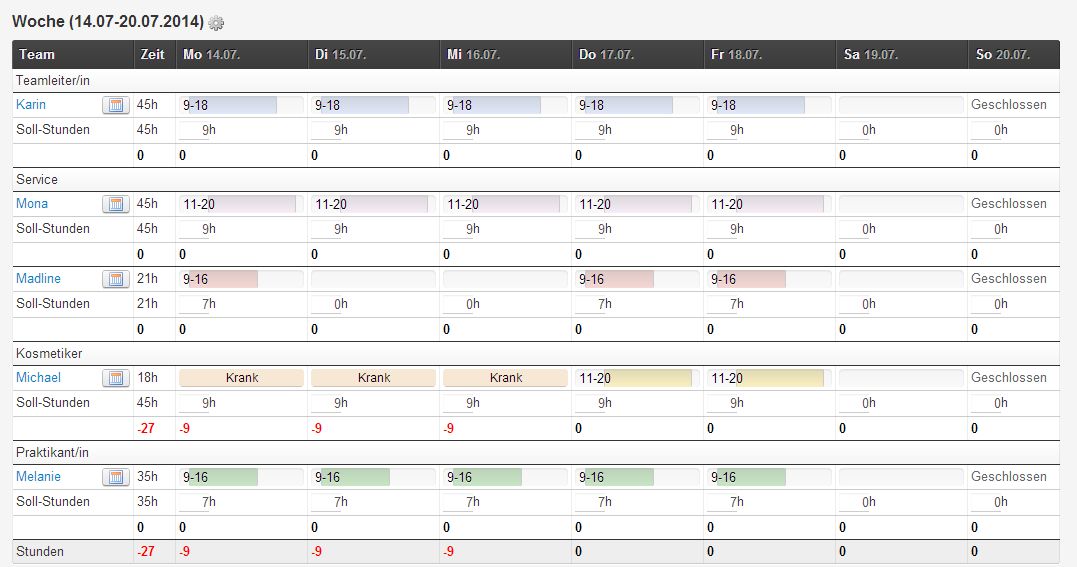
Employee Michael has reported sick, which accordingly appears in the schedule. Since he was not present on those three days, he cannot fulfill his target hours. These are then displayed in red: -9.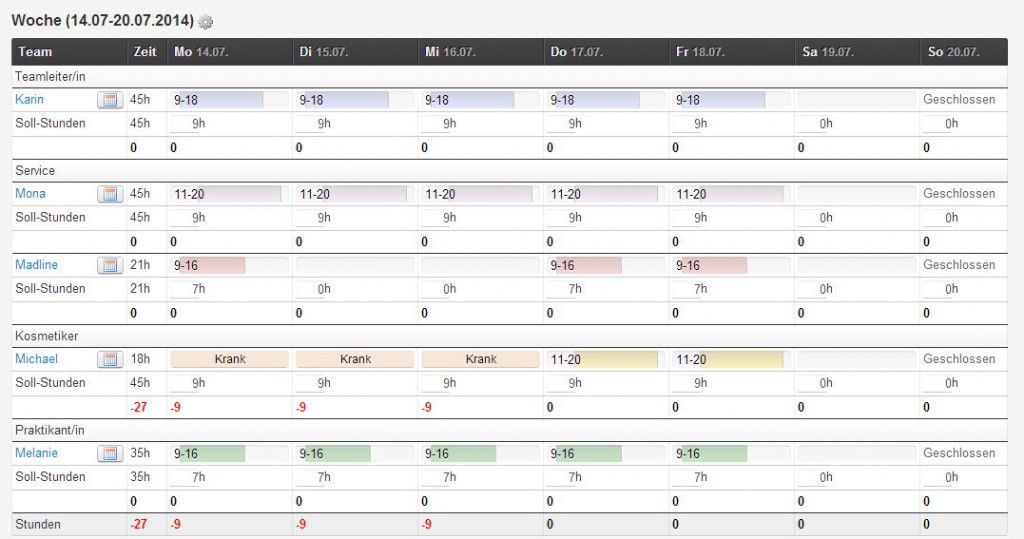
Export of target/actual hours
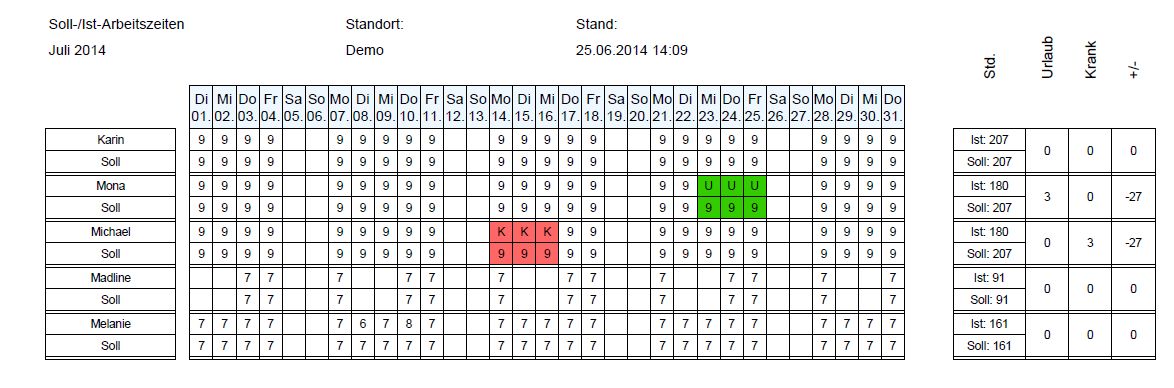
When you click "Options" in the top right of the schedule and then select "Export target/actual hours", you receive a PDF document that gives you an overview of the month and allows you to read off overtime, minus hours, absences, etc.
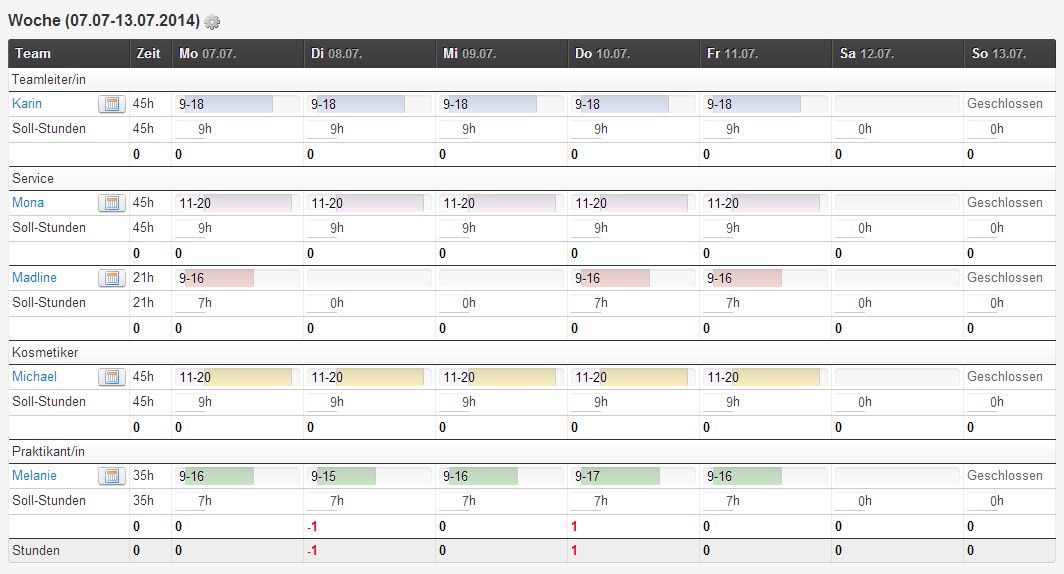
In this case, the intern has made up the one hour and no minus hours result: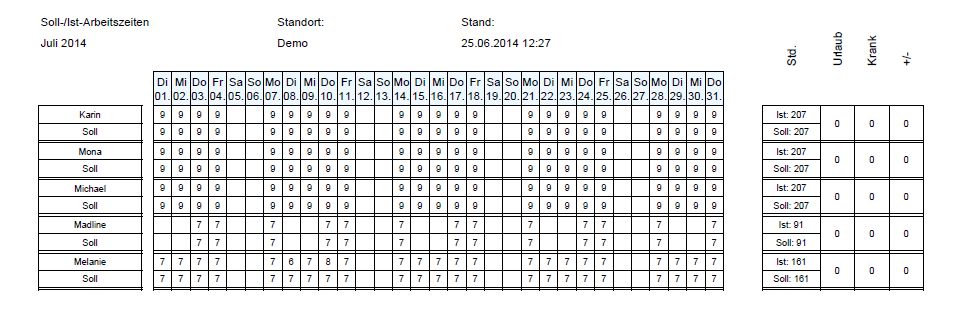
In this case, the intern has made up the one hour and no minus hours result:
In this example, Michael's three sick days are listed: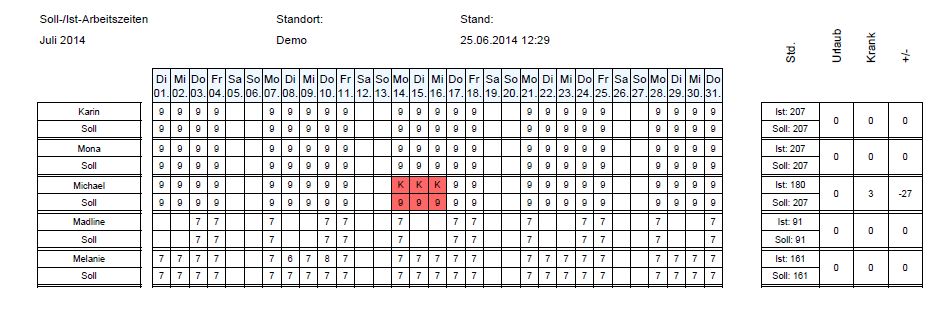
In this example, Mona's three vacation days are listed: