Introducing online booking for customers is an event where you can draw attention to your business and demonstrate your innovation capability. If you already have existing customers in your customer database and therefore have email addresses, you can use this opportunity to write an email to all customers.
The advantage: These customers don't receive a normal email with information, but rather have the opportunity to complete registration of their online booking account with one click and set a password. They benefit from online bookings from day one and have no duplicates in the customer database - because the registration profiles are linked to the corresponding customer record.
Set up online booking campaign
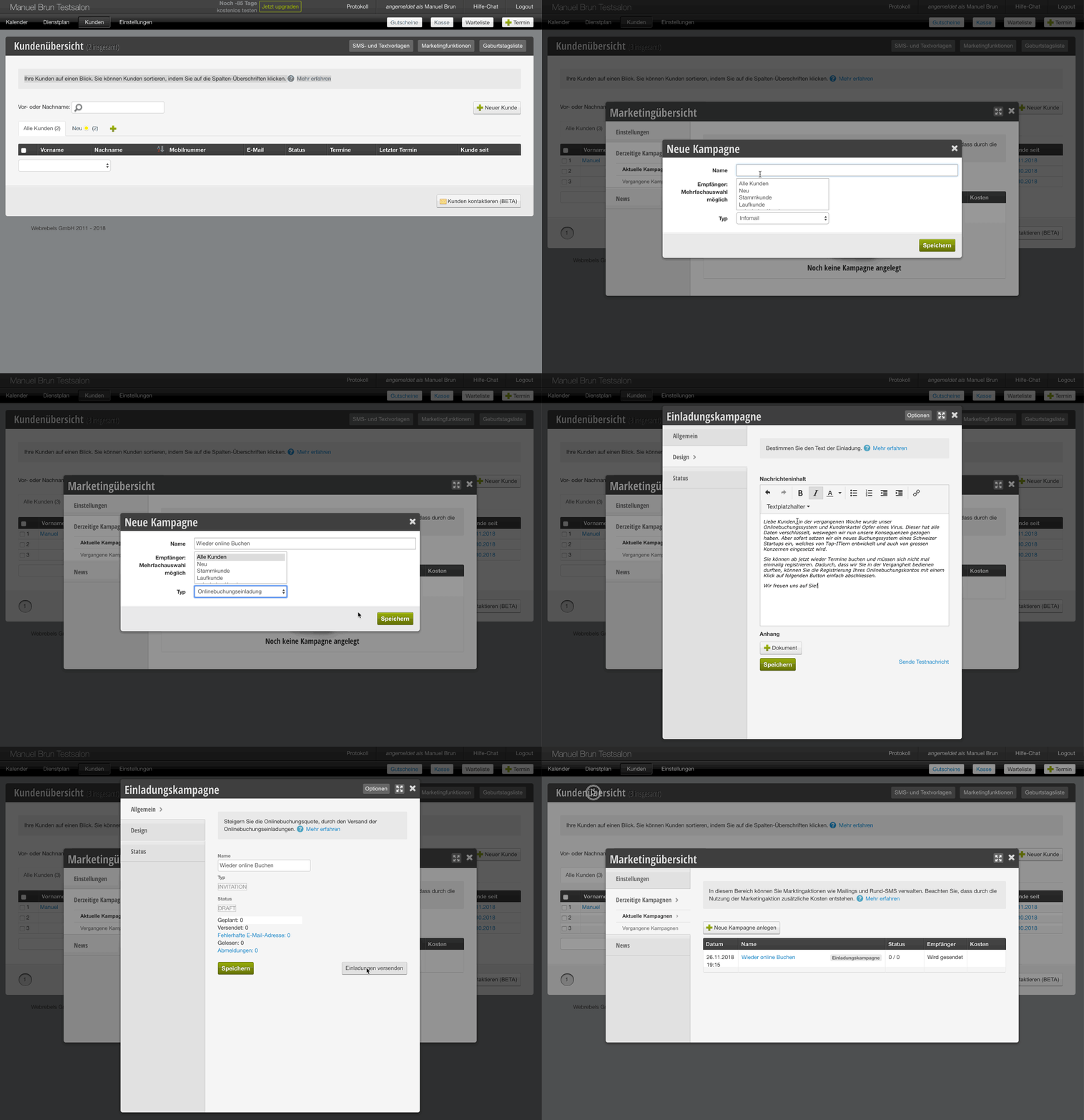
1. Click on Customers in the navigation bar and then select the Marketing Functions module in the top right.
2. You now see all your campaign drafts that you have prepared. To start a new campaign, click the Create New Campaign button.
3. Assign a title (also visible to your customers, e.g. You can book appointments with us again) with which you can easily distinguish the campaign. Choose which customers the action should be sent to. You can select multiple statuses by holding down Ctrl / cmd. In the normal case, you can simply leave All Customers selected.
As the campaign type, select Online Booking Invitation. In the background, hairlist now searches all customers for valid email addresses and filters out duplicates. If the window closes automatically, this process is complete. Now click on the newly created title to edit the emails and then go to the Design tab.
There you can now write a short text. For example, write:
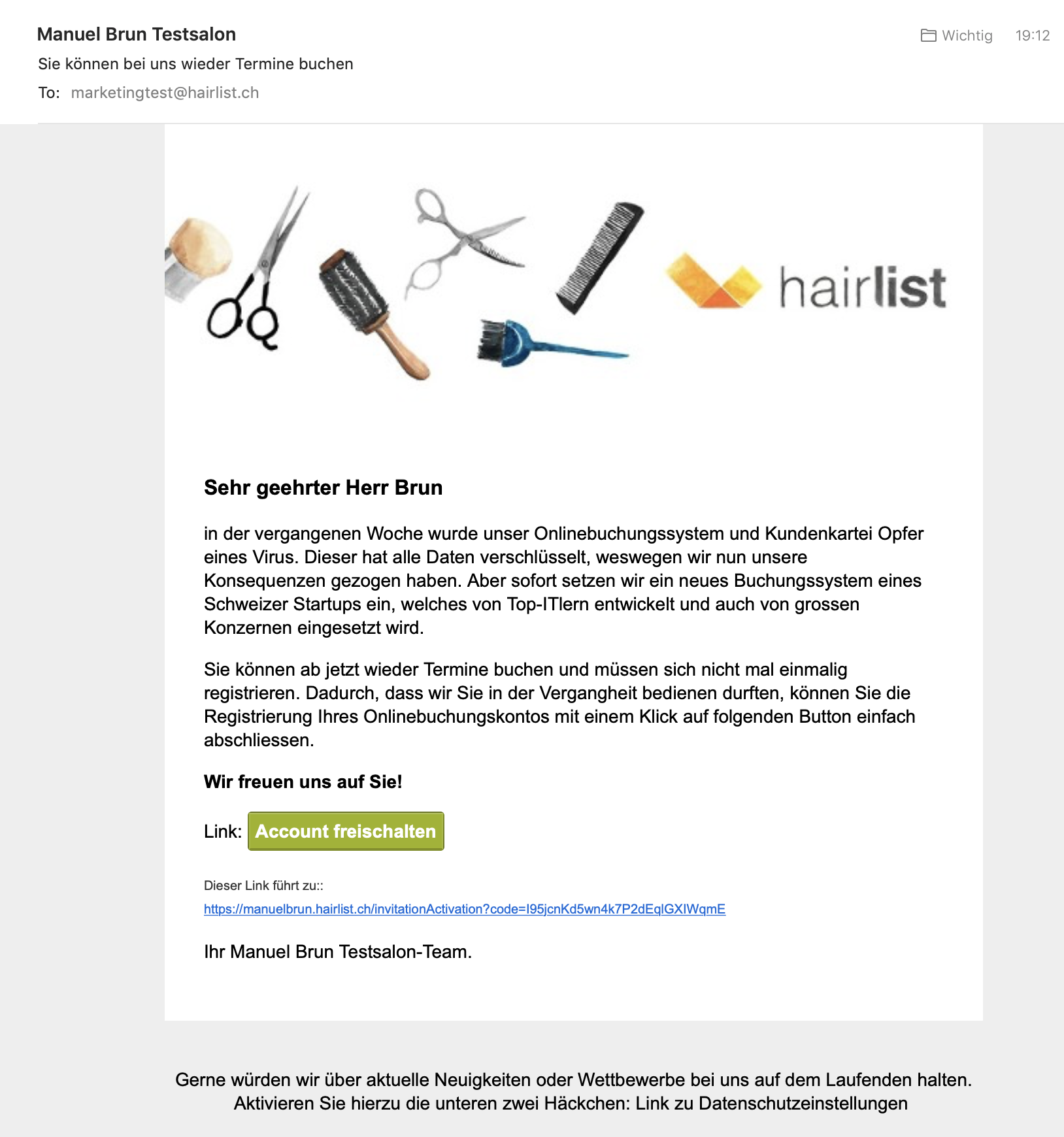
Dear Customers, last week our online booking system and customer database fell victim to a virus. This encrypted all data, which is why we have taken action. But we immediately implement a new booking system from a Swiss startup, which is developed by top IT experts and is also used by large corporations.
You can now book appointments again and don't even need to register once. Because we have had the pleasure of serving you in the past, you can simply complete the registration of your online booking account with one click on the following button.
We look forward to hearing from you!
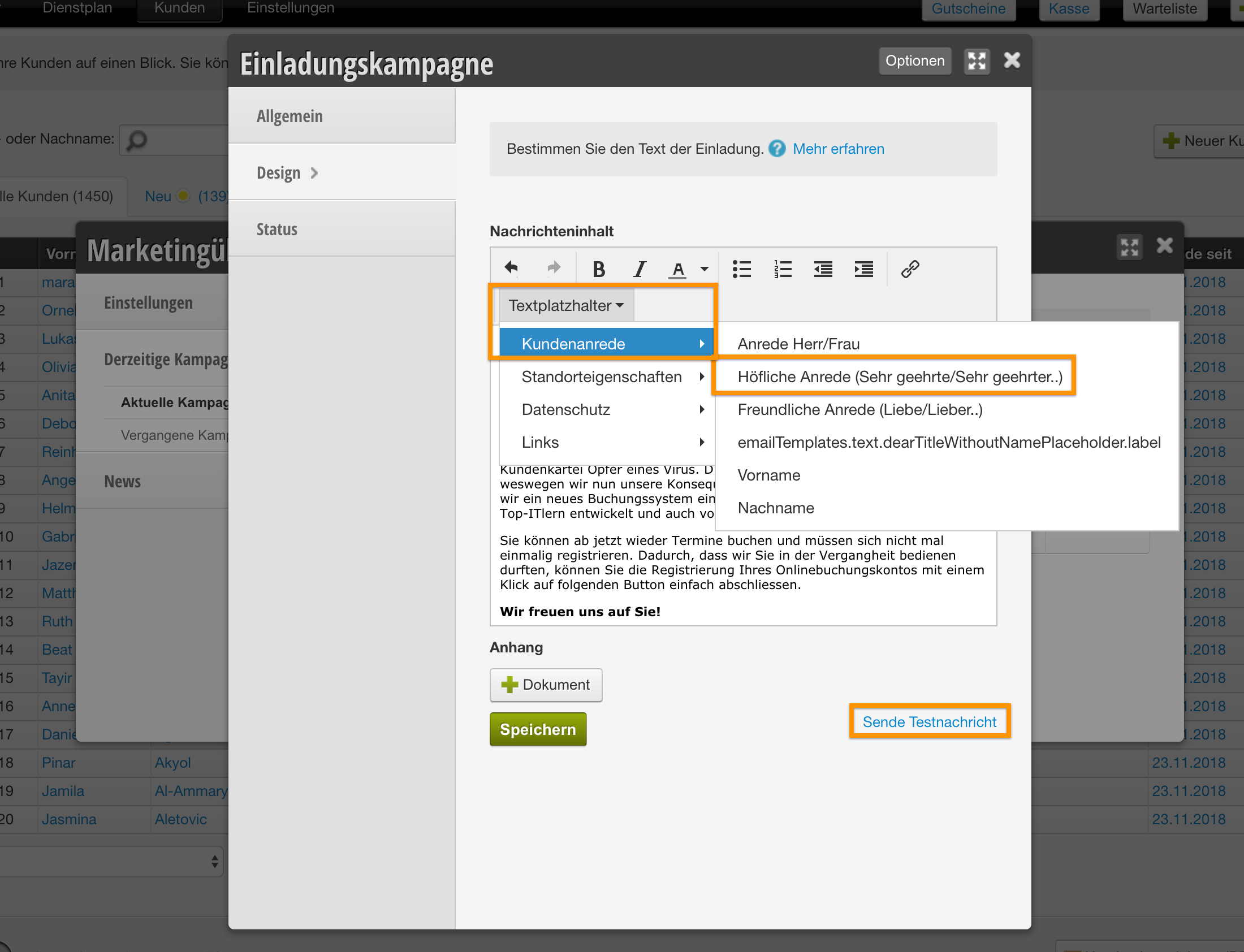
If your customers are properly recorded and the names are correct, you can also address your customers personally and use placeholders. The placeholders are then used individually according to the message recipient. They allow you to address each customer personally with first and last name, for example. Important: Placeholders only work with the Google Chrome browser.
- Salutation Mr. / Ms.: Mr. or Ms. will be used accordingly
- Formal salutation (Dear Sir / Madam…): will be replaced with Dear Ms. Meier or Dear Mr. Müller. So last names are already included in this placeholder!
- Friendly salutation (Dear…): will be replaced with Dear Ms. Vreni Meier or Dear Mr. Martin Müller. So first and last names are already included in this placeholder!
- First name: will be replaced with only the first name alone (if you previously write "HI" or "HELLO" or Good Morning and don't use a salutation from us)
- Last name: will be replaced with only the first name alone (if you previously write "Hello Name" and don't use a salutation from us)
Click Save and test the appearance by sending yourself a test message. This will be sent to the email address you are logged in with.
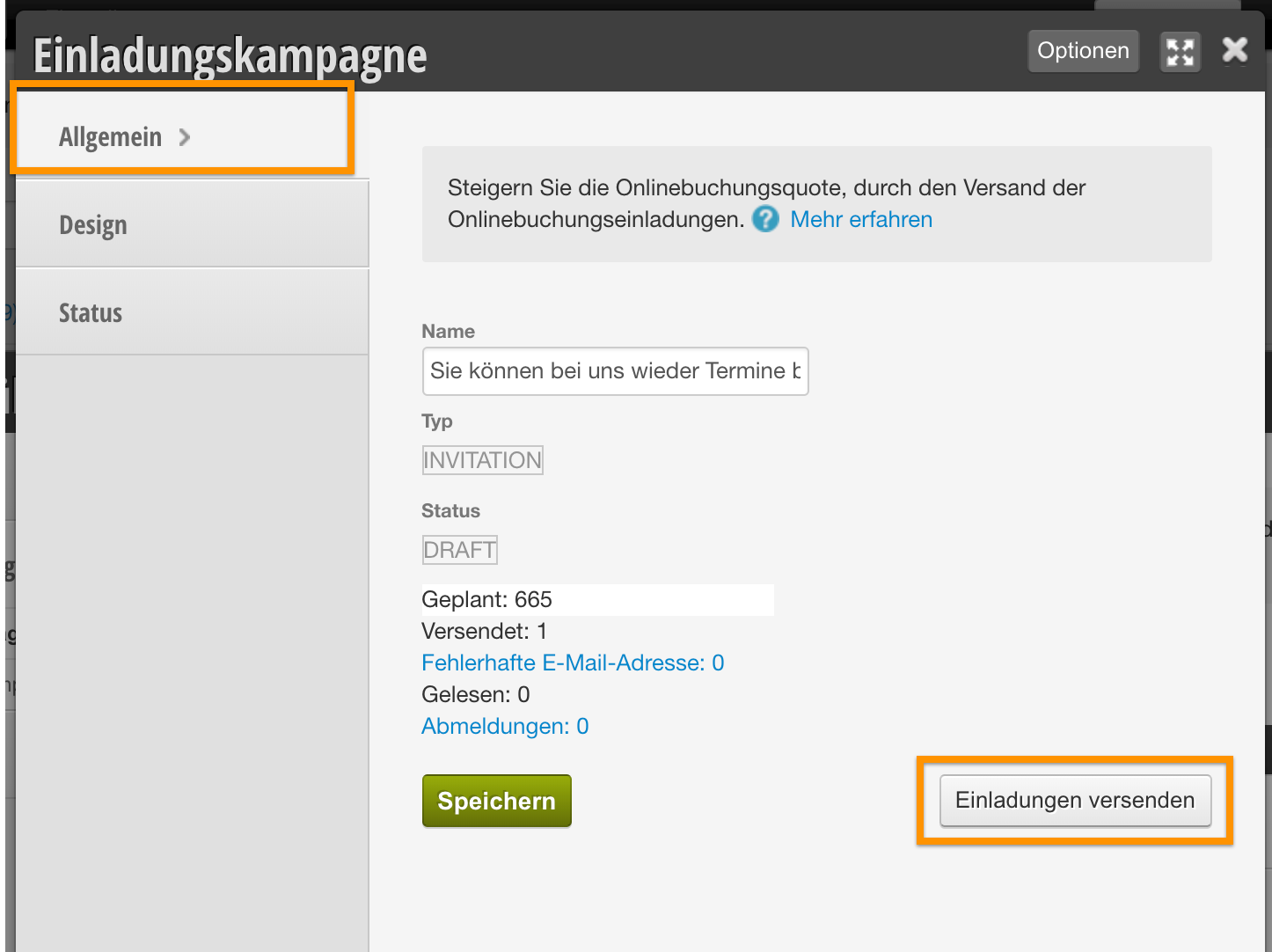
If the email suits you, you can start sending the campaign to all your customers under the General tab and Send Invitations. Your emails are now passed to our provider and queued. It may therefore take a few hours until all emails have been sent. However, you can always check the status and see when the campaign has been successfully sent.