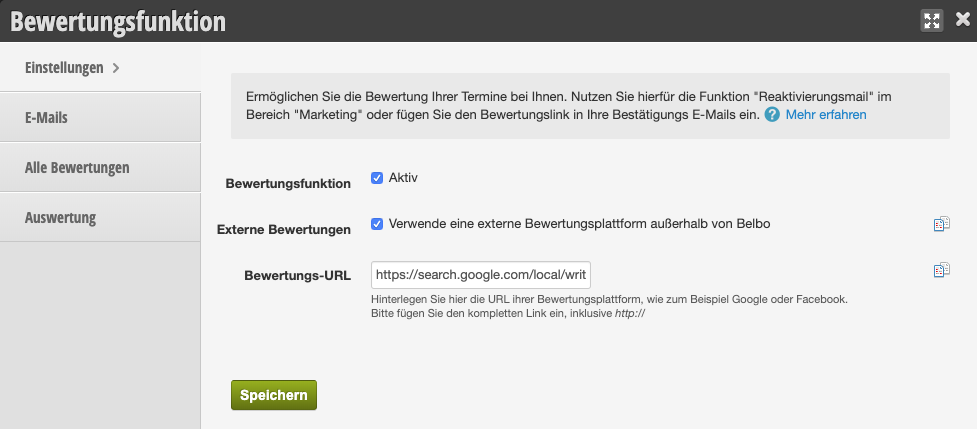
With Belbo you can send automatic or manual review requests to your customers. This actively encourages customers to rate your business, which can give you a competitive advantage. You can find more information about activating your reviews here.
Basically, the reviews are visible on your Belbo online booking page. However, if you wish, you can also direct the review request to another page – for example your company's Facebook or Google profiles. Here you will learn how to create the correct links for external platforms, which you can then integrate into your review requests.
Create a review link for Google Reviews
The prerequisite for a Google review request is that you have created an existing My Business or Places entry for your business.
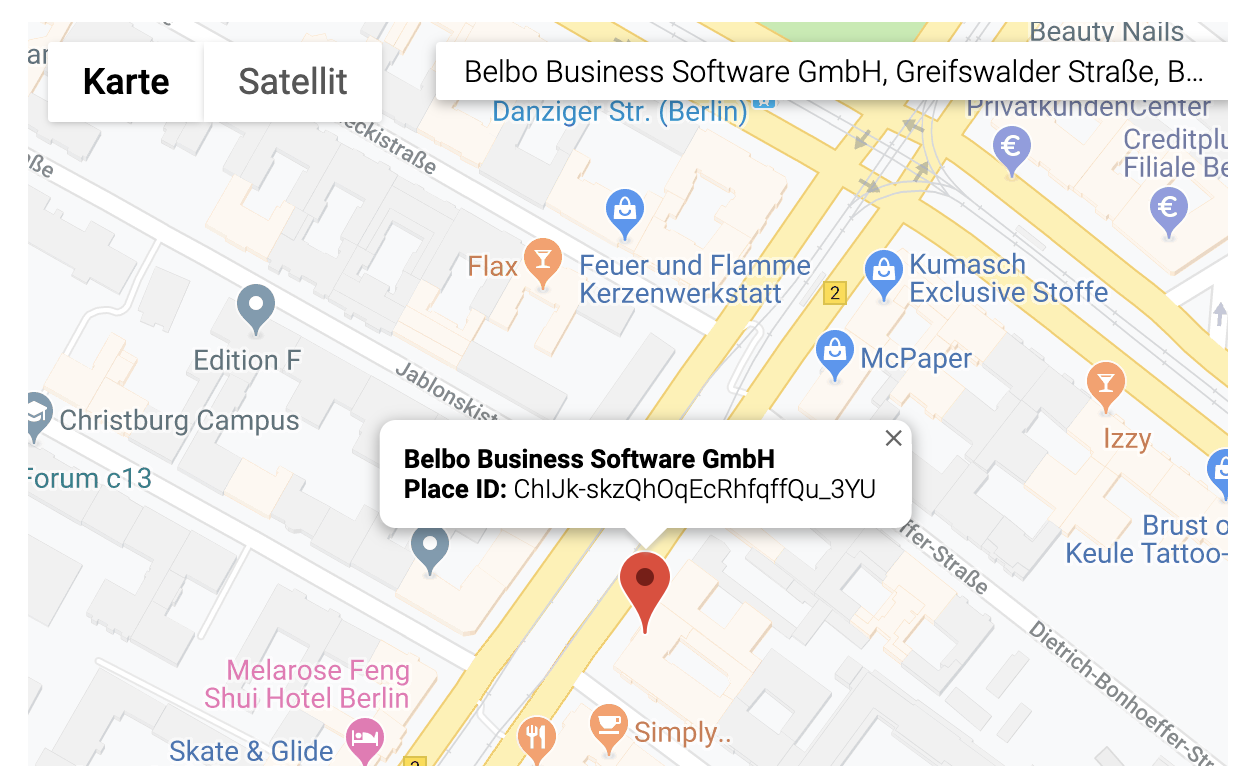
- Visit the Google Place ID page.
- Search for your business on the map shown.
- Once you have selected it from the suggestions, your business will be displayed along with its unique Place ID.
- Copy the Place ID and temporarily paste it into a text file.
https://search.google.com/local/writereview?placeid=
The completed Places review request should look something like this, where the last part of the link after the equals sign is your own Place ID:
https://search.google.com/local/writereview?placeid=ChIJk-skzQhOqEcRBFI0QlA3BPw
You can now add this link to your review request. You can find more information about this further down on this page.
Create a review link for Facebook
The prerequisite for a Facebook review request is that you have created a business page for your business.
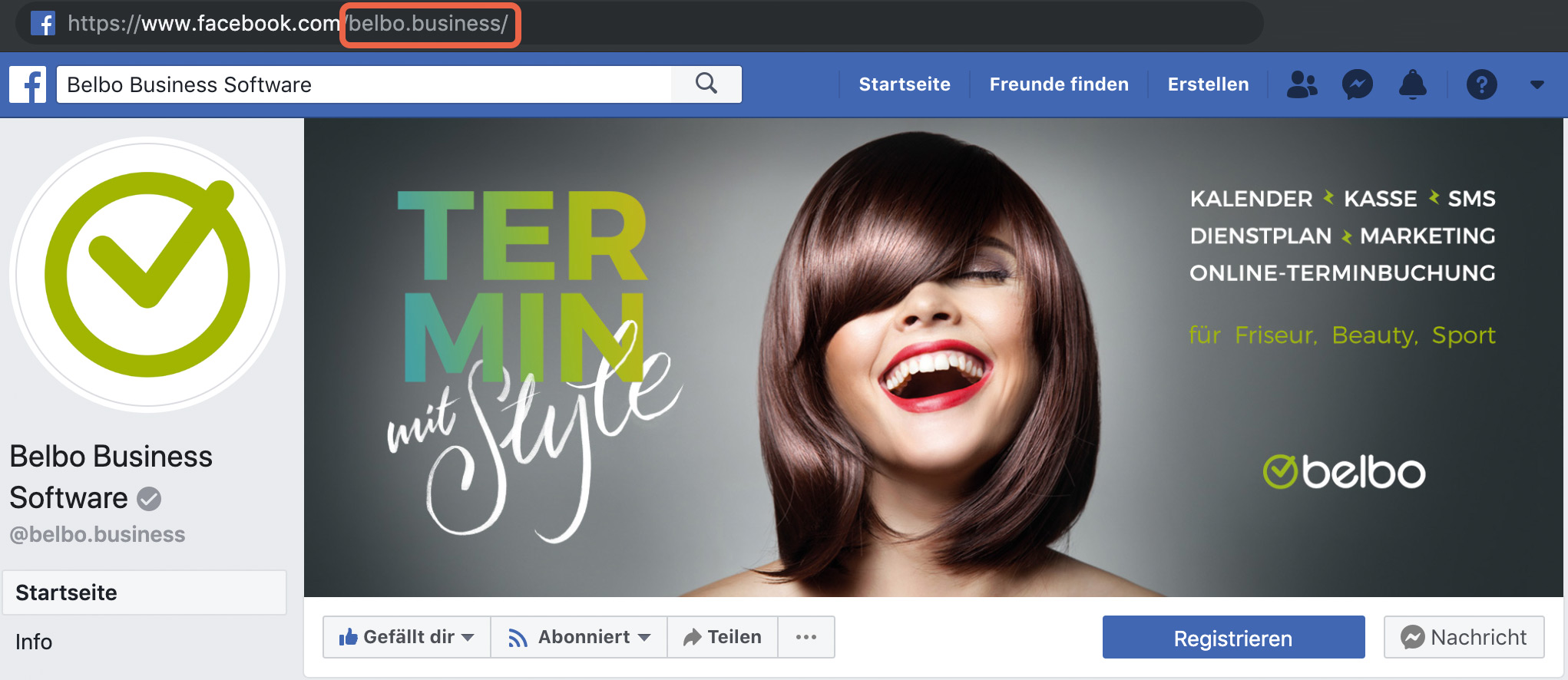
- Visit your company's Facebook page.
- Look at your Facebook URL in the browser's address bar.
- Copy the part after the .com and temporarily paste it into a text file. Make sure to copy only the name and not to copy any additional characters after the /.
https://www.facebook.com/page name/reviews
The completed Facebook review request should look something like this, where the middle part of the link is your own page name:
https://www.facebook.com/belbo.business/reviews
You can now add this link to your review request. You can find more information about this further down on this page.
Insert review link for external platform in Belbo review requests
Under Settings > Review Request you can specify that the review link placeholder in your emails does not lead to Belbo reviews, but to an external destination.
- Check the "External Reviews" box.
- Enter the link under "Review URL".
- Save your entry.