belbo
  • Overview
    • Getting to know Belbo
    • Location Settings
    • Switch to Belbo
    • Calendar View & Navigation
    • Recurring Appointments & Courses
    • Appointment Entry & Management
    • Logins & Permissions
    • Multiple Locations & Head Office
    • Manage Employees
    • Absences & Holidays
    • General
    • Working Hours
    • Time Tracking
    • Data Protection (GDPR)
    • Customer Communication (Email, SMS)
    • Customer Management & Records
    • Bonus & Loyalty Programs
    • Campaigns (Newsletter & SMS)
    • Marketing Consents (GDPR)
    • Tracking & Analytics
    • Overview
    • Services & Prices
    • Products
    • Service Packages & Subscriptions
    • Vouchers
    • Purchasing & Suppliers
    • Stock & Inventory
    • Scanning & Sales
    • Materials & Costs
    • Design & Texts
    • Setup & Settings
    • Integration (Website, Google, Instagram, Facebook)
    • Online payment
    • Accounting & Exports
    • Cash Register Settings & Hardware
    • Checkout process
    • Daily Closing & Reports
    • TSE & Cash Register Anti-Tampering Ordinance
    • Export Overview
    • Employee Utilization
    • Revenue & Reports
    • Belbo Satellite
    • Printer
    • EC Terminal & Card Payment
    • Troubleshooting Hardware
    • Scanner & POS Devices
    • General Settings
    • API & Integrations
    • Notifications & Emails
    • Contracts & Legal
Skip to content

Set up service packages

The Service Packages function allows you to sell and document service packages. Here we explain how to set them up.


You can access this area via Settings > Service Packages
If this function is not activated, it can be activated via "Settings > Add Function".

Step 1: Create a Service Package

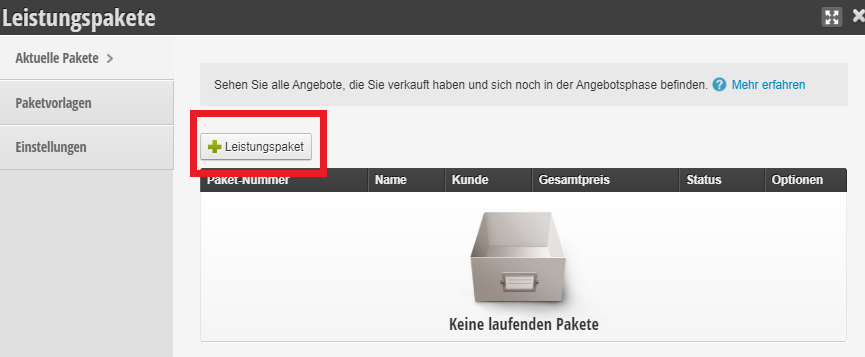
To create a service package, click on the Service Package button

Please select a customer to whom you want to assign the service package or create a new customer file and assign it to them.
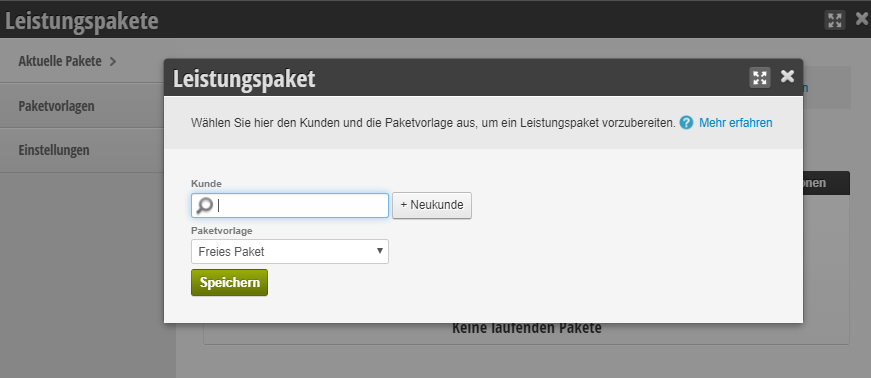
Step 2: Define Service(s)

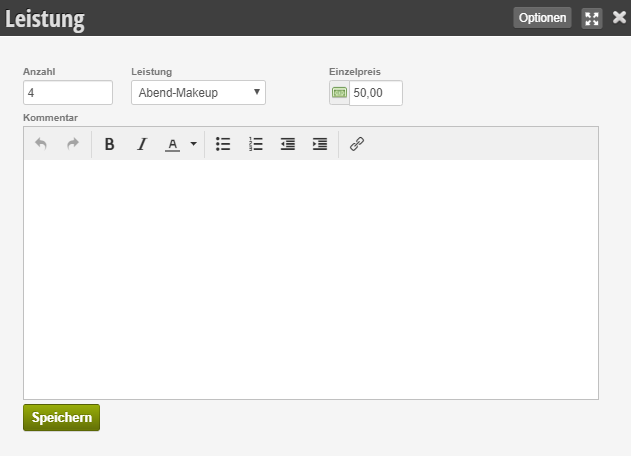
Here you can add one or more services using the "+Service" button:
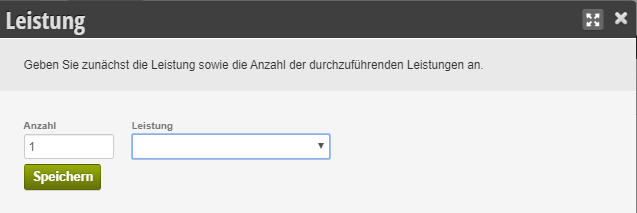
After you have added services, you can set a comment and a custom price:

Step 3: Complete Package Sale

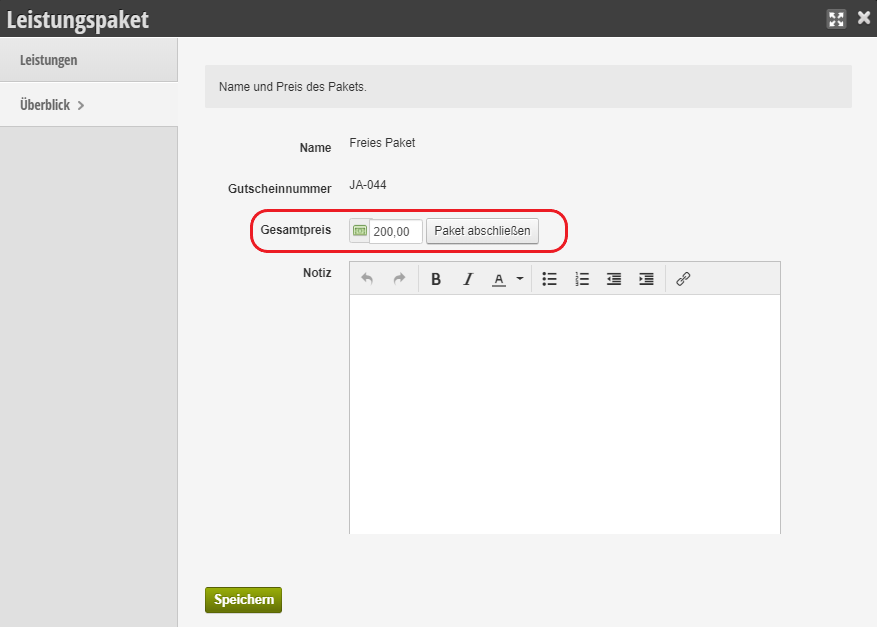
Once you have finished setting up the package and want to sell it, switch to the "Overview" section and select "Complete Package". A new checkout process will then be started to complete the sale of the package. You can now select a payment method and complete the process.

Step 4: Schedule Package Appointments

Depending on how you want to schedule appointments, you now have several options to arrange the appointments:

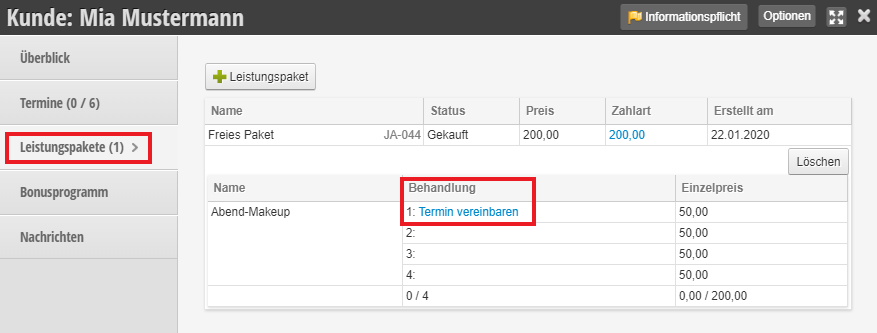
  1. Within the customer file, there is a list of appointments that still need to be performed. You can schedule the target appointment directly with just a few clicks here.
  2. You schedule appointments normally in the calendar and select exactly the service you sold in the package.
  3. You allow the customer to book appointments online.

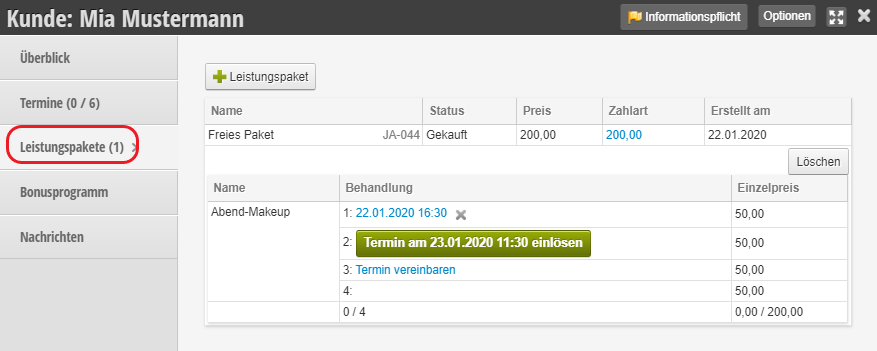
Overview in the Customer File

In the customer file, under the "Service Packages" tab you will find an overview of redeemed and scheduled appointments as well as the option to schedule a new appointment.
Categories: Services & Prices
This manual is a service by belbo. Legal notice