
Cash register operators in Germany must submit a cash register notification according to §146a AO once on 31.7.2025 when starting to use each cash register. This notification can be submitted either via your tax advisor or via Belbo.
Alternatively, the notification can of course also be made via the tax office. However, in case of updates or changes, you would have to take care of it yourself, since Belbo would then not automatically process the changes.
The notification contains the serial number of the cash register as well as the BSI certification. This information can be read in the TSE module and forwarded to your tax advisor. Since a cash register notification via a tax advisor is usually associated with costs, the notification can also be submitted via Belbo.
We also demonstrated and explained this function in our live stream on Youtube: Direct to the cash register notification topic on Youtube
Starting the cash register notification via Belbo
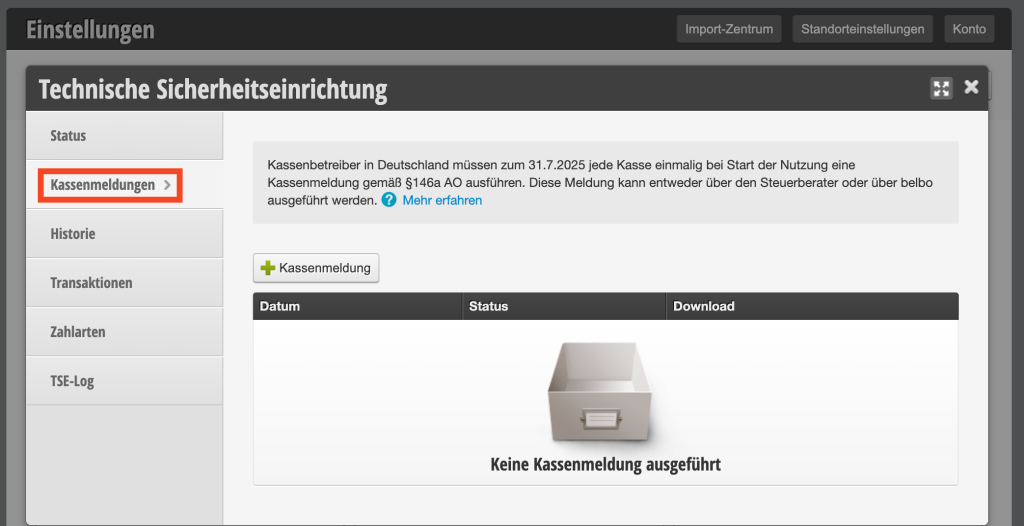
To start the cash register notification via Belbo, you must perform the following actions:
- Click on Settings
- Open the "TSE" function in the "Cash Register System" category
- Open the "Cash Register Notification" tab
- Select "Submit cash register notification via Belbo"
- Then you must open the started cash register notification by clicking on the line of previous cash register notifications, for example on the blue date.
Data entry for the cash register notification
A list of missing and pending data now appears. Now open the tabs on the left side one after another "Company", with the sub-tabs "Legal Form" and "Company Address" and fill in all the data.
If all the data is correct, you must switch back to the "Overview" tab and if all validations were successful, you can submit the cash register notification for pre-review.
Verification of data
Shortly after submission, the preview can be downloaded in the same window (e.g. by clicking on Overview). Please check this document carefully and send it to your tax advisor for verification if necessary.
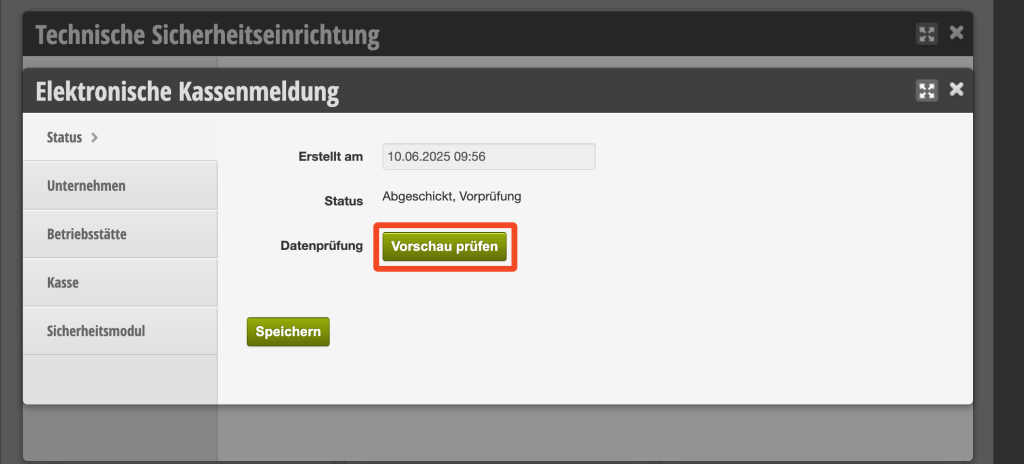
If an error is detected, you can discard the notification in the window after download or by clicking on Overview. The data can then be edited again as before.
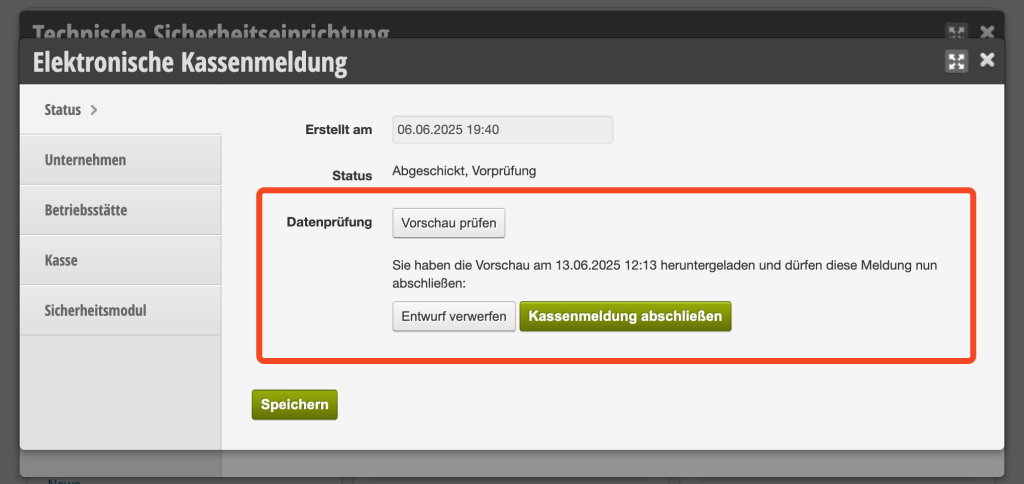
Completion of the notification
If all data is correct, the notification can also be sent from the Overview tab. The notification is then in the status "Sent" and can also be downloaded again for your own records.