
belbo
  • Overview
    • Getting to know Belbo
    • Location Settings
    • Switch to Belbo
    • Calendar View & Navigation
    • Recurring Appointments & Courses
    • Appointment Entry & Management
    • Tasks
    • Overview
    • Multiple Locations & Head Office
    • Manage Employees
    • Logins
    • Rights
    • Overview
    • Absences & Holidays
    • Working Hours
    • Time Tracking
    • Overview
    • Data Protection (GDPR)
    • Customer Communication (Email, SMS)
    • Customer Management & Records
    • Overview
    • Bonus & Loyalty Programs
    • Campaigns (Newsletter & SMS)
    • Marketing Consents (GDPR)
    • Tracking & Analytics
    • Overview
    • Services & Prices
    • Service Packages & Subscriptions
    • Vouchers
    • Products
    • Purchase & Vendors
    • Stock & Inventory
    • Scanning & Sales
    • Cost of Goods & Expenses
    • Overview
    • Design & Texts
    • Setup & Settings
    • Integration (Website, Google, Instagram, Facebook)
    • Online payment
    • Overview
    • Accounting & Exports
    • Cash Register Settings & Hardware
    • Checkout process
    • Daily Closing & Reports
    • TSE & Cash Register Anti-Tampering Ordinance
    • Overview
    • Export Overview
    • Employee Utilization
    • Revenue & Reports
    • Belbo Satellite
    • Printer
    • EC Terminal & Card Payment
    • Troubleshooting Hardware
    • Scanner & POS Devices
    • General Settings
    • API & Integrations
    • Notifications & Emails
    • Contracts & Legal
Skip to content
Calendar & Appointments›Calendar View & Navigation

Reduce calendar columns

To reduce the calendar view, for example by closing days or absent employees, follow this procedure:

  1. In the navigation bar "Calendar", click on the small triangle to access "Calendar Settings".
  2. Under the section "Calendar Properties", you will find "Column Properties" at the bottom
  3. Check the box "Reduce calendar columns if no appointments or working hours are entered"
  4. Additionally, there is the option to hide employees who are not entered in the duty schedule. To do this, select "Hide absent employees" by clicking on it.
  5. Confirm your entries by clicking the "Save" button.
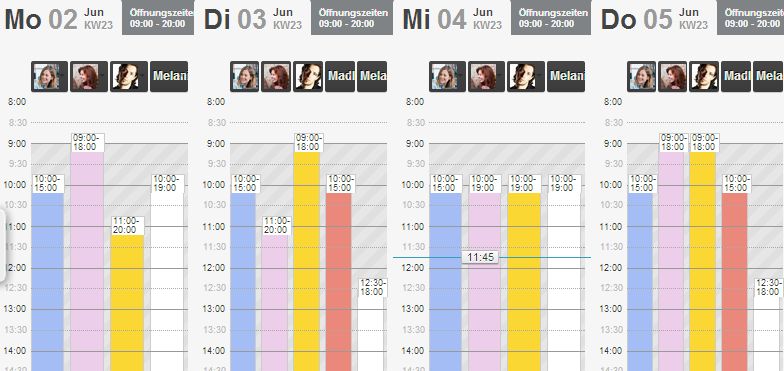
Reduce calendar columns

Categories: Calendar View & Navigation
Tags: Kalenderdarstellung, Spaltenbreite

Have a question? Ask it here.

This manual is a service by belbo. Legal notice