belbo
  • Overview
    • Getting to know Belbo
    • Location Settings
    • Switch to Belbo
    • Calendar View & Navigation
    • Recurring Appointments & Courses
    • Appointment Entry & Management
    • Logins & Permissions
    • Multiple Locations & Head Office
    • Manage Employees
    • Absences & Holidays
    • General
    • Working Hours
    • Time Tracking
    • Data Protection (GDPR)
    • Customer Communication (Email, SMS)
    • Customer Management & Records
    • Bonus & Loyalty Programs
    • Campaigns (Newsletter & SMS)
    • Marketing Consents (GDPR)
    • Tracking & Analytics
    • Overview
    • Services & Prices
    • Products
    • Service Packages & Subscriptions
    • Vouchers
    • Purchasing & Suppliers
    • Stock & Inventory
    • Scanning & Sales
    • Cost of goods & expenses
    • Design & Texts
    • Setup & Settings
    • Integration (Website, Google, Instagram, Facebook)
    • Online payment
    • Accounting & Exports
    • Cash Register Settings & Hardware
    • Checkout process
    • Daily Closing & Reports
    • TSE & Cash Register Anti-Tampering Ordinance
    • Export Overview
    • Employee Utilization
    • Revenue & Reports
    • Belbo Satellite
    • Printer
    • EC Terminal & Card Payment
    • Troubleshooting Hardware
    • Scanner & POS Devices
    • General Settings
    • API & Integrations
    • Notifications & Emails
    • Contracts & Legal
Skip to content

Best Practice: Couple Appointments

If you offer services at your location where two people are to be treated simultaneously, we describe here how these can be optimally displayed in Belbo.

We recommend creating a separate service such as "Couples Massage".

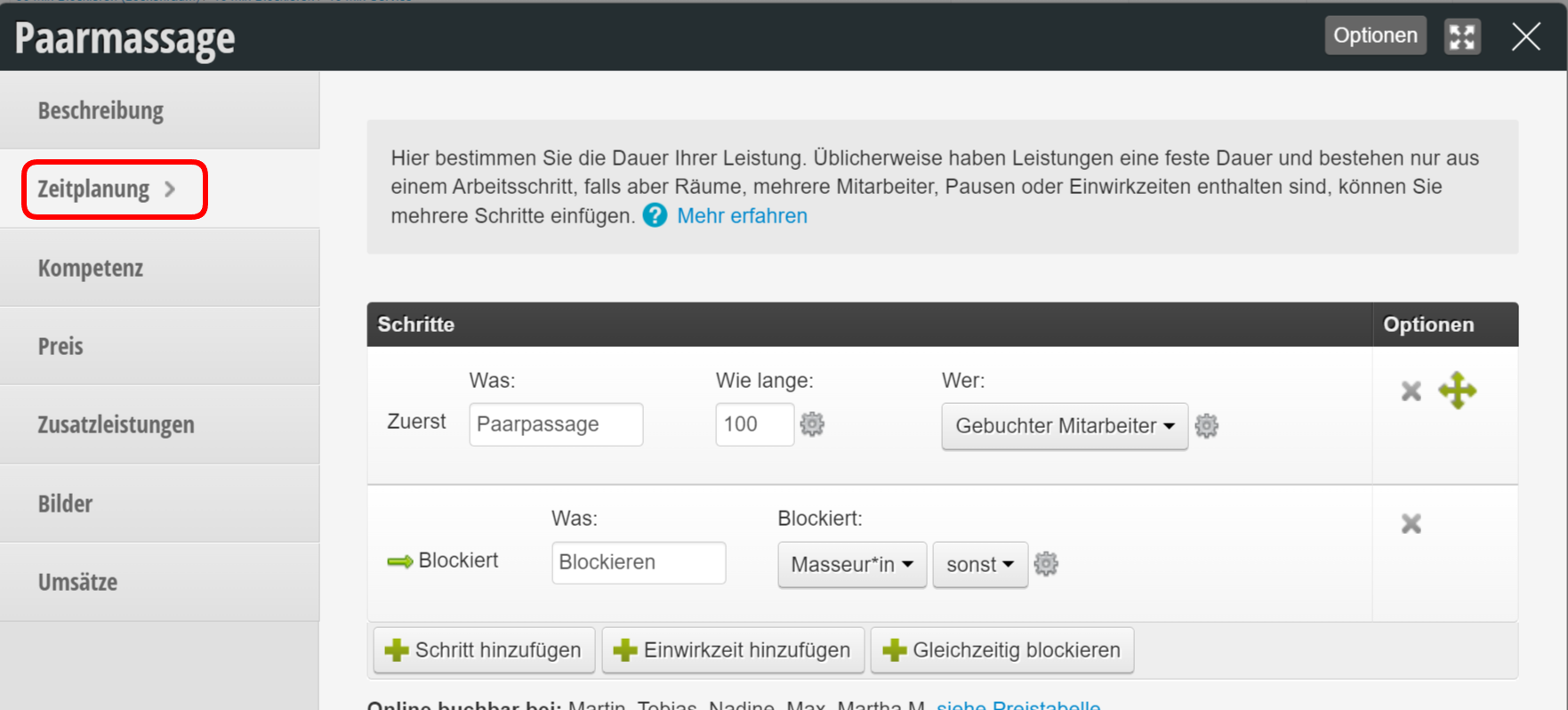
Within this new service, the time planning can then be configured so that multiple employees or rooms are blocked. However, in the online booking, only one employee can be selected. The second employee is determined from a set defined by you.

1. Case: 2 employees are blocked

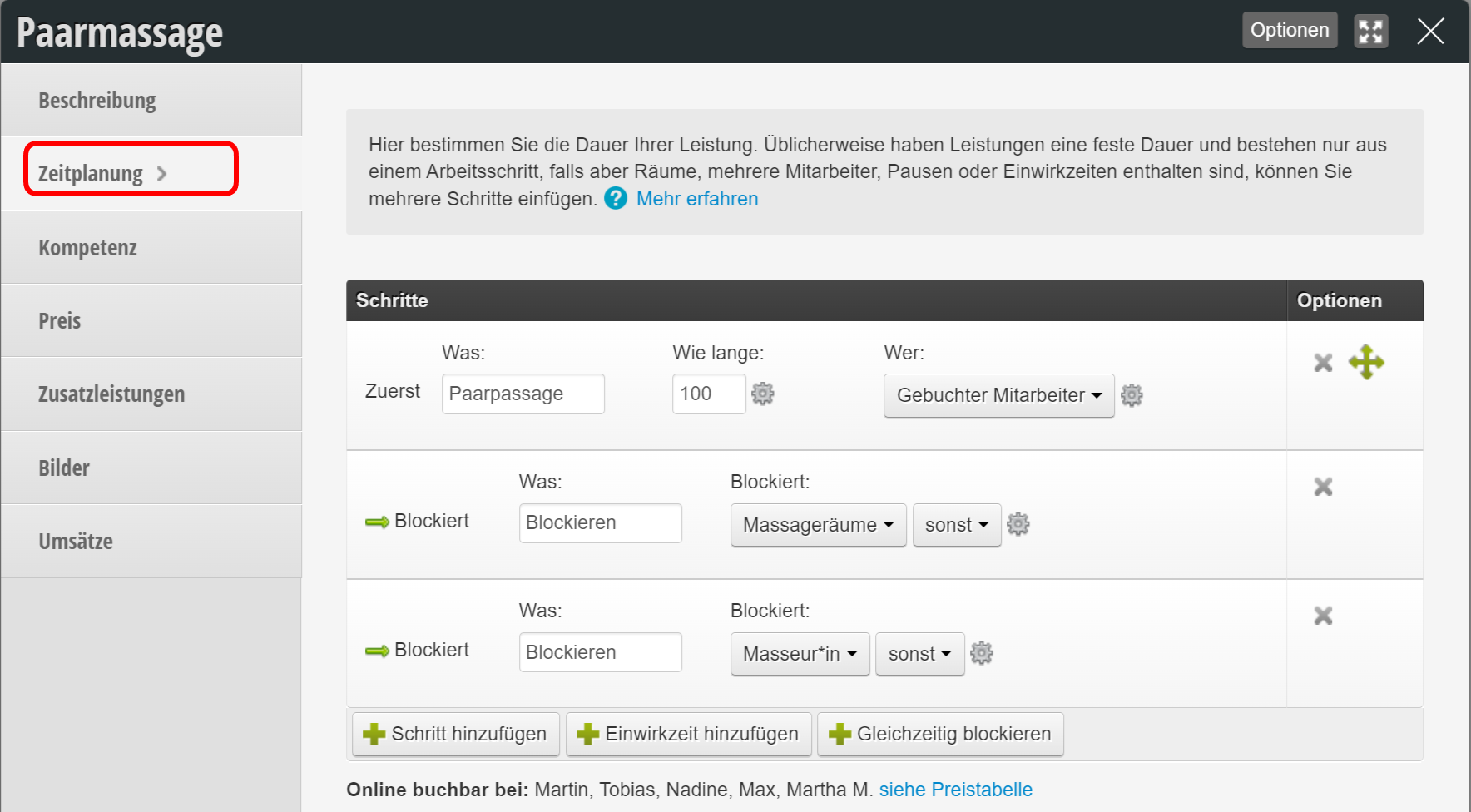
For this, you can use the "Block simultaneously" button to set a time step parallel to a previous work step. Normally the first step is then with the "Booked Employee" and the blocking step is then, for example, "An employee with the role Massage Therapist".

2. Case: 2 employees + 1 room

For this, you can use the "Block simultaneously" button to set a time step parallel to a previous work step. In addition to the blocking employee, you can then click "Block simultaneously" again to achieve a room blocking.

3. Case: 2 employees + 2 rooms

For this, you can use the "Block simultaneously" button to set a time step parallel to a previous work step. In addition to the blocking employee and room, you can then click "Block simultaneously" again to achieve a second room blocking.

Categories: Appointment Entry & Management
This manual is a service by belbo. Legal notice