If you offer services that can be performed by multiple employees, you can allow customers to select more than one employee online as well.
You can access this area via Settings > Select Multiple Employees
If this function is not enabled, it can be activated via "Settings > Add Function".
Use case example:
You offer both waxing and manicure. A customer who books both services in one appointment can choose a different favorite employee for each of these services.
Setting up multiple selection
As long as services are booked that are in the same booking group, the customer cannot make their own selection. In this case, the same employee always performs all booked services. Those service combinations where your customers are allowed to select their favorite employee for each individual service must therefore be in different booking groups.
Setting up booking groups
Under Settings > Prices & Competencies in the "Competencies" tab, you can set up the groups:
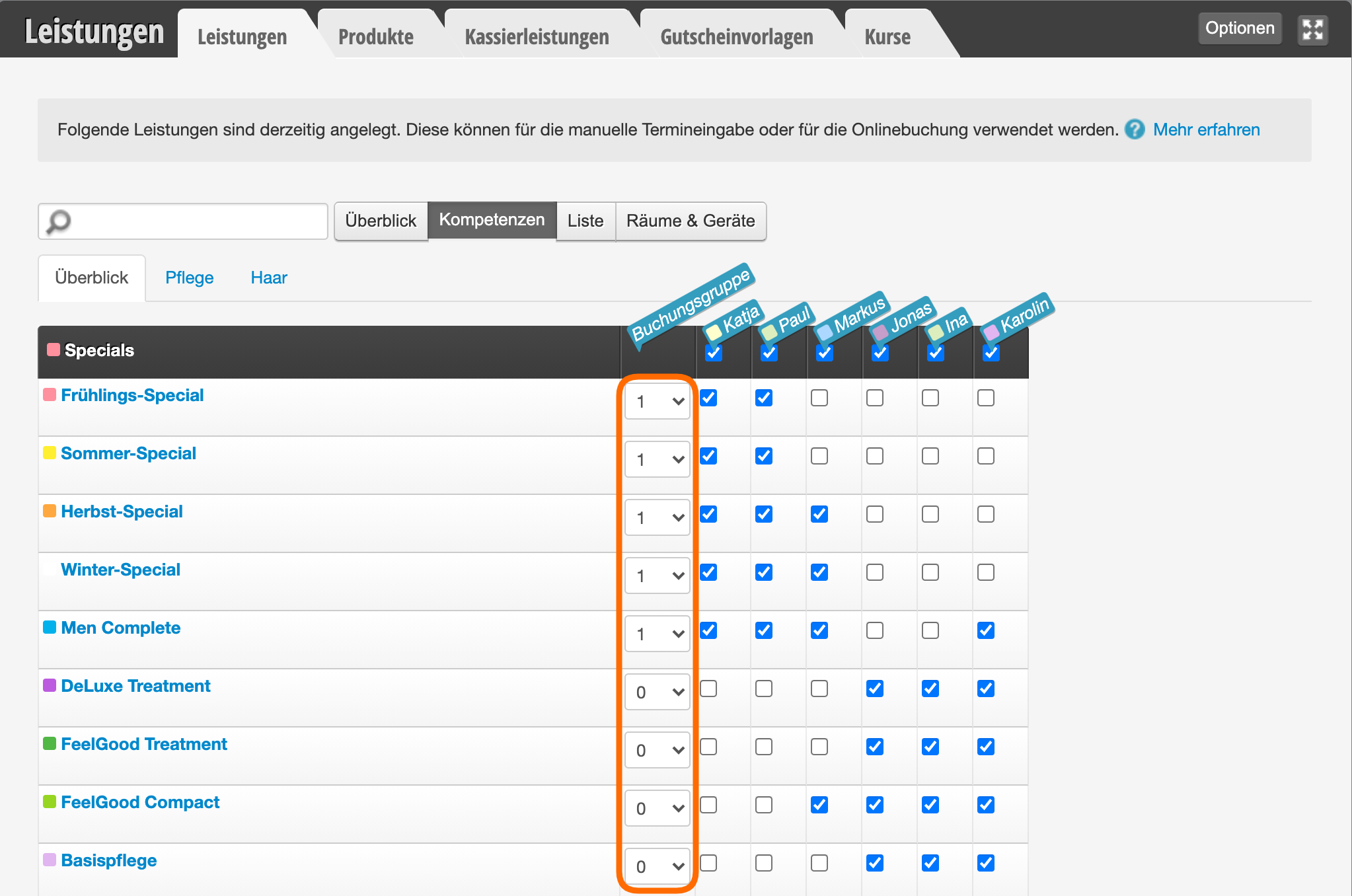
Use case example according to settings in the image above:
- If the customer books the services "Spring Special" and "Men Complete", they can only select one employee who performs both services. Both services are in the same group.
- If the customer books the services "Spring Special" and "Deluxe Treatment", they can select a different employee for each of the two services. The services are in different groups.
Selection of employees in online booking
In online booking, the customer can choose between employees who can each perform the services:
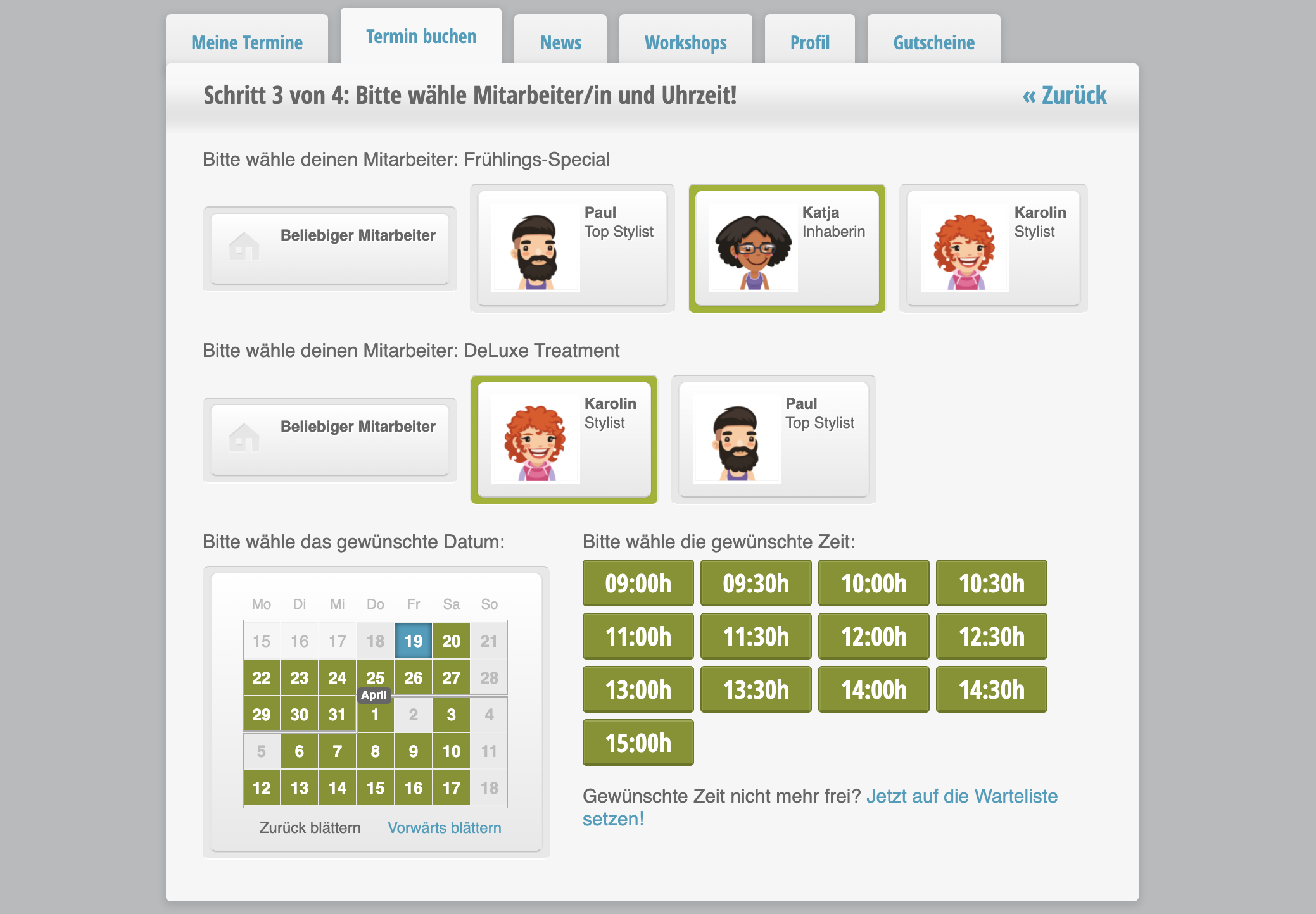
Important: If you offer services that have no competency overlaps, they must be in different booking groups so that different employees can be suggested.
