belbo
  • Overview
    • Getting to know Belbo
    • Location Settings
    • Switch to Belbo
    • Calendar View & Navigation
    • Recurring Appointments & Courses
    • Appointment Entry & Management
    • Logins & Permissions
    • Multiple Locations & Head Office
    • Manage Employees
    • Absences & Holidays
    • General
    • Working Hours
    • Time Tracking
    • Data Protection (GDPR)
    • Customer Communication (Email, SMS)
    • Customer Management & Records
    • Bonus & Loyalty Programs
    • Campaigns (Newsletter & SMS)
    • Marketing Consents (GDPR)
    • Tracking & Analytics
    • Overview
    • Services & Prices
    • Products
    • Service Packages & Subscriptions
    • Vouchers
    • Purchasing & Suppliers
    • Stock & Inventory
    • Scanning & Sales
    • Cost of goods & expenses
    • Design & Texts
    • Setup & Settings
    • Integration (Website, Google, Instagram, Facebook)
    • Online payment
    • Accounting & Exports
    • Cash Register Settings & Hardware
    • Checkout process
    • Daily Closing & Reports
    • TSE & Cash Register Anti-Tampering Ordinance
    • Export Overview
    • Employee Utilization
    • Revenue & Reports
    • Belbo Satellite
    • Printer
    • EC Terminal & Card Payment
    • Troubleshooting Hardware
    • Scanner & POS Devices
    • General Settings
    • API & Integrations
    • Notifications & Emails
    • Contracts & Legal
Skip to content

Call link

Call your customers directly from your computer.

You can access this area via Settings > Call Link
If this function is not enabled, it can be activated via "Settings > Add Function".

Requirements for the "Call Link" function

  1. You have installed third-party calling software on the device you use for the Belbo calendar.
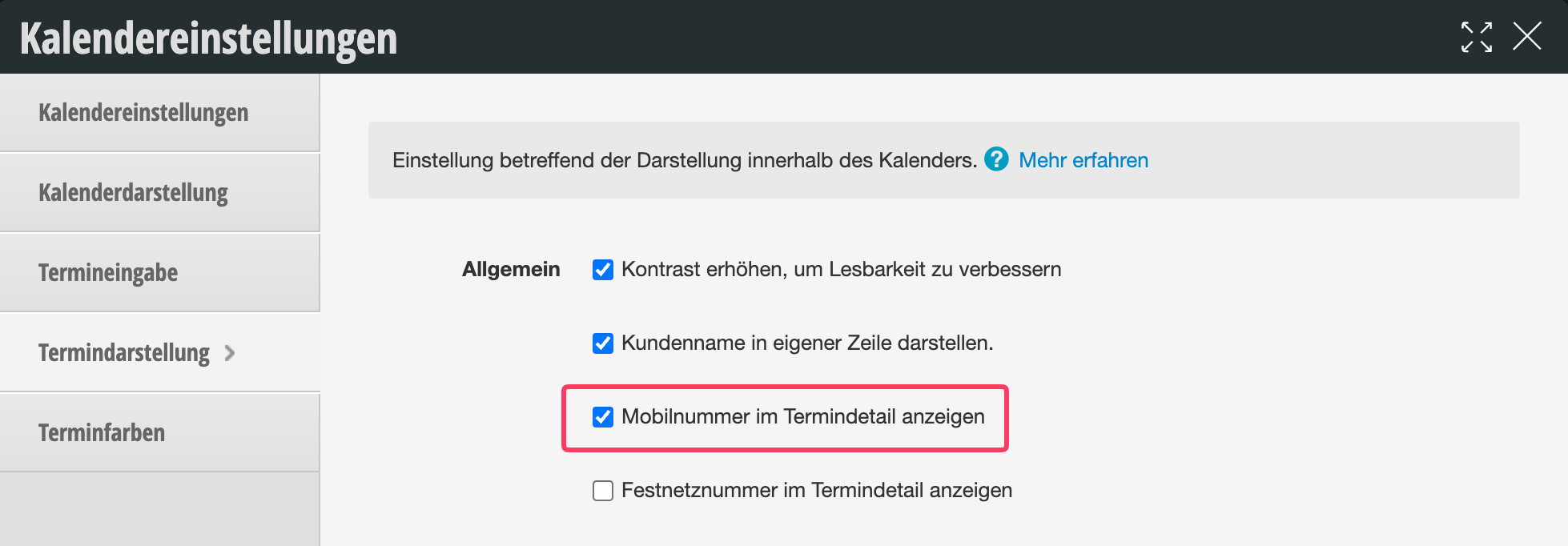
  2. Your customers' phone numbers are displayed in the appointment details:
Setting up the "Call Link" function

  • In Settings, enter the word "Call Link" in the search field.
  • Enable the function.
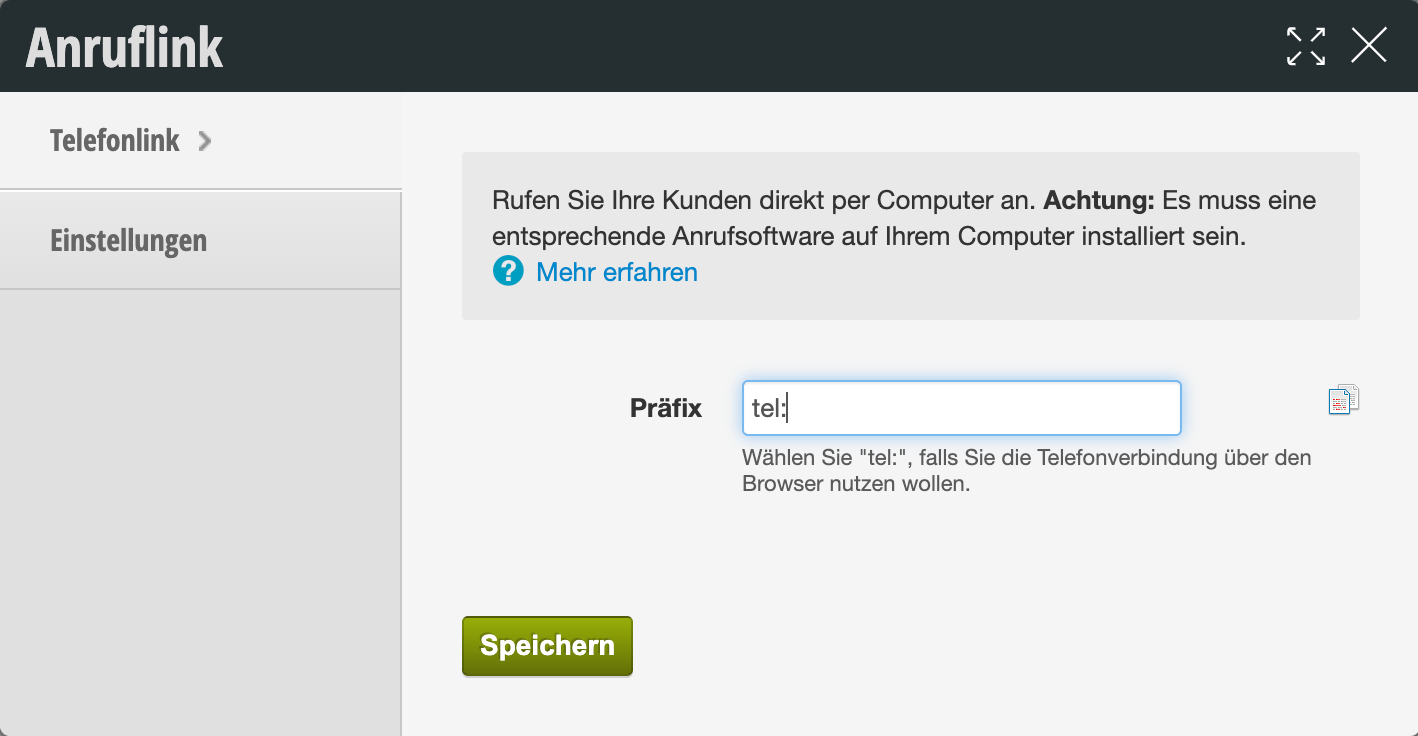
  • Under "Phone Link", enter the required prefix:

Example of use:
If you have Skype installed on your device, you can enter "tel:" here. As soon as you use the function, your device's browser will offer to make the phone call via Skype.
Please note that telephone charges may apply and that we cannot provide advice on third-party software and can only provide limited assistance.

Using the "Call Link" function

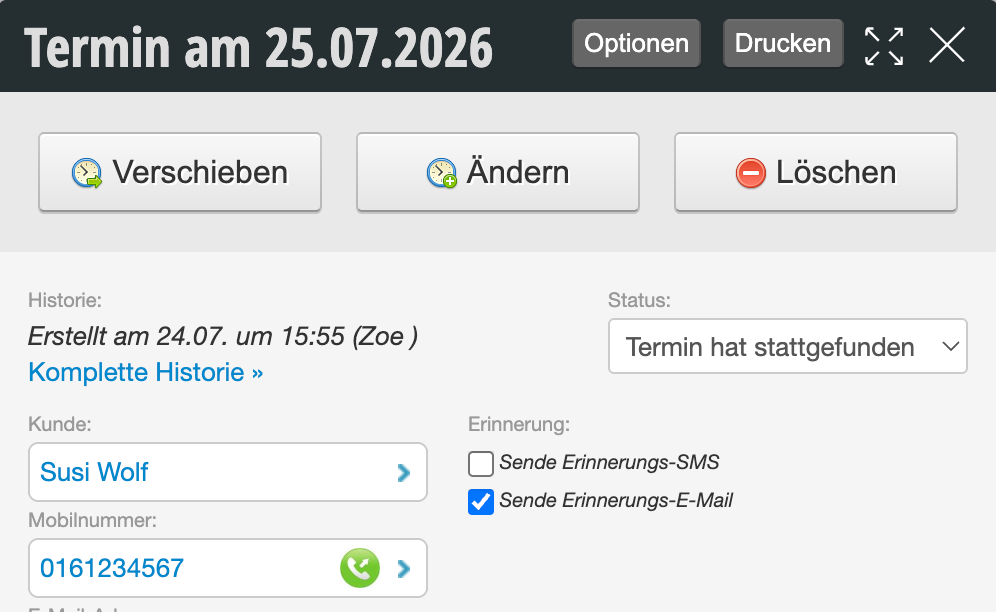
After you have set up the function, a call link will appear in the appointment details dialog. By clicking on the number or the button icon, you can now start a call in the software you have installed.
Categories: Customer Management & Records
Tags: Kunden anrufen, VoIP
This manual is a service by belbo. Legal notice