The service packages function allows you to sell and document service packages. Here we explain how to set them up.
IMPORTANT: An active cash register is a prerequisite!
Step 1: Create a service package
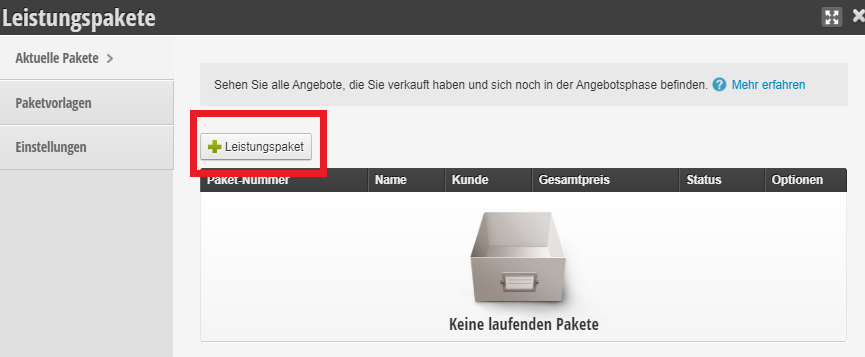
To create a service package, click on the Service package button
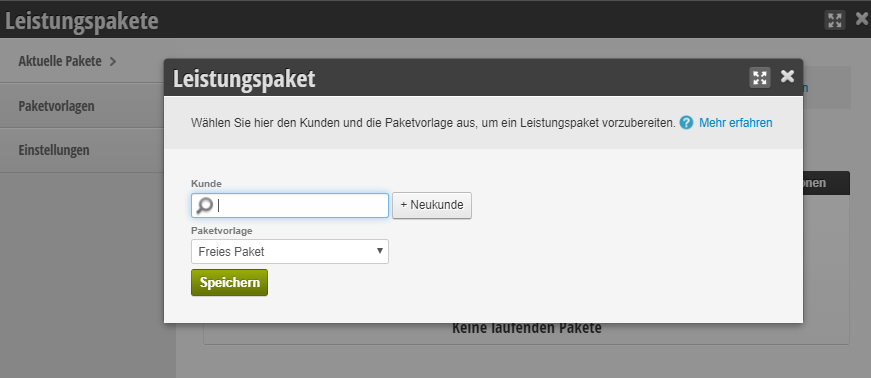
Please select a customer to whom you want to assign the service package, or create a new customer file and assign it to them.
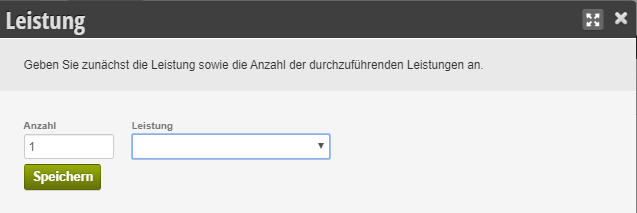
Step 2: Define service(s)
Here you can add one or more services using the "+Service" button:
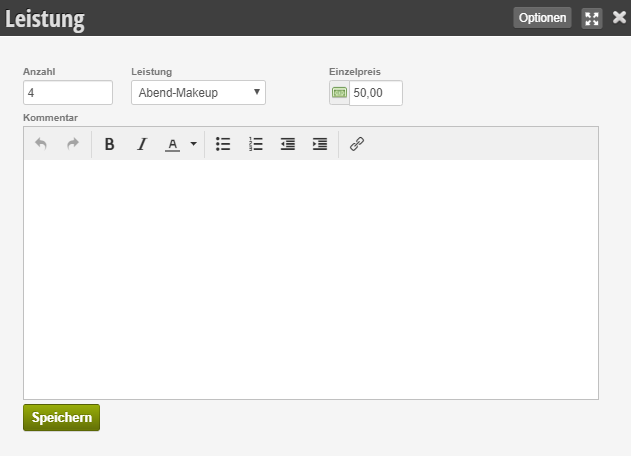
After you have added services, you can set a comment and an individual price:
Step 3: Finalize package sale
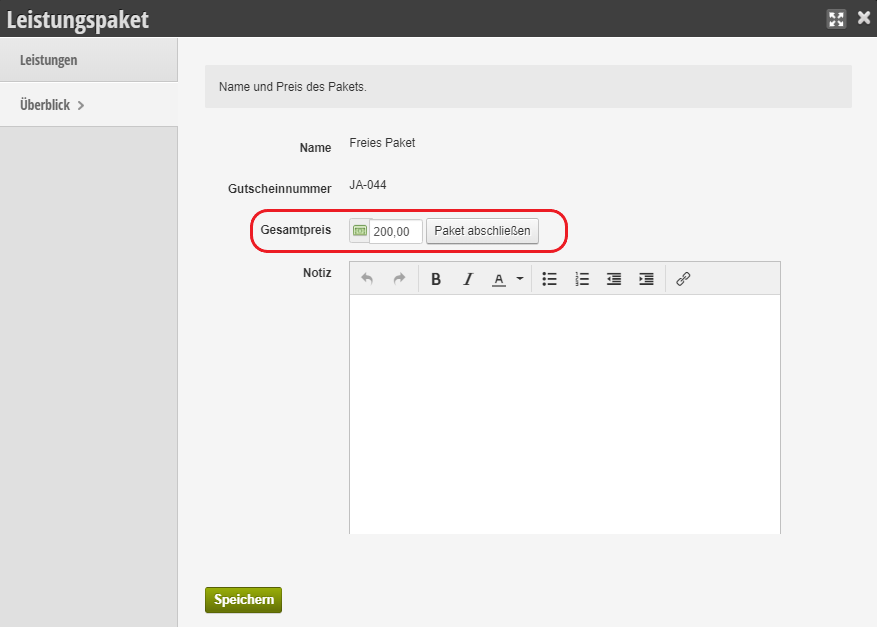
Once you have finished setting up the package and want to sell it, switch to the "Overview" section and select "Finalize package". A new cash register transaction will then be initiated to finalize the sale of the package. You can now select a payment method and complete the transaction.
Step 4: Schedule package appointments
Depending on the type of scheduling you want, you now have several options to arrange the appointments:
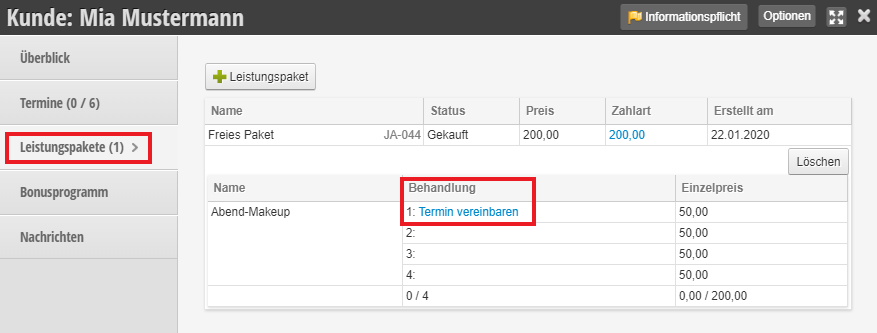
- Within the customer file there is a list of appointments that still need to be performed. You can schedule the target appointment directly with just a few clicks.
- You schedule appointments normally in the calendar and select exactly the service that you sold in the package.
- You let the customer book the appointments online.
Overview in the customer file
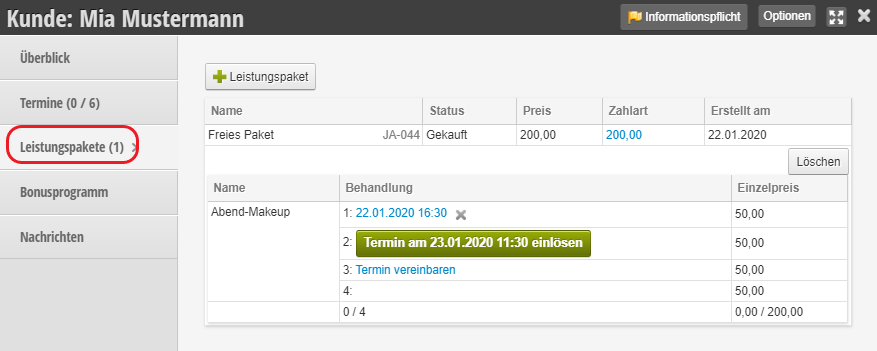
In the customer file, under the "Service packages" tab, you have an overview of redeemed and scheduled appointments as well as the option to schedule a new appointment.