
If you want to enter recurring appointments regularly into the calendar, you can do this very easily.
Enter recurring appointment
To enter a regularly recurring appointment, first navigate in the calendar to the date of the day on which the first of the appointments to be created should be scheduled.
- Click in the calendar at the desired time.
- Enter the customer's name and the desired service.
- Click on "Options".
- Enable the checkbox for "Recurring appointment"
- Enter the desired interval and the time period in which the appointment should be repeated at the selected interval.
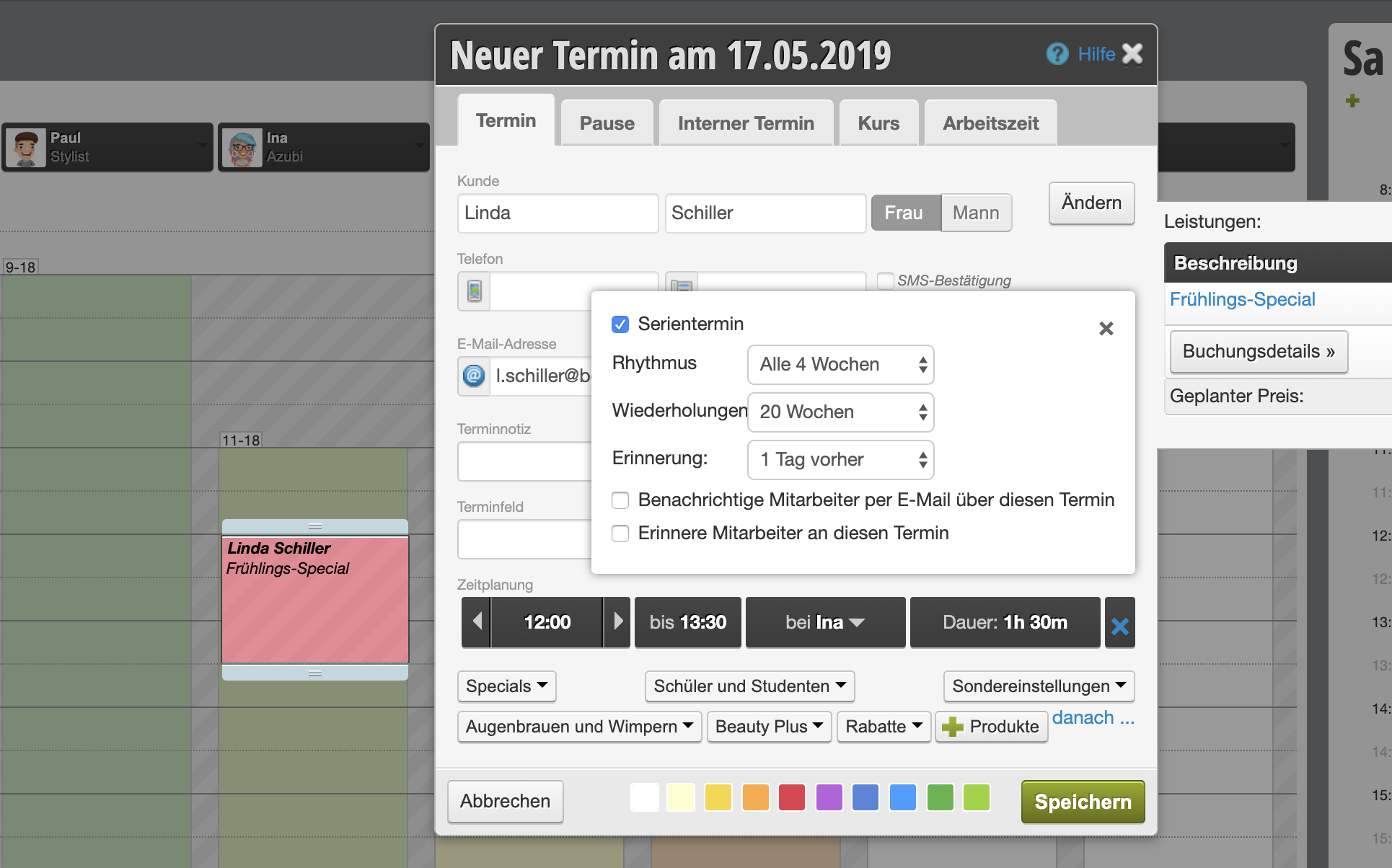
In the example above, the appointment is entered in a 4-week interval for 20 weeks. A total of 6 appointments are created.
Attention: When you assign the recurring appointments, you must be sure that you can keep them. After saving, please check the recurring appointments you have entered. These will be entered in the calendar even if appointments or breaks are already entered on the corresponding days.
View follow-up appointments
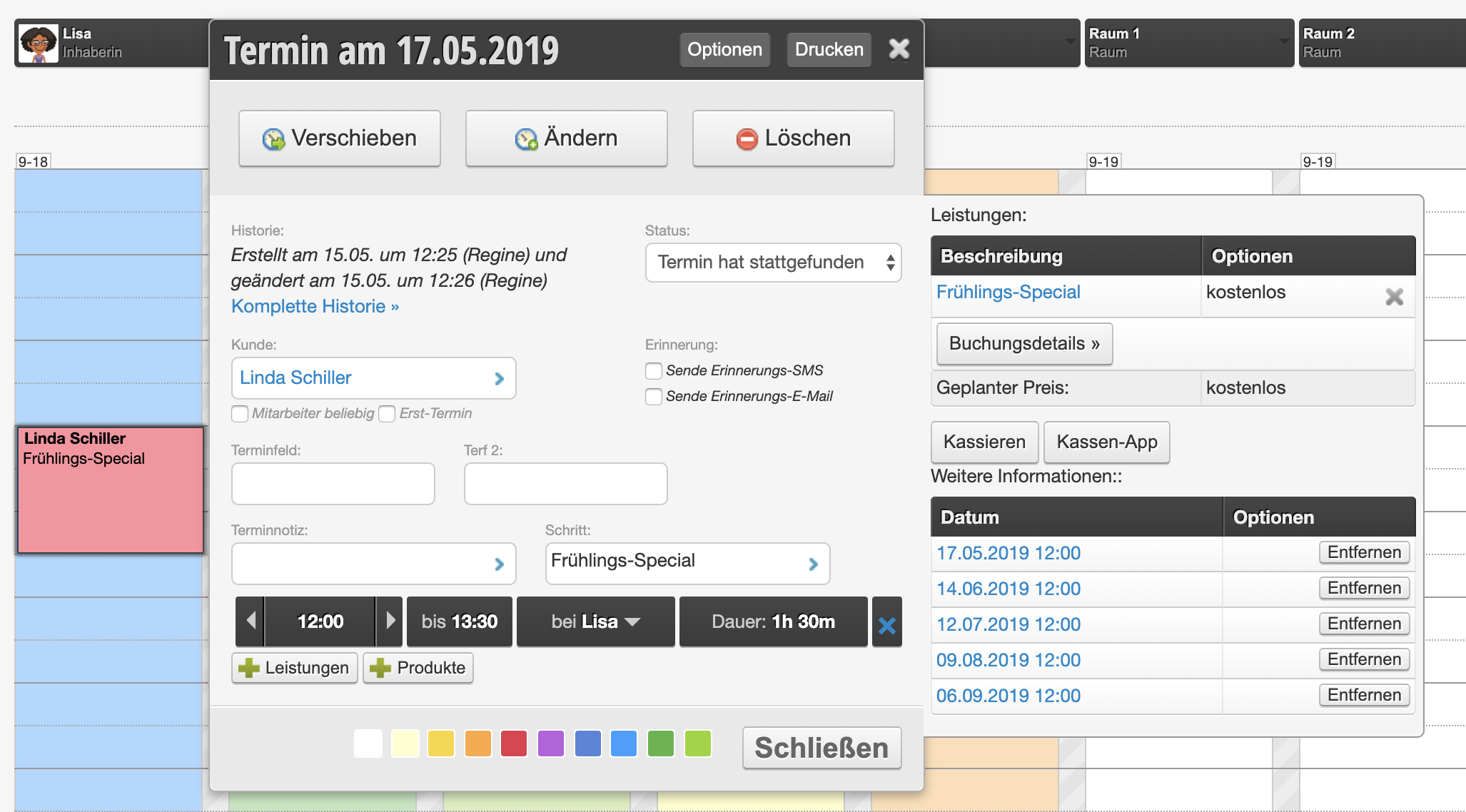
When you click on an appointment in the created series, the follow-up appointments entered in the calendar are also displayed.
Delete follow-up appointments
To delete one or more follow-up appointments, you can simply click "remove" next to the desired appointment in the open appointment detail dialog. The associated appointment will be deleted.