If you have multiple locations in your calendar, prices and services can be synchronized from one location to another to save time.
Creating new prices and services
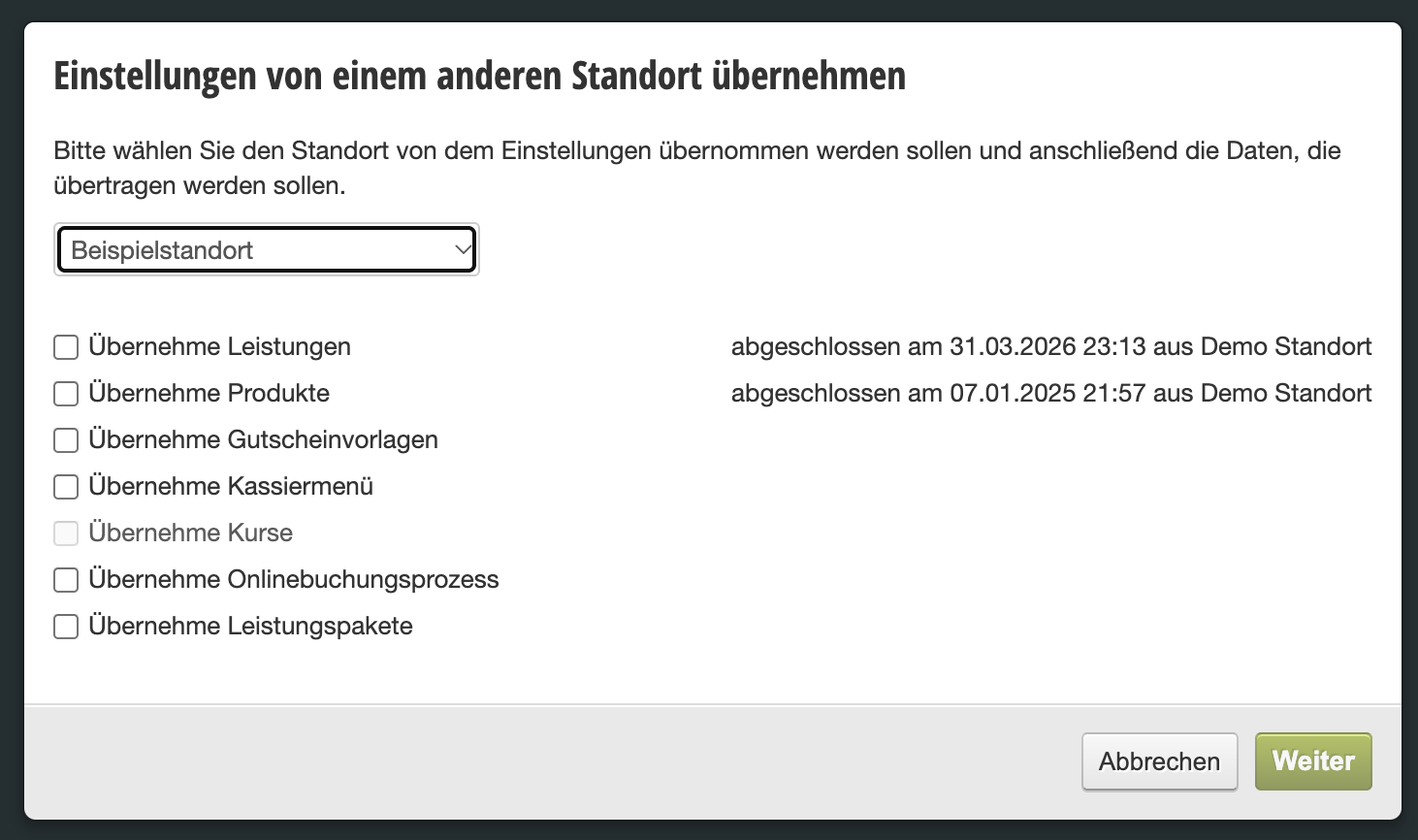
If you have created a new location or want to completely overwrite existing prices and services, you can adopt the entire configuration of another location:
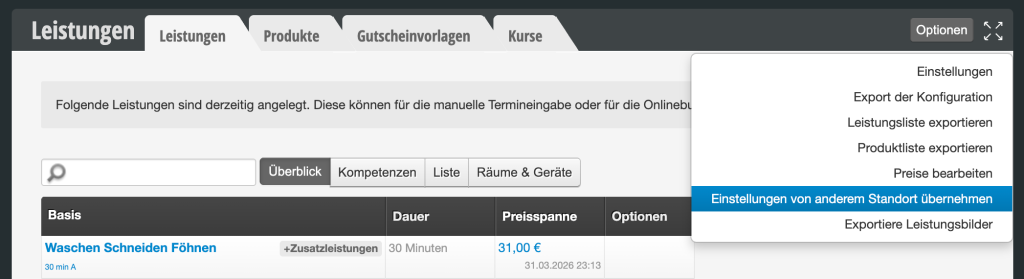
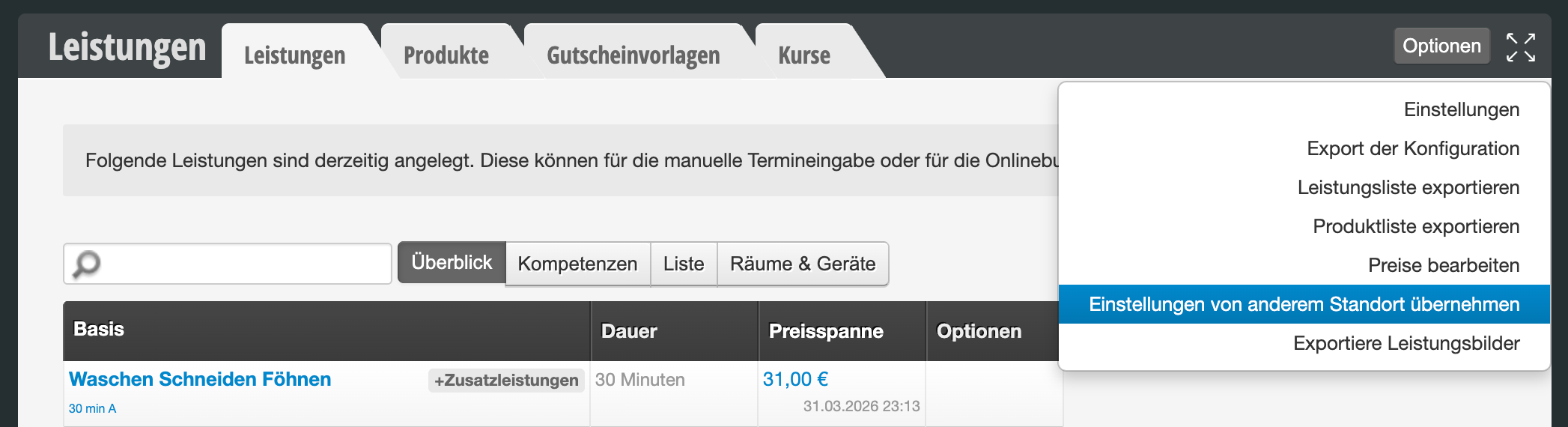
- In the main menu of the location you want to set up, go to Settings > Prices and Services and then click Options > Synchronize Locations in the top right of the overview page.
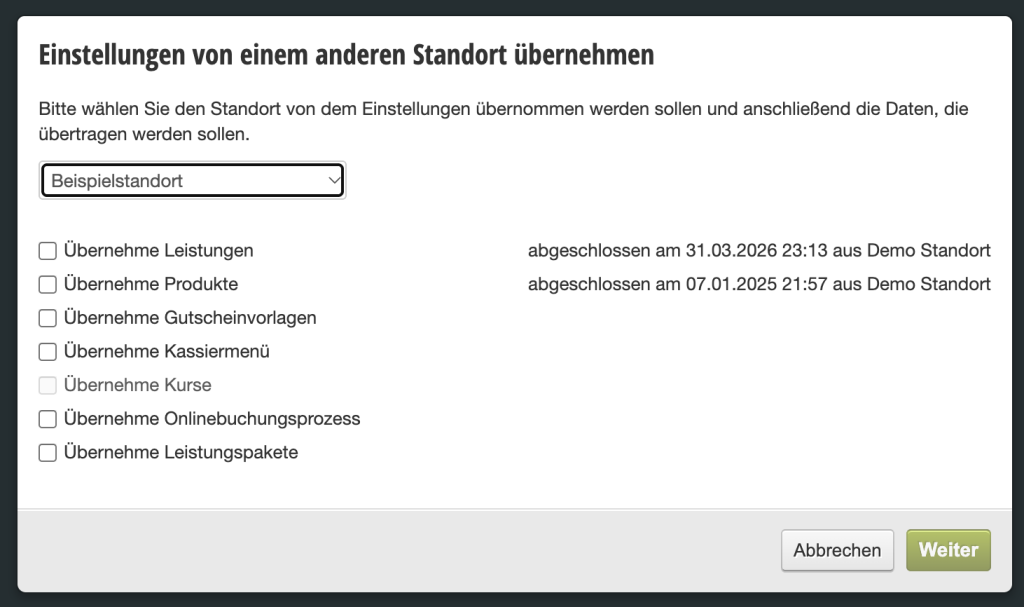
- Then select the items that should be adopted from another location. Depending on which functions are active in your calendar, you will have various selection options here.
- Then click "Perform Synchronization". Attention: All selected items will be overwritten and replaced with the new items. This may have an impact on existing statistics.
Price changes for existing product groups
If you only want to transfer prices for already existing services or sales products after a price change, proceed as follows:
- In the already completed location, go to Settings > Prices and Services.
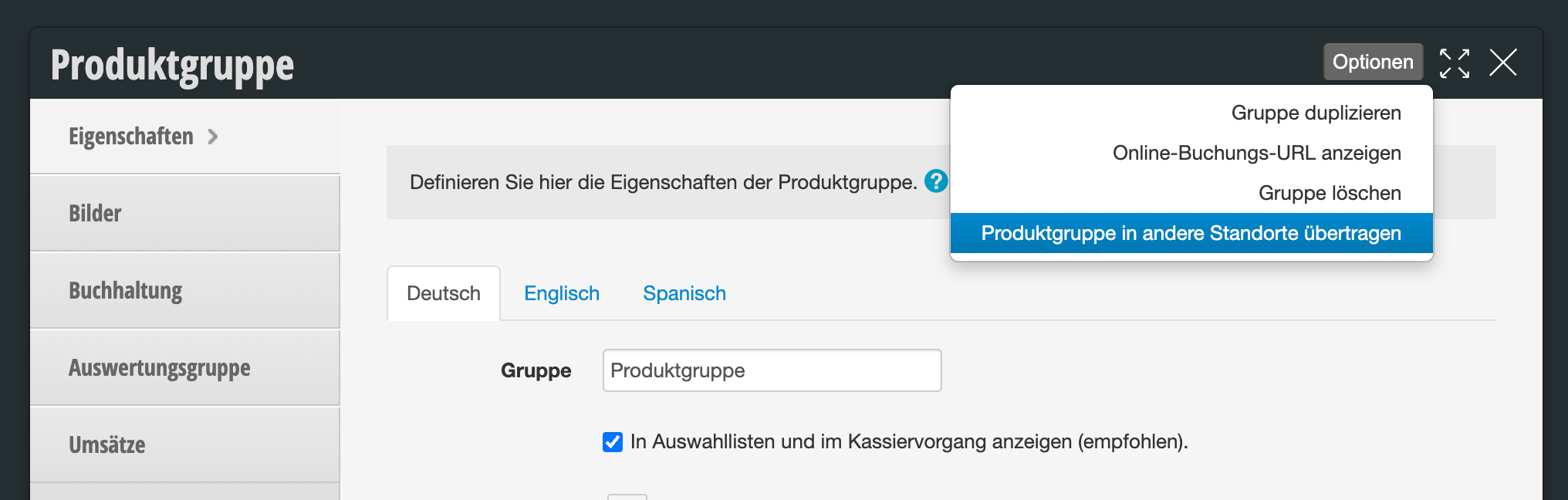
- Click on the service or product group whose prices you want to transfer to another location and select Options > Synchronize Products with Other Locations.

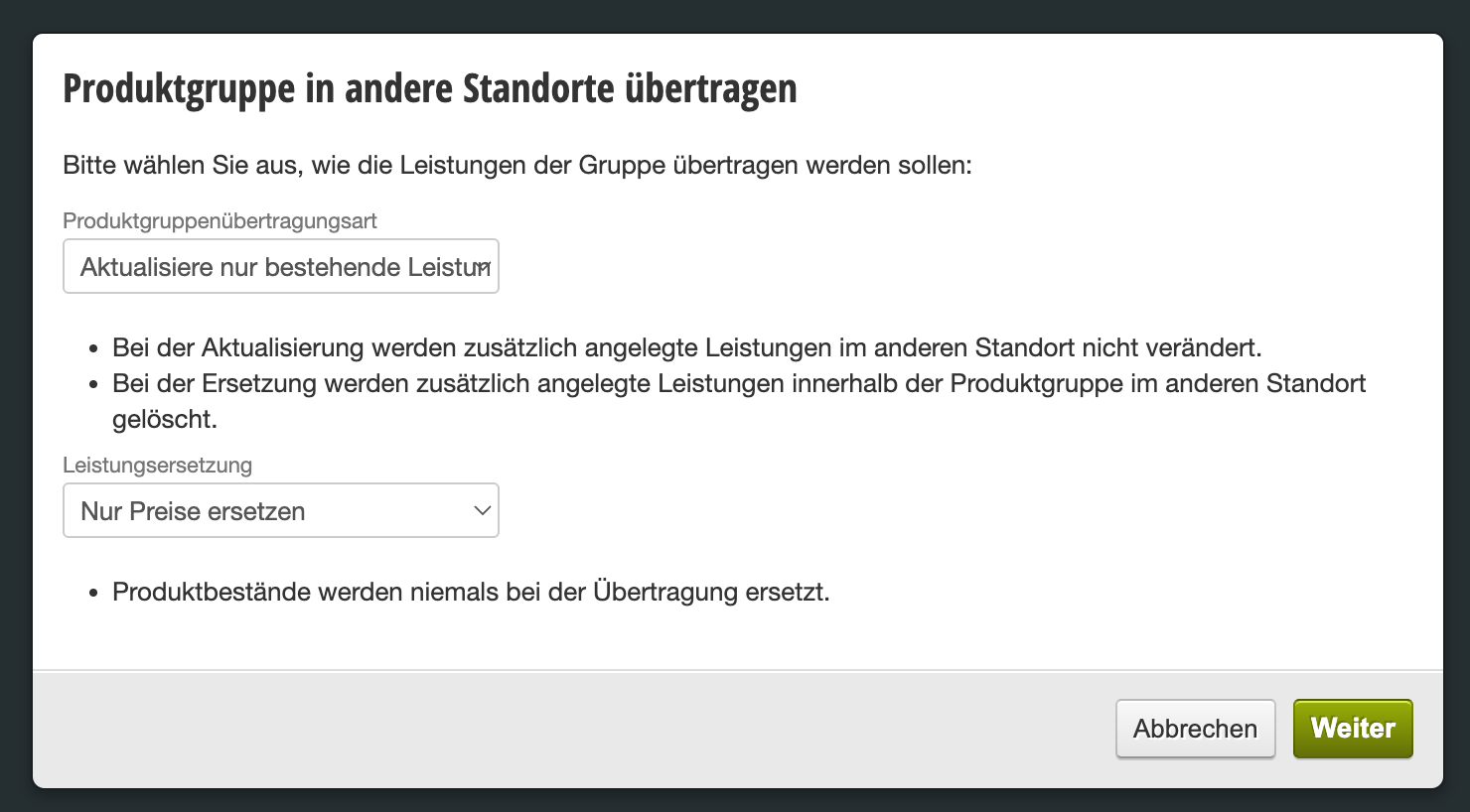
- Then select the desired locations where the existing prices should be replaced and make sure the option "Transfer only prices and do not adjust scheduling" is active.
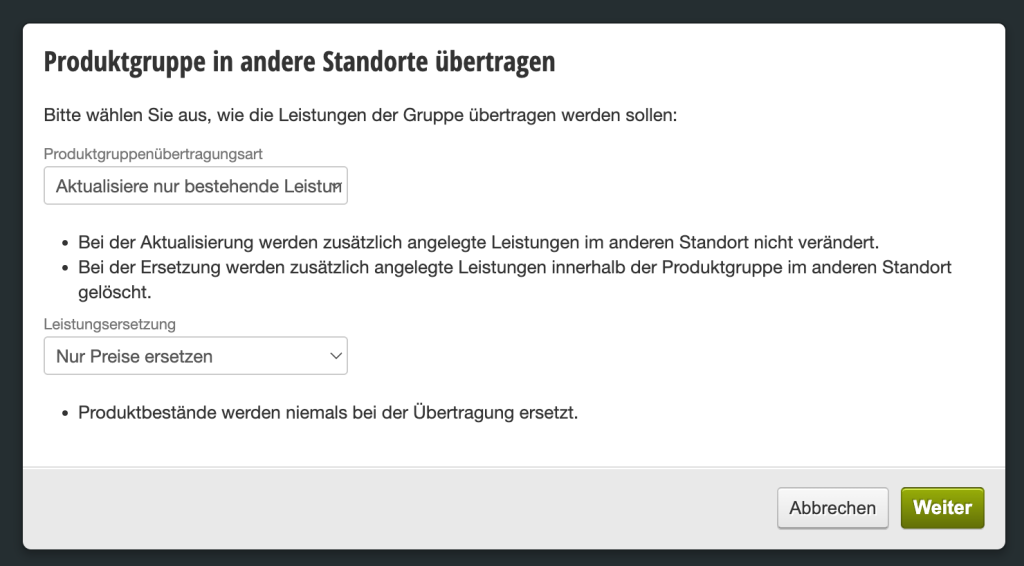
- Then click "Start Transfer". The new prices will be applied in the selected locations without affecting statistics or inventory.
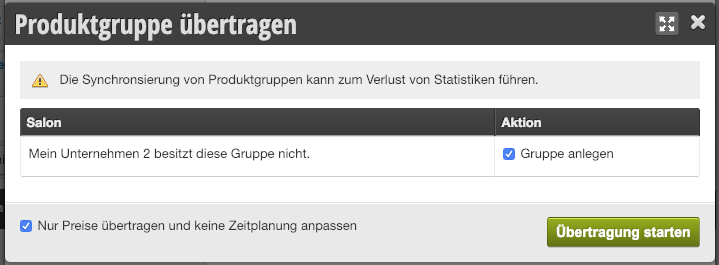
Transfer of newly created product or service groups
If you have created a new category in one location that you want to transfer to other locations, proceed as in the previous section. However, in step 3 you will be offered the option to create a new group: