belbo
  • Overview
    • Getting to know Belbo
    • Location Settings
    • Switch to Belbo
    • Calendar View & Navigation
    • Recurring Appointments & Courses
    • Appointment Entry & Management
    • Logins & Permissions
    • Multiple Locations & Head Office
    • Manage Employees
    • Absences & Holidays
    • General
    • Working Hours
    • Time Tracking
    • Data Protection (GDPR)
    • Customer Communication (Email, SMS)
    • Customer Management & Records
    • Bonus & Loyalty Programs
    • Campaigns (Newsletter & SMS)
    • Marketing Consents (GDPR)
    • Tracking & Analytics
    • Overview
    • Services & Prices
    • Products
    • Service Packages & Subscriptions
    • Vouchers
    • Purchasing & Suppliers
    • Inventory & Stock Audit
    • Scanning & Sales
    • Materials & Costs
    • Design & Texts
    • Setup & Settings
    • Integration (Website, Google, Instagram, Facebook)
    • Online payment
    • Accounting & Exports
    • Cash Register Settings & Hardware
    • Checkout process
    • Daily Closing & Reports
    • TSE & Cash Register Anti-Tampering Ordinance
    • Export Overview
    • Employee Utilization
    • Revenue & Reports
    • Belbo Satellite
    • Printer
    • EC Terminal & Card Payment
    • Troubleshooting Hardware
    • Scanner & POS Devices
    • General Settings
    • API & Integrations
    • Notifications & Emails
    • Contracts & Legal
Skip to content

Cancel invoices

There are various reasons why you might want to cancel an invoice. For example, you may have confused the payment method or forgotten an invoice item – many things can happen in the daily work routine.

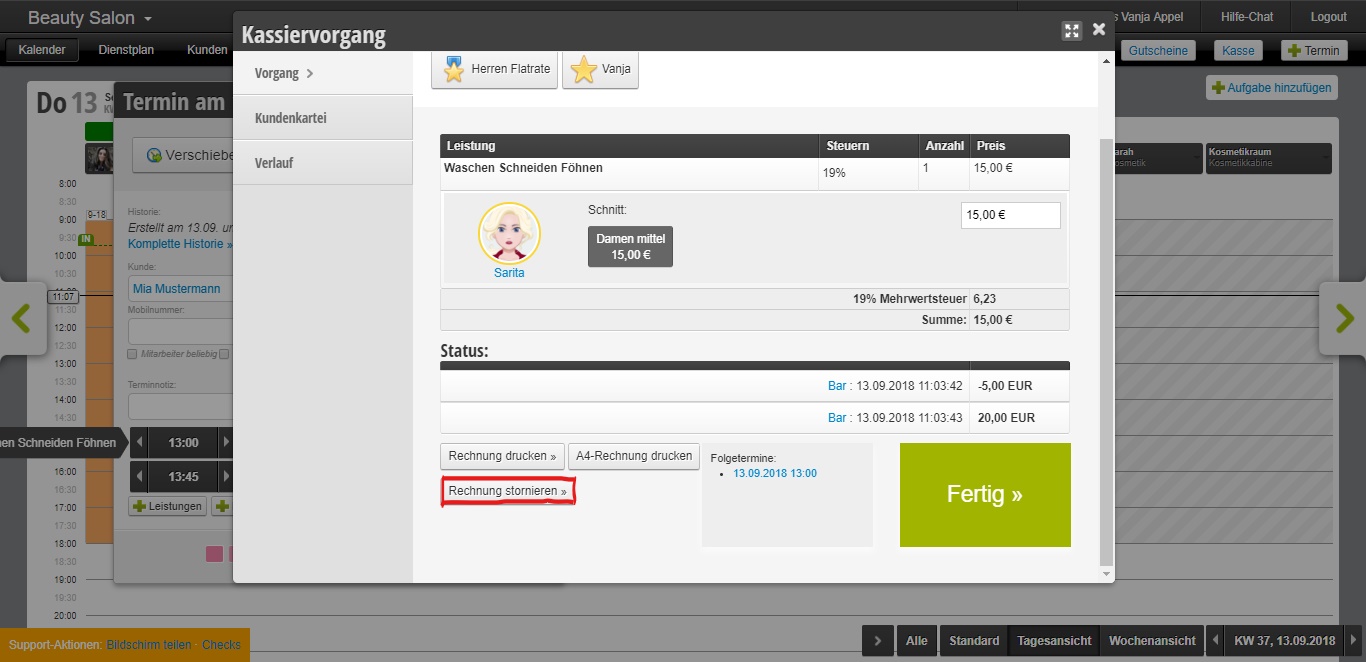
You can find this function by clicking on an appointment and then clicking View Invoice > Cancel Invoice.

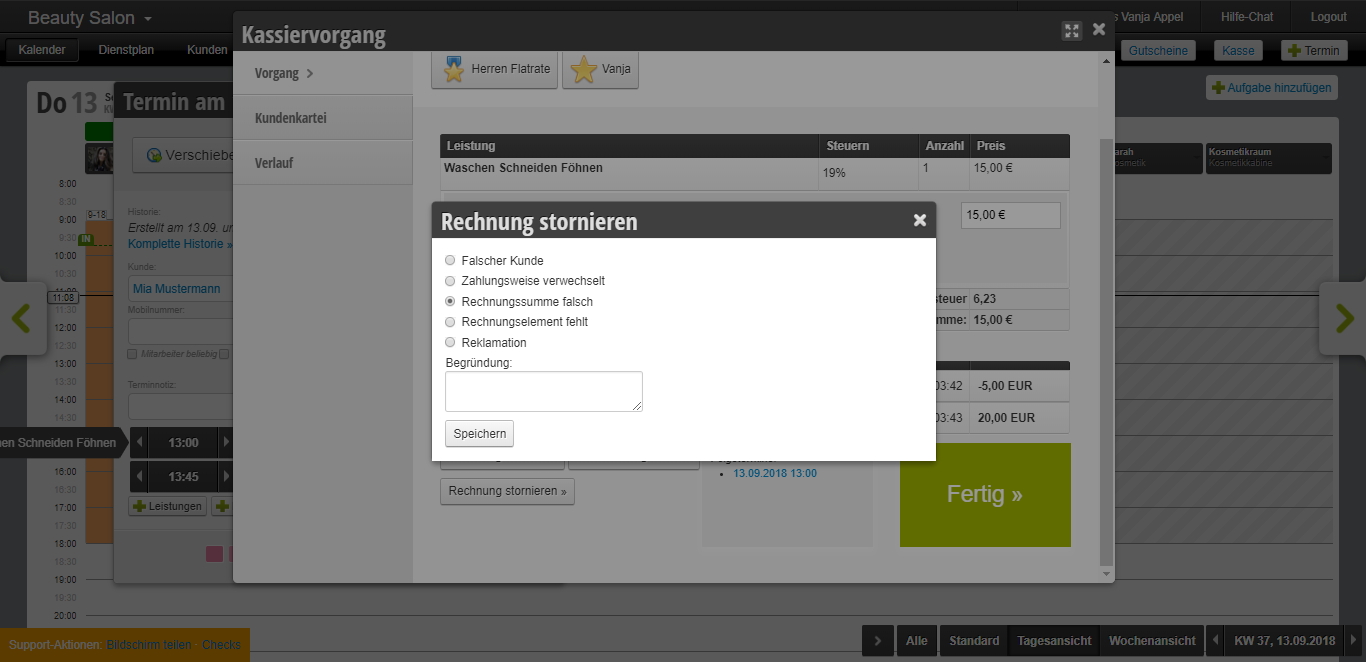
When you click on Cancel Invoice, you will be prompted to select a reason. If your reason is not on the list, you can describe your reason for canceling in the text field.

After you have selected your reason and clicked Save, you can correct the error in the next step. You can change the price or the payment method, add new services and products, or change the customer.
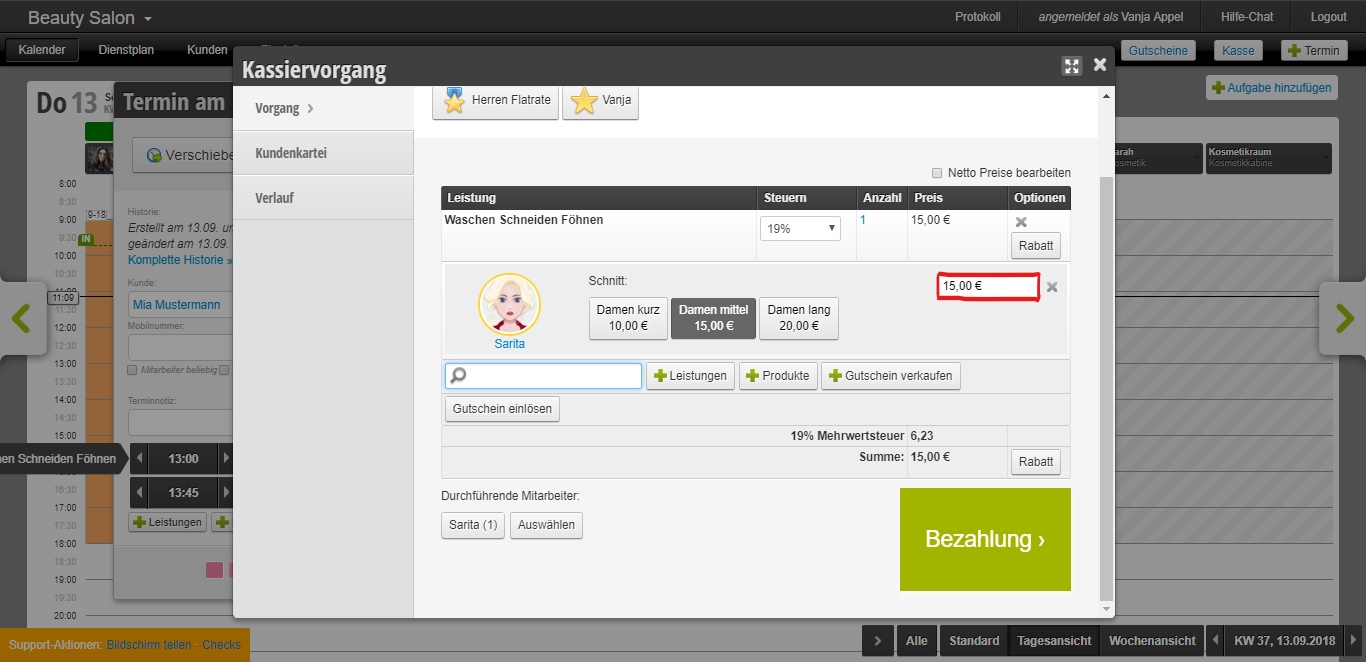
Once you have corrected the error, close the checkout process as usual.

Attention: If a daily closing has already been created for the day on which the correction was made, it must be recreated – as well as on the following days until the present if the cash register balance was affected by the change.

Categories: Checkout process
Tags: Stornierung
This manual is a service by belbo. Legal notice