
 This article is particularly relevant for users in Austria.
The Belbo register supports the Austrian Cash Register Security Ordinance (RKSV). Every cash transaction is electronically signed and continuously stored in a tamper-proof data collection protocol (DEP). A machine-readable QR code appears on each receipt, which can be used to verify the authenticity of the receipt.
In this article, you will learn what you need to get started and how to activate the RKSV register in Belbo.
Requirements
- Access to FinanzOnline (for your company or through your tax advisor), with a Cash Register Web Service User (see below).
- Your company details (company name, address, UID number or tax number).
- The free BMF Receipt Check App on a smartphone to verify the start receipt.
Activating the RKSV Register
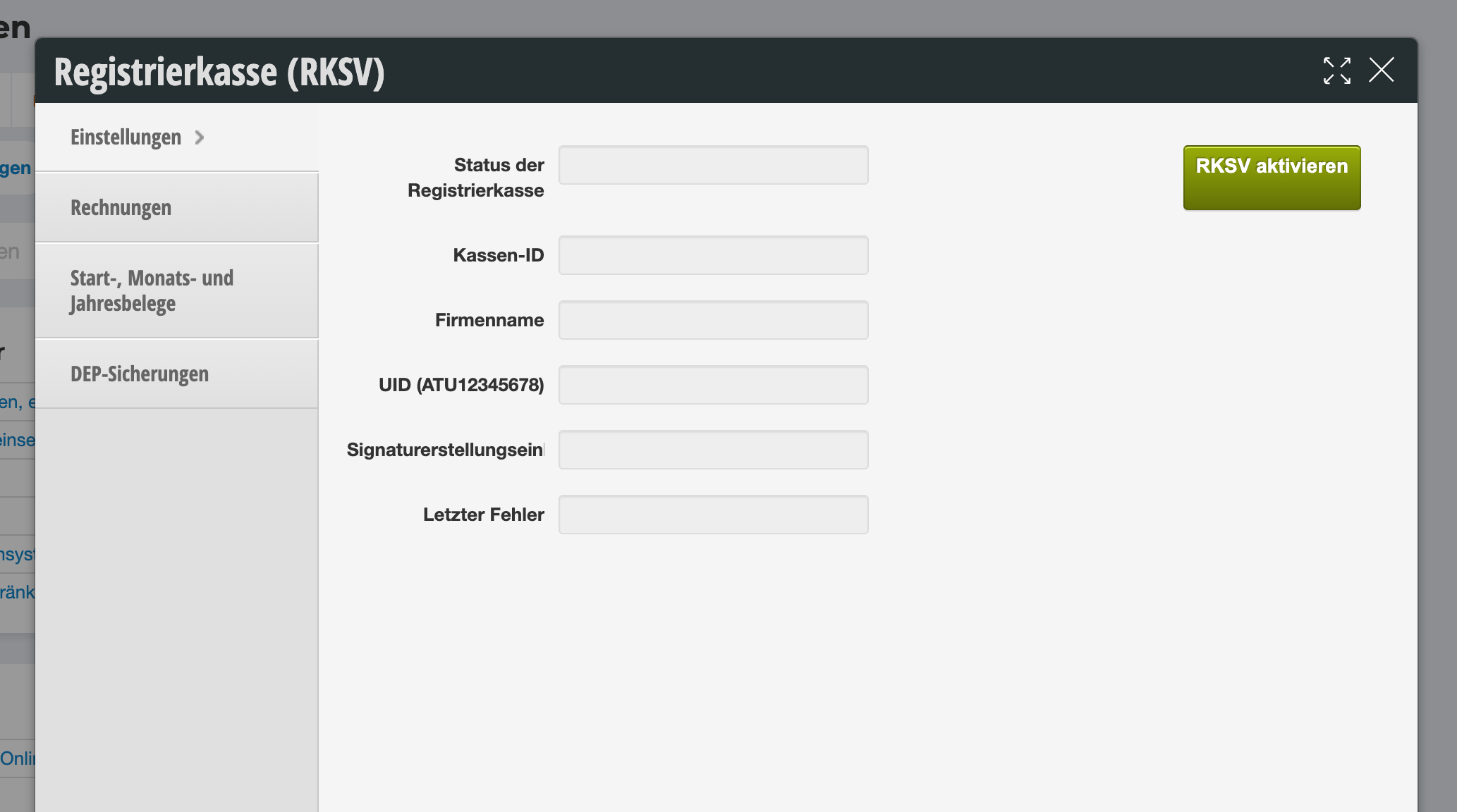
- 1Open Cash Register (RKSV) and click "Activate RKSV" in the Settings tab.
- 2Check or complete your company details: Company Name, UID Number (or Tax Number if you don't have a UID), as well as Street and House Number, Postal Code, and City.
- 3Enter the login credentials for your Cash Register Web Service User from FinanzOnline: Participant Identification, User Identification, and PIN.
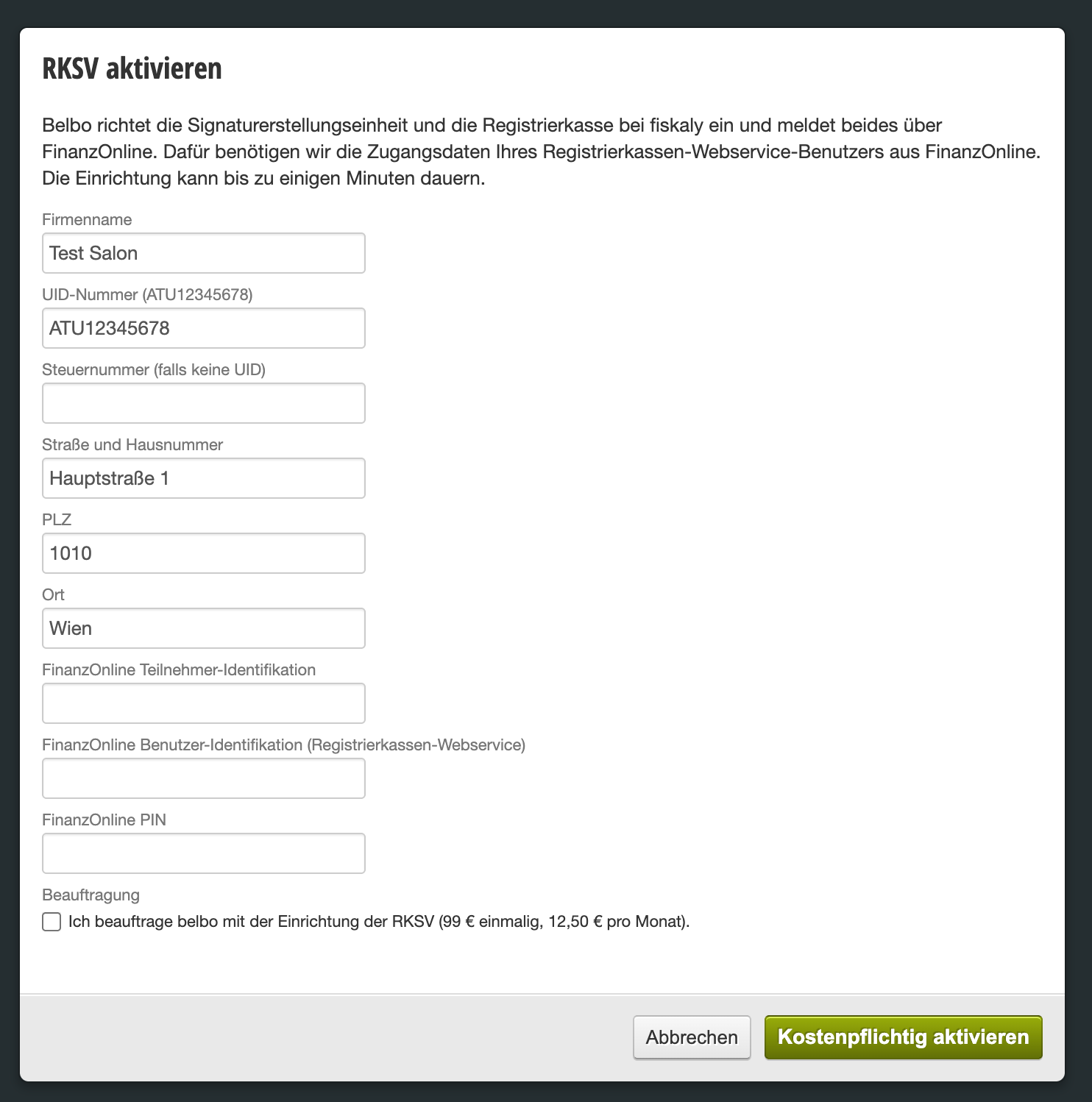
- 4Under Authorization, check the box (costs will be displayed there) and click "Activate (Paid)".
- 5Belbo will now set up the signature creation unit and the cash register and automatically register both via FinanzOnline. This may take a few minutes. Afterwards, Cash Register Status, Register ID, and Signature Creation Unit will be filled in on the Settings tab. If something doesn't work, you can see the reason under Last Error.
Creating a Web Service User in FinanzOnline
If you don't yet have a Cash Register Web Service User, create one in FinanzOnline in the user administration (User Type Web Service, permission for the Cash Register Web Service Interface). Your tax advisor can assist you with this. Do not use your personal FinanzOnline login credentials for this.
Other Areas
- Invoices – the signed receipts from your cash register.
- Start, Monthly, and Annual Receipts – the legally required special receipts (see below).
- DEP Backups – backups of the data collection protocol, which you must retain for 7 years.
Checking the Start Receipt
When the register is put into operation, it creates a start receipt. After registration, scan its QR code with the BMF Receipt Check App – this completes the commissioning. Keep the start receipt.
Special Receipts During Operation
| Receipt | When? | What to do? |
|---|---|---|
| Start Receipt | When the register is put into operation | Verify with the BMF Receipt Check App and keep it |
| Monthly Receipt | At the end of each month | Generated as a zero receipt, no further action required |
| Annual Receipt | Monthly receipt for December | Verify with the BMF Receipt Check App by February 15th at the latest and retain for 7 years |
| Closing Receipt | When the register is decommissioned | Report decommissioning at FinanzOnline |