
belbo
  • Overview
    • Getting to know Belbo
    • Location Settings
    • Switch to Belbo
    • Calendar View & Navigation
    • Recurring Appointments & Courses
    • Appointment Entry & Management
    • Logins & Permissions
    • Multiple Locations & Head Office
    • Manage Employees
    • Absences & Holidays
    • General
    • Working Hours
    • Time Tracking
    • Data Protection (GDPR)
    • Customer Communication (Email, SMS)
    • Customer Management & Records
    • Bonus & Loyalty Programs
    • Campaigns (Newsletter & SMS)
    • Marketing Consents (GDPR)
    • Tracking & Analytics
    • Overview
    • Services & Prices
    • Products
    • Service Packages & Subscriptions
    • Vouchers
    • Purchasing & Suppliers
    • Inventory & Stock Audit
    • Scanning & Sales
    • Materials & Costs
    • Design & Texts
    • Setup & Settings
    • Integration (Website, Google, Instagram, Facebook)
    • Online payment
    • Accounting & Exports
    • Cash Register Settings & Hardware
    • Checkout process
    • Daily Closing & Reports
    • TSE & Cash Register Anti-Tampering Ordinance
    • Export Overview
    • Employee Utilization
    • Revenue & Reports
    • Belbo Satellite
    • Printer
    • EC Terminal & Card Payment
    • Troubleshooting Hardware
    • Scanner & POS Devices
    • General Settings
    • API & Integrations
    • Notifications & Emails
    • Contracts & Legal
Skip to content

Service Sequence

Set the order of your services that will be entered into the calendar when a customer books an appointment online. Regardless of the order in which the customer selecting services online chooses the services, you can determine the order in which the services should be performed.

Application example hairdresser:
A customer selects a haircut first in the online booking and then also decides on a coloration and styling. In the calendar, the services are always entered in the order you have specified, for example "1) Coloration > 2) Cut > 3) Styling".
Application example cosmetics:
A customer books an evening makeup first and then additionally decides on lash extensions. In the calendar, the services are always entered in the order you have specified, for example "1) Lash extensions > 2) Evening makeup".

You can access this area via Settings > Online booking > Order
If this function is not enabled, it can be activated via "Settings > Add function".

Set service order

Go to Settings > Online booking and click on the "Order" tab. All services that you have created in the service overview are displayed here.
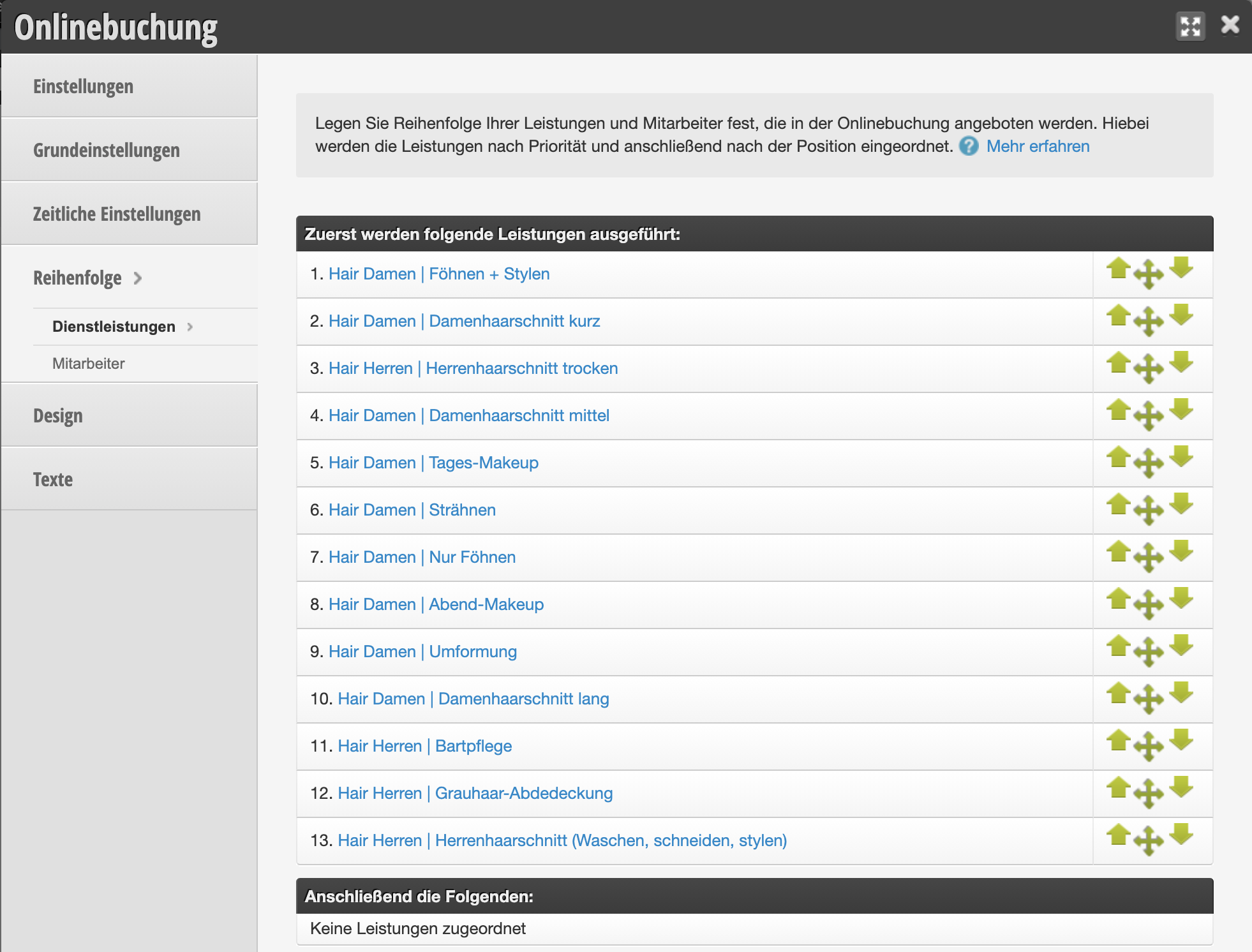
If services are in a common group, the order cannot be set. Therefore, sort all services into hierarchical groups using the arrow buttons:
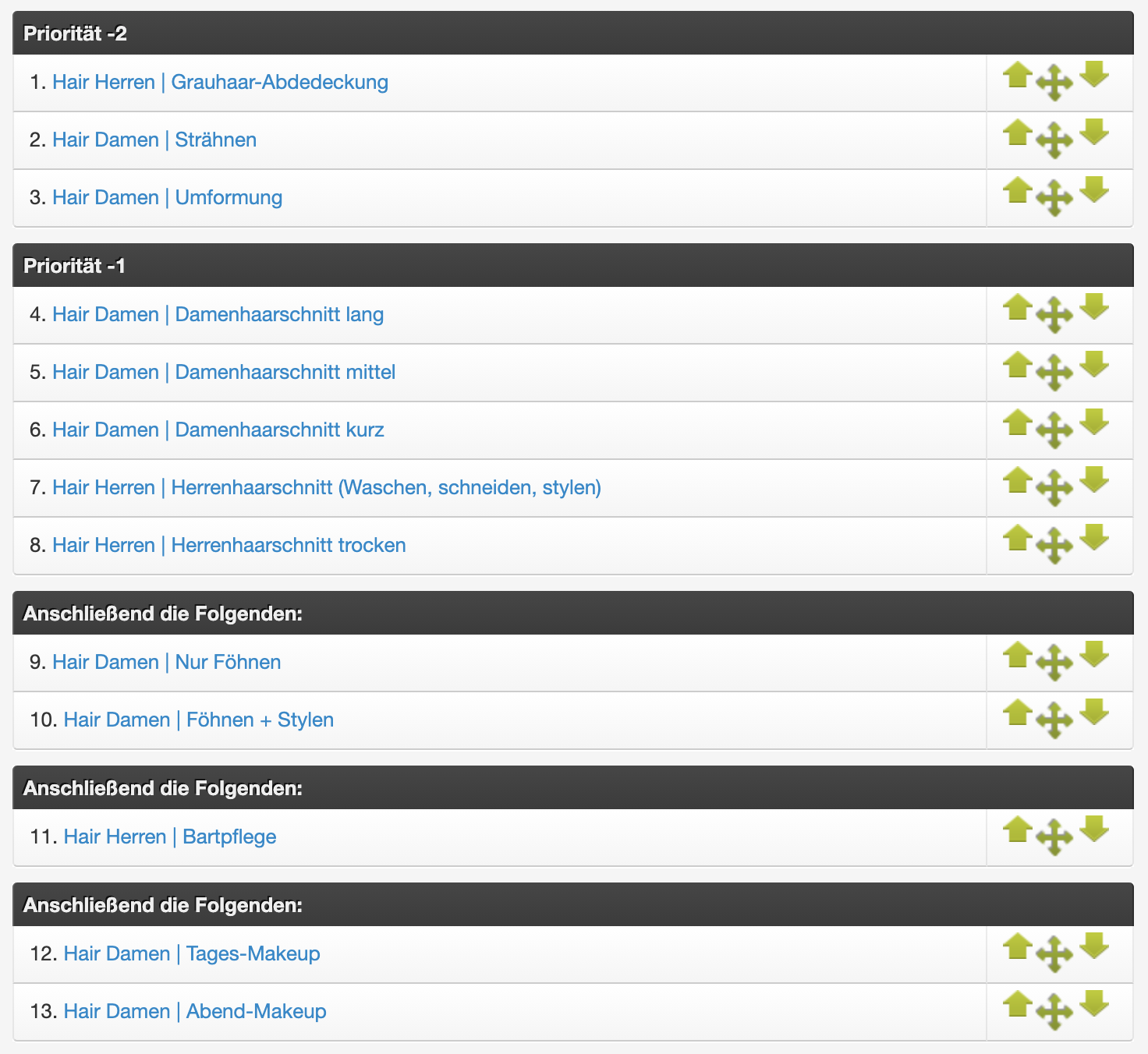
Even if a customer online first clicks on "Blow dry & styling" and then selects the cut, then decides on an evening makeup and then books highlights, all services will be entered into the calendar in the specified order. In our example "1) Highlights > 2) Cut > 3) Styling > 4) Evening makeup".

By the way, we offer the special option that certain services can be inserted during processing times, or must be performed directly before or after the processing time. You can learn more about this under Processing time additional settings

[video_embed maxwidth="560"][/video_embed]

You can find an overview of all online booking settings here.
Categories: Services & Prices
Tags: Leistungen, Reihenfolge
This manual is a service by belbo. Legal notice