With the follow-up function, you can display customer files in the calendar to keep important tasks in view.
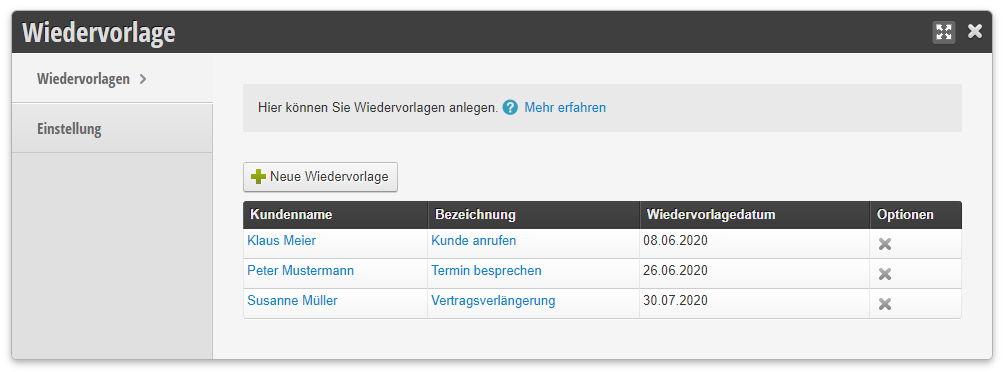
Add and edit follow-up
1. Within the function
Click on the "Add new follow-up" field.
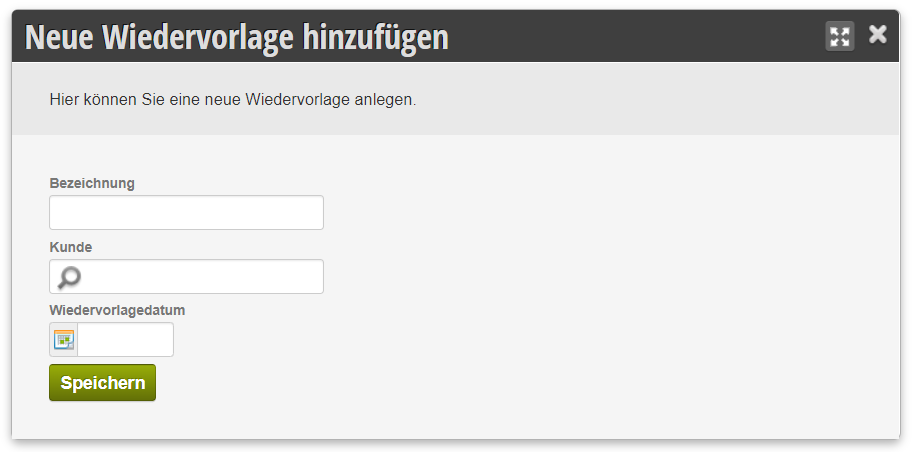
Set a label and select the customer and the follow-up date. Click "Save".
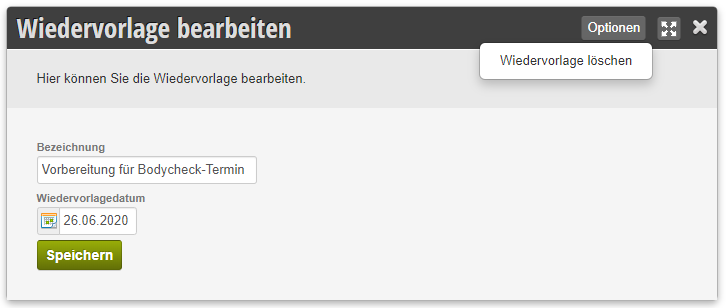
To edit an existing follow-up, click on the customer name or the label and make the desired changes.
2. Within the customer file
Open the customer file and click on the "Follow-ups" tab.
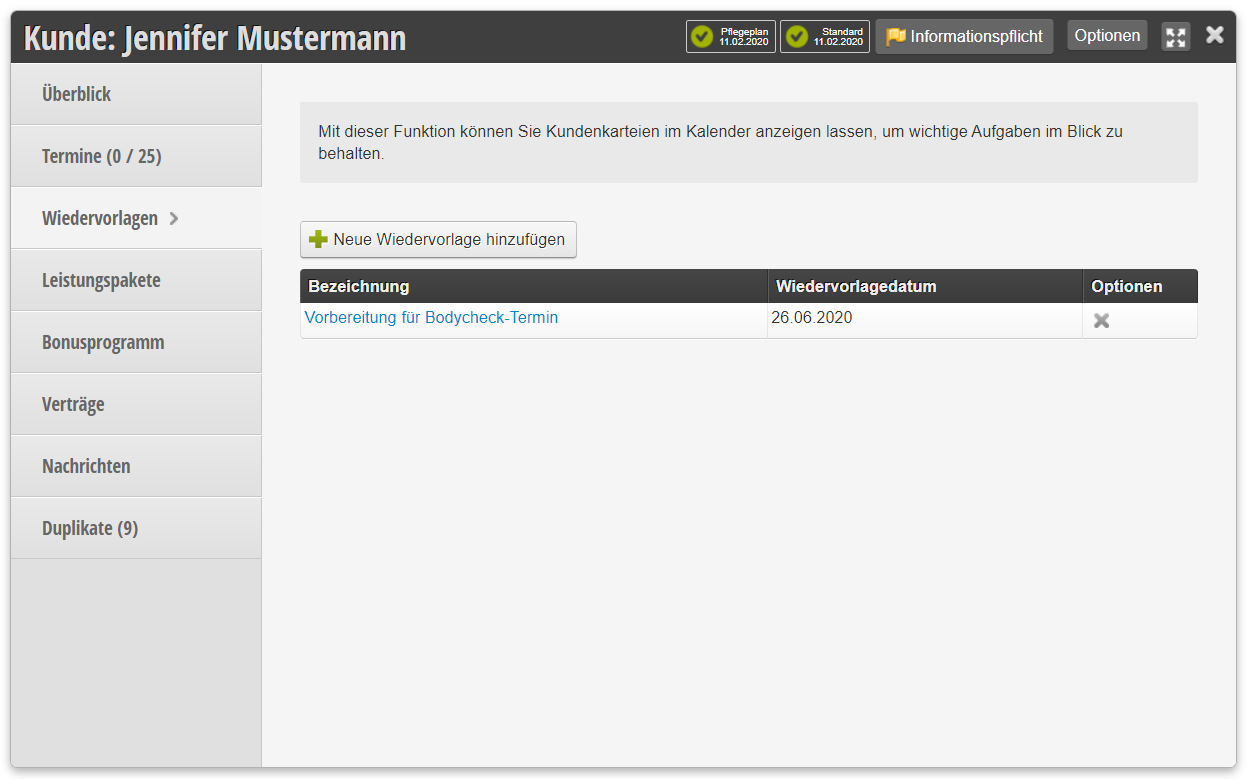
You can then add or edit a new follow-up as described above.
View in the calendar
In the calendar view, the follow-ups for the respective date appear as a blue flag next to the date.
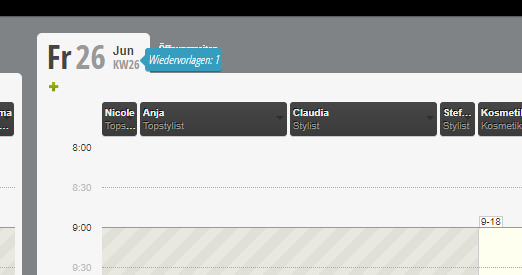
By clicking on the flag, you will go to the overview of follow-ups for that day. Click on the customer name or the label to edit the follow-up, or use the Options field to delete the follow-up.